---
title: Create and Manage Multiple Pages in Your Event Registration Website
description: Learn how to create, edit, and manage pages in your EventMobi event website, including setting a homepage, publishing pages, managing navigation, and updating URLs.
---
[Skip to content](https://help.eventmobi.com/en/knowledge/multipage-website#main-content)
English
Show submenu for translations
[![1589391206704.png\]](https://help.eventmobi.com/hs-fs/hubfs/1589391206704.png?width=40&height=40&name=1589391206704.png)](https://help.eventmobi.com/?hsLang=en)
- [EventMobi Knowledge Base](https://help.eventmobi.com/)
Open main navigation
Close main navigation
- [EventMobi Knowledge Base](https://help.eventmobi.com/)
- English
Show submenu for translations
- [Product Updates & Feedback](https://updates.eventmobi.com/)
[Product Updates & Feedback](https://updates.eventmobi.com/)
What can we help you with?
- There are no suggestions because the search field is empty.
1. [EventMobi Knowledge Base](https://help.eventmobi.com/en/knowledge?hsLang=en)
2. [Registration](https://help.eventmobi.com/en/knowledge/registration?hsLang=en)
3. [Content](https://help.eventmobi.com/en/knowledge/registration?hsLang=en#content)
April 29, 2026
# Create and Manage Multiple Pages in Your Event Registration Website
## EventMobi’s Website Builder allows you to create engaging multi-page registration sites to organize information like agendas, speakers, sponsors, and venue details. You can build either a single- or multi-page website with fully branded headers and footers.
#### ****
#### **In this article:**
**[1. Create a New Page](https://help.eventmobi.com/en/knowledge/multipage-website#Create-a-new-page)
[2. Determine and Set a Page as the Homepage](https://help.eventmobi.com/en/knowledge/multipage-website#Determine-and-Set-a-Page-as-the-Homepage)**
[**3.**](https://help.eventmobi.com/en/knowledge/multipage-website#Edit-Page-Content)**[Edit Page Content](https://help.eventmobi.com/en/knowledge/multipage-website#Edit-Page-Content)
[4. Page Visibility Status](https://help.eventmobi.com/en/knowledge/multipage-website#Page-Visibility-Status)
[5. Publishing Your Website](https://help.eventmobi.com/en/knowledge/multipage-website#Publishing-Your-Website)
[6. Navigation](https://help.eventmobi.com/en/knowledge/multipage-website#Navigation)
[7. URL Slugs](https://help.eventmobi.com/en/knowledge/multipage-website#URL-Slugs)
[8. FAQ](https://help.eventmobi.com/en/knowledge/multipage-website#FAQ)**
#### **Create a New Page**
To add a page to your event website:
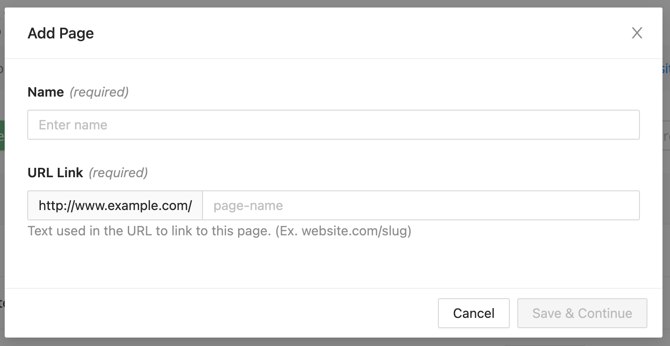
1. Go to **Website Builder**.
2. Click **New Page**.
3. Enter a **Page Name**.
4. Edit the **URL Slug** if needed.
5. Choose a **template** or design the page from scratch.
6. Click **Save & Continue**.
****
**Determine and Set a Page as the Homepage**
Your website’s homepage is the main page visitors see when they access your website.
To set a homepage:
1. Choose the page that will act as the homepage.
2. To the right of the row, open **Page Details**.
3. Select **Set as Homepage**.
Only **one page can be the homepage** at a time.
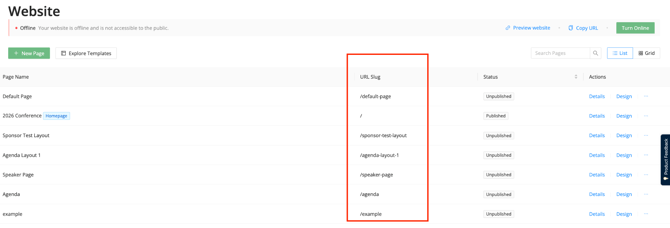
While pages that are not the homepage will have a URL slug, such as:
/agenda
/speakers
/sponsors
The home page will have no URL slug and will be the first page that is seen when the website is visited.
You can see all your URL slugs on the page directory, along with the page name and current status:
#### **Edit Page Content**
To design or edit a page:
1. Go to **Website Builder**.
2. Find the page you want to edit or select + New Page.
3. When designing a new page, there are multiple page templates to choose from, or design your own by selecting 'Blank Page \> Design Your Own'.
**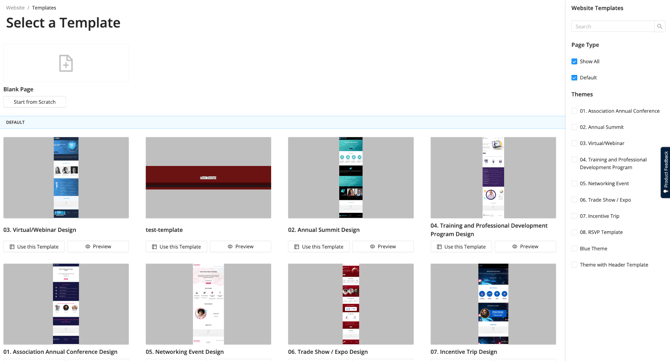**
Once you've selected a template or decided to start from scratch, the **EventMobi Website Builder** opens, where you can:
- Add content blocks
- Adjust layouts
- Edit images and text
- Preview desktop and mobile views
Read more about how to design pages in **[Website Builder: Build and Publish Your Core Registration Website.](https://help.eventmobi.com/en/knowledge/website-builder?hsLang=en)**
#### **Page Visibility Status**
Each page has a status:
| **Status** | **Description** |
| --- | --- |
| **Published** | The page is live on the website |
| **Unpublished** | The page is saved but not visible to visitors |
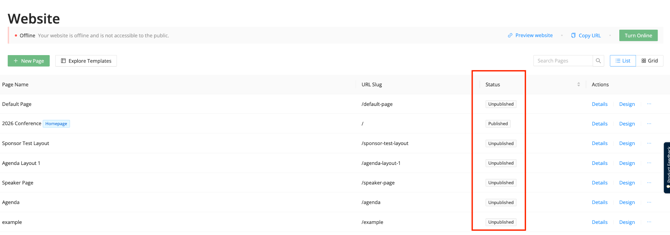
Unpublished pages are useful when you are still building or editing content. You can update the status of each page by clicking on the three dots to the far right of the screen.
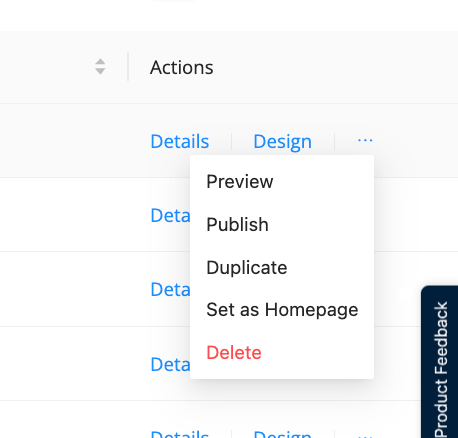
The current status of each page is listed on the page directory:
#### **Publishing Your Website**
Your website must be **turned online and the page status published** for changes to appear on the live site.
⚠️ **Important:** When you publish the website:
- All published changes become live
- Unpublished pages remain hidden
#### **Navigation**
Your website uses **one global navigation menu**.
Navigation typically appears in the **header** and helps visitors move between pages. Read more about creating website Headers and Footers in [Design a Multipage Website Using Synced Headers and Footers.](https://help.eventmobi.com/en/knowledge/multipage-website-using-synced-headers-and-footers?hsLang=en)
You can:
- Add pages to navigation
- Reorder navigation items
- Rename navigation labels
- Include a call-to-action button (optional)
There is **no limit** to the number of navigation items you can include.
#### **URL Slugs**
Each page has a **URL slug**, which determines its web address.
Example:
**Page name:** Agenda
**URL slug:** /agenda
*You can edit the slug anytime.*
⚠️ **Important:** Changing a URL slug **does not automatically redirect the previous URL**.
If you change a page’s URL, update any links that point to the old address.
### **FAQ**
### **Can I create unlimited pages?**
Yes. Your registration website can contain as many pages as you'd like. For best practices when designing your registration website, please visit [Website Design Guide](https://help.eventmobi.com/en/knowledge/-website-design-guide?hsLang=en).
### **Can I publish only one page?**
No. Publishing applies to the **entire website**
### **Can I save a page without publishing it?**
Yes. Pages can remain **unpublished** until you are ready to make them live.
### **Can any page be the homepage?**
Yes. Any page can be set as the homepage.
### **Can I edit a page after publishing?**
Yes. Changes can be saved and republished at any time.
- [Event Organizers](https://help.eventmobi.com/en/knowledge/event-organizers?hsLang=en#main-content)
- [Experience Manager](https://help.eventmobi.com/en/knowledge/event-organizers?hsLang=en#experience-manager)
- [Attendee Engagement](https://help.eventmobi.com/en/knowledge/event-organizers?hsLang=en#attendee-engagement)
- [Branding & Design](https://help.eventmobi.com/en/knowledge/event-organizers?hsLang=en#branding-design)
- [Creating Profiles & Sessions](https://help.eventmobi.com/en/knowledge/event-organizers?hsLang=en#creating-profiles-sessions)
- [Event Communications](https://help.eventmobi.com/en/knowledge/event-organizers?hsLang=en#event-communications)
- [Onsite Events](https://help.eventmobi.com/en/knowledge/event-organizers?hsLang=en#onsite-events)
- [Virtual Events](https://help.eventmobi.com/en/knowledge/event-organizers?hsLang=en#virtual-events)
- [Core Registration](https://help.eventmobi.com/en/knowledge/event-organizers?hsLang=en#core-registration)
- [Extended Registration](https://help.eventmobi.com/en/knowledge/event-organizers?hsLang=en#extended-registration)
- [Reporting](https://help.eventmobi.com/en/knowledge/event-organizers?hsLang=en#reporting)
- [Sharing Resources](https://help.eventmobi.com/en/knowledge/event-organizers?hsLang=en#sharing-resources)
- [Sponsorship](https://help.eventmobi.com/en/knowledge/event-organizers?hsLang=en#sponsorship)
- [Launch the Event App](https://help.eventmobi.com/en/knowledge/event-organizers?hsLang=en#launch-the-event-app)
- [Event Services](https://help.eventmobi.com/en/knowledge/event-organizers?hsLang=en#event-services)
- [Event Information & Settings](https://help.eventmobi.com/en/knowledge/event-organizers?hsLang=en#event-information-settings)
- [Privacy & Security](https://help.eventmobi.com/en/knowledge/event-organizers?hsLang=en#privacy-security)
- [What's New](https://help.eventmobi.com/en/knowledge/event-organizers?hsLang=en#whats-new)
- [Call For Speakers](https://help.eventmobi.com/en/knowledge/event-organizers?hsLang=en#call-for-speakers)
- [Attendees & Speakers](https://help.eventmobi.com/en/knowledge/attendees-speakers?hsLang=en#main-content)
- [Using the Event App](https://help.eventmobi.com/en/knowledge/attendees-speakers?hsLang=en#using-the-event-app)
- [Access Resources as an Attendee](https://help.eventmobi.com/en/knowledge/attendees-speakers?hsLang=en#access-resources-as-an-attendee)
- [Share Resources as a Speaker](https://help.eventmobi.com/en/knowledge/attendees-speakers?hsLang=en#share-resources-as-a-speaker)
- [Manage Event Communications](https://help.eventmobi.com/en/knowledge/attendees-speakers?hsLang=en#manage-event-communications)
- [Connect With Others at the Event](https://help.eventmobi.com/en/knowledge/attendees-speakers?hsLang=en#connect-with-others-at-the-event)
- [Sponsors & Exhibitors](https://help.eventmobi.com/en/knowledge/sponsors-exhibitors?hsLang=en#main-content)
- [Exhibiting at an Event](https://help.eventmobi.com/en/knowledge/sponsors-exhibitors?hsLang=en#exhibiting-at-an-event)
- [Integration Hub](https://help.eventmobi.com/en/knowledge/integration-hub?hsLang=en#main-content)
- [EventMobi Integration Hub Solution](https://help.eventmobi.com/en/knowledge/integration-hub?hsLang=en#eventmobi-integration-hub-solution)
- [Simplify Your Processes with Automations](https://help.eventmobi.com/en/knowledge/integration-hub?hsLang=en#simplify-your-processes-with-automations)
- [Integrations from EventMobi to your solution](https://help.eventmobi.com/en/knowledge/integration-hub?hsLang=en#integrations-from-eventmobi-to-your-solution)
- [Integrations from your solution to EventMobi](https://help.eventmobi.com/en/knowledge/integration-hub?hsLang=en#integrations-from-your-solution-to-eventmobi)
- [Registration](https://help.eventmobi.com/en/knowledge/registration?hsLang=en#main-content)
- [Content](https://help.eventmobi.com/en/knowledge/registration?hsLang=en#content)
- [Design](https://help.eventmobi.com/en/knowledge/registration?hsLang=en#design)
[.png?width=147&height=34&name=EMI-logo-colour-dark-letters%20(1).png "EMI-logo-colour-dark-letters (1)")](https://www.eventmobi.com/)
© 2025 EventMobi™ A Trademark and Tradename of 5Touch Solutions Inc.
[Change your cookie preferences](https://www.eventmobi.com/cookie-declaration/)