---
title: Understanding Reusable Sections
description: This article explains how to use reusable sections to efficiently manage repeated content across your website. Reusable sections are commonly used for elements like headers, footers, and navigation menus—components that are typically displayed on multiple pages. By using this feature, you can maintain consistency throughout your site while reducing the need for repetitive updates.
---
[Skip to content](https://help.eventmobi.com/en/knowledge/understanding-reusable-sections#main-content)
English
Show submenu for translations
[![1589391206704.png\]](https://help.eventmobi.com/hs-fs/hubfs/1589391206704.png?width=40&height=40&name=1589391206704.png)](https://help.eventmobi.com/?hsLang=en)
- [EventMobi Knowledge Base](https://help.eventmobi.com/)
Open main navigation
Close main navigation
- [EventMobi Knowledge Base](https://help.eventmobi.com/)
- English
Show submenu for translations
- [Product Updates & Feedback](https://updates.eventmobi.com/)
[Product Updates & Feedback](https://updates.eventmobi.com/)
What can we help you with?
- There are no suggestions because the search field is empty.
1. [EventMobi Knowledge Base](https://help.eventmobi.com/en/knowledge?hsLang=en)
2. [Event Organizers](https://help.eventmobi.com/en/knowledge/event-organizers?hsLang=en)
3. [Core Registration](https://help.eventmobi.com/en/knowledge/event-organizers?hsLang=en#core-registration)
April 29, 2026
# Understanding Reusable Sections
## This article explains how to use reusable sections to efficiently manage repeated content across your website. Reusable sections are commonly used for elements like headers, footers, and navigation menus—components that are typically displayed on multiple pages. By using this feature, you can maintain consistency throughout your site while reducing the need for repetitive updates.
#### Table of Contents: [1. What Is A Reusable Section?](https://help.eventmobi.com/en/knowledge/understanding-reusable-sections#reusuable-section) [2. How To Set It Up](https://help.eventmobi.com/en/knowledge/understanding-reusable-sections#how-to-set-up)
---
### What is a Reusable sections?
A **Reusable Sections** is a reusable part of your website that can be applied across multiple pages while remaining connected.
This means that instead of editing the same section individually on each page, you can manage it in one place and have changes automatically reflected wherever it is used.
#### Example
A header menu is usually visible on all pages to help users navigate your website. By using a reusable section, you can update the menu once and ensure the changes appear across all pages where it is applied.
---
#### How It Works
When you save a section, you make it available for reuse across different pages of your website.
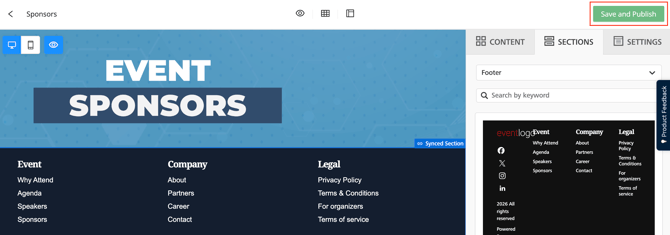
If the section is saved as **synced**, it becomes a shared element. Any updates made to that section will automatically apply to all pages where it has been added.
**It’s important to note that saving a section does not automatically place it on other pages—you will still need to manually apply it where needed.**
---
### How to Set It Up
#### Step 1: Save the Section
1. Hover over the section (e.g., header or footer)
*(Make sure you select the section itself, not the content inside it)*
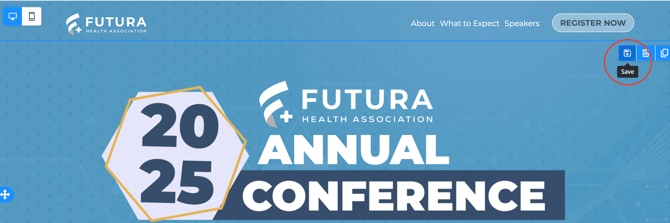
2. Click the **Save icon**
3. Fill in the required fields:
1. - **Section Name** – e.g., “Main Header” or “Footer”
- **Section Category** – used to organize your saved sections.
- Select the **Section Type**:
- - - **Regular Section**
- Creates a reusable copy of the section
- Each use becomes an independent version
- Changes made later will only apply to that specific instance
- **Best used when:** You want to reuse a layout but customize the content on different pages.
- - - **Synced Section**
- Creates a shared section across multiple pages
- All instances remain connected
- Updates automatically apply everywhere the section is used
- **Best used when:** You want consistent content across pages, such as headers, footers, or navigation menus.
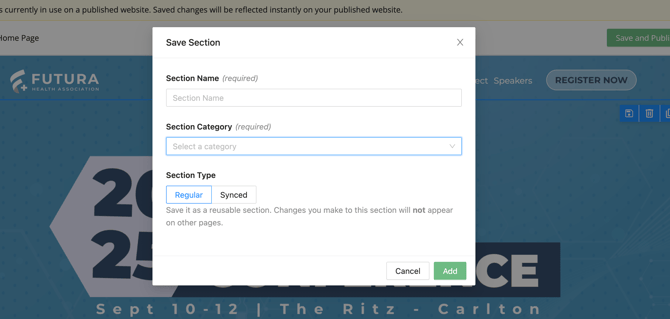
4. **Click Save**
---
#### Step 2: Apply the Section to Other Pages
1. Go to the page where you want the section to appear
2. Locate the section area (e.g., header or footer)
If you are using a template, a section may already be present, but it is not automatically synced.
**To apply your saved section:**
1. Delete the existing content inside the section
2. Click the section dropdown (commonly labeled “Empty”)
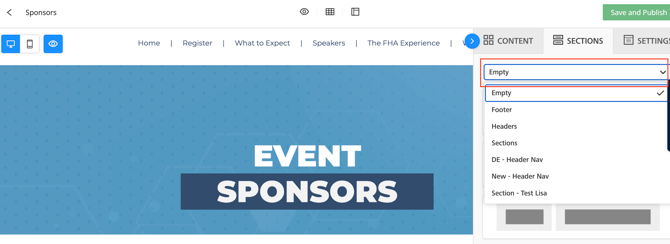
3. Select your saved section
---
#### Important Notes
- Saving a section does **not automatically apply it to all pages**
- You must manually select and apply it on each page
- Templates do not automatically sync sections
- Only **synced sections** will update across multiple pages
- Regular sections act independently after being added
---
#### Key Takeaway
Saving a section allows you to reuse content across your website, while the section type determines how updates behave:
- Use **Regular** for flexibility and page-specific edits
- Use **Synced** for consistency and centralized updates
- [Event Organizers](https://help.eventmobi.com/en/knowledge/event-organizers?hsLang=en#main-content)
- [Experience Manager](https://help.eventmobi.com/en/knowledge/event-organizers?hsLang=en#experience-manager)
- [Attendee Engagement](https://help.eventmobi.com/en/knowledge/event-organizers?hsLang=en#attendee-engagement)
- [Branding & Design](https://help.eventmobi.com/en/knowledge/event-organizers?hsLang=en#branding-design)
- [Creating Profiles & Sessions](https://help.eventmobi.com/en/knowledge/event-organizers?hsLang=en#creating-profiles-sessions)
- [Event Communications](https://help.eventmobi.com/en/knowledge/event-organizers?hsLang=en#event-communications)
- [Onsite Events](https://help.eventmobi.com/en/knowledge/event-organizers?hsLang=en#onsite-events)
- [Virtual Events](https://help.eventmobi.com/en/knowledge/event-organizers?hsLang=en#virtual-events)
- [Core Registration](https://help.eventmobi.com/en/knowledge/event-organizers?hsLang=en#core-registration)
- [Extended Registration](https://help.eventmobi.com/en/knowledge/event-organizers?hsLang=en#extended-registration)
- [Reporting](https://help.eventmobi.com/en/knowledge/event-organizers?hsLang=en#reporting)
- [Sharing Resources](https://help.eventmobi.com/en/knowledge/event-organizers?hsLang=en#sharing-resources)
- [Sponsorship](https://help.eventmobi.com/en/knowledge/event-organizers?hsLang=en#sponsorship)
- [Launch the Event App](https://help.eventmobi.com/en/knowledge/event-organizers?hsLang=en#launch-the-event-app)
- [Event Services](https://help.eventmobi.com/en/knowledge/event-organizers?hsLang=en#event-services)
- [Event Information & Settings](https://help.eventmobi.com/en/knowledge/event-organizers?hsLang=en#event-information-settings)
- [Privacy & Security](https://help.eventmobi.com/en/knowledge/event-organizers?hsLang=en#privacy-security)
- [What's New](https://help.eventmobi.com/en/knowledge/event-organizers?hsLang=en#whats-new)
- [Call For Speakers](https://help.eventmobi.com/en/knowledge/event-organizers?hsLang=en#call-for-speakers)
- [Attendees & Speakers](https://help.eventmobi.com/en/knowledge/attendees-speakers?hsLang=en#main-content)
- [Using the Event App](https://help.eventmobi.com/en/knowledge/attendees-speakers?hsLang=en#using-the-event-app)
- [Access Resources as an Attendee](https://help.eventmobi.com/en/knowledge/attendees-speakers?hsLang=en#access-resources-as-an-attendee)
- [Share Resources as a Speaker](https://help.eventmobi.com/en/knowledge/attendees-speakers?hsLang=en#share-resources-as-a-speaker)
- [Manage Event Communications](https://help.eventmobi.com/en/knowledge/attendees-speakers?hsLang=en#manage-event-communications)
- [Connect With Others at the Event](https://help.eventmobi.com/en/knowledge/attendees-speakers?hsLang=en#connect-with-others-at-the-event)
- [Sponsors & Exhibitors](https://help.eventmobi.com/en/knowledge/sponsors-exhibitors?hsLang=en#main-content)
- [Exhibiting at an Event](https://help.eventmobi.com/en/knowledge/sponsors-exhibitors?hsLang=en#exhibiting-at-an-event)
- [Integration Hub](https://help.eventmobi.com/en/knowledge/integration-hub?hsLang=en#main-content)
- [EventMobi Integration Hub Solution](https://help.eventmobi.com/en/knowledge/integration-hub?hsLang=en#eventmobi-integration-hub-solution)
- [Simplify Your Processes with Automations](https://help.eventmobi.com/en/knowledge/integration-hub?hsLang=en#simplify-your-processes-with-automations)
- [Integrations from EventMobi to your solution](https://help.eventmobi.com/en/knowledge/integration-hub?hsLang=en#integrations-from-eventmobi-to-your-solution)
- [Integrations from your solution to EventMobi](https://help.eventmobi.com/en/knowledge/integration-hub?hsLang=en#integrations-from-your-solution-to-eventmobi)
- [Registration](https://help.eventmobi.com/en/knowledge/registration?hsLang=en#main-content)
- [Content](https://help.eventmobi.com/en/knowledge/registration?hsLang=en#content)
- [Design](https://help.eventmobi.com/en/knowledge/registration?hsLang=en#design)
[.png?width=147&height=34&name=EMI-logo-colour-dark-letters%20(1).png "EMI-logo-colour-dark-letters (1)")](https://www.eventmobi.com/)
© 2025 EventMobi™ A Trademark and Tradename of 5Touch Solutions Inc.
[Change your cookie preferences](https://www.eventmobi.com/cookie-declaration/)