![1589391206704.png]](https://help.eventmobi.com/hs-fs/hubfs/1589391206704.png?width=40&height=40&name=1589391206704.png)
Table of Content:
- How Attendees Can Access the Event
- Mobile Access Options
- Desktop Access
- Login Process
- Troubleshooting Login & Verification Emails
- Where to Find Your Event & Core Registration Links
- How to Share Access With Your Attendees
- via Self-Edit Links
- via Announcements
- via Email Campaigns
- Best Practices for Sharing Access
1. How Attendees Can Access the Event
Mobile Access Options
Depending on your app setup, attendees can access the event on their mobile device in one of the following ways:
1. Web App (Mobile Browser)
|
Attendees can access your event URL (e.g., To enhance their experience, they can bookmark the URL to their home screen by tapping the browser's menu icon and selecting "Add to Home Screen" or "Bookmark." This creates a direct link for quick access to event updates and schedules, which is especially useful for those with limited internet connectivity. |
 |
2. Event App by EventMobi
|
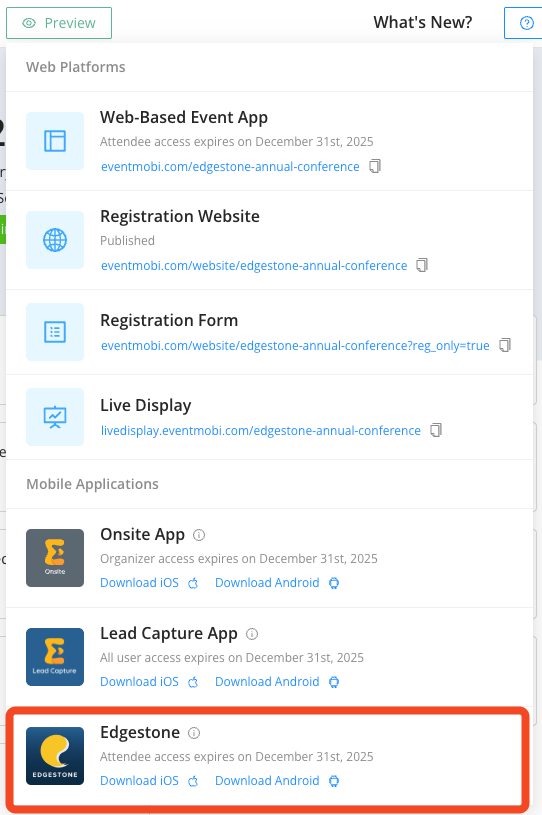
The Event App by EventMobi, available for download on both the App Store and Google Play, allows attendees to fully engage with your event experience. To get started, attendees can search for "EventMobi" in their app store and download the app, as illustrated in the accompanying screenshot or use these provided download links: Once the app is launched, attendees will need to enter the unique event code to add the event to their personal event list. |

|
This option displays EventMobi branding.
3. Branded App
Desktop Access
Attendees can access your event by opening the Event App link (e.g., eventmobi.com/eventcode) in any supported desktop browser.
This version is fully web-based and doesn't require any downloads or installations.
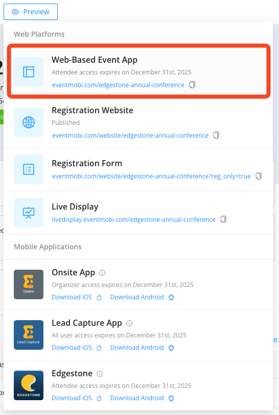
You can find the direct link to the web-based Event App in the Preview dropdown located in the top navigation bar of the Experience Manager.

Note: The browser-based version of the Event App can also be accessed on a mobile device. However, native push notifications are only supported on app-based versions (such as the EventMobi Universal App or a Branded App). In-app notifications will still appear as expected in both mobile and desktop browser versions.
Logging Into the Event
When accessing the Event App for the first time, attendees will be guided through a login process. The exact steps depend on whether the attendee is new to EventMobi or has used the platform before, and which login settings have been enabled for your event.
1. New Users
If the attendee has never accessed an EventMobi event before:
-
They will be prompted to enter their email address
-
Then, they’ll be asked to create a password
(Minimum 8 characters, including 1 letter, 1 number, and 1 special character)
2. Returning Users
If the attendee has previously accessed an EventMobi-powered event:
-
They will need to log in using their existing EventMobi password
(associated with their email address) -
If they’ve forgotten it, they can click “Forgot Password” to reset it via email
Email Verification (if enabled)
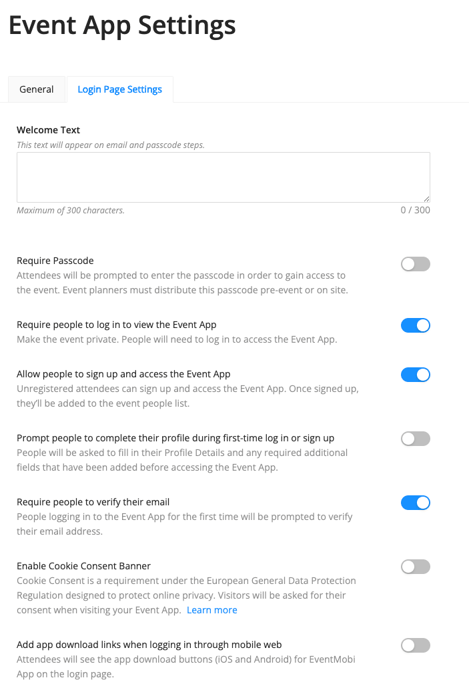
If the setting “Require people to verify their email” is enabled in your Experience Manager:
-
Attendees will first be prompted to verify their email address before entering a password
-
A system-generated verification email will be automatically sent to the email they entered
-
They must click the verification link in the email to confirm their identity
-
After verification, they’ll be redirected back to the login page to enter their password and access the event
Tip: Email deliverability can vary depending on the attendee’s network or inbox settings. Be sure to share whitelist instructions if needed.
Additional Login Settings
Event organizers can further customize the login experience, for example using the following options in Event App > Event App Settings > Login Page Settings in Experience Manager:
-
Require Passcode:
Require users to enter a custom passcode before accessing the email and password fields. -
Prompt people to complete their profile during first-time log in or sign up:
Prompt users to complete or update their profile information during their first login. -
Terms of Use Acceptance:
If you’ve added Terms of Use in the Privacy & Terms section, attendees must accept them before proceeding.
For a full overview of login options, refer to this article:
👉 Creating Your Login Page
Troubleshooting Login & Verification Emails
If attendees report not receiving the verification email:
-
Ask them to check their spam/junk folder
-
Confirm the sender address (defaults to
eventcode@event-emails.com) -
Recommend whitelisting the following: Whitelisting Instructions
If you're using a custom email address, make sure an SPF record is set up. Contact our Support Team at least 3 business days in advance.
Where to Find Your Event & Core Registration Links
To access and copy your event’s key URLs:
-
Go to the Experience Manager
-
Click the Preview button in the top navigation bar
-
Copy any of the following links:
-
Event App (Web App)
-
Website Landing Page
-
Registration Form
-
Live Display
-
Onsite App, Lead Capture App, Mobile Event App download links
-
How to Share Access With Your Attendees
You can share the event access instructions and URLs using the following tools:
1. Self-Edit Link (People Library)
Each attendee has a unique Self-Edit Link you can send via email, allowing them to update their profile and access the event.
2. Announcements
Use the Announcements feature to send:
-
In-app messages
-
Emails with access info or reminders
3. Email Campaigns (included in Event Marketing Package)
If enabled, Email Campaigns allow you to:
-
Send branded access emails at scale
-
Schedule reminders
-
Include download links and login instructions
4. Best Practices for Sharing Access
-
Add access instructions to registration confirmation emails
-
Send a reminder announcement or email 1–2 days before the event
-
Share app download links in advance (especially for Branded App users)
-
Prepare a short FAQ or login help article in your welcome email or onboarding material