![1589391206704.png]](https://help.eventmobi.com/hs-fs/hubfs/1589391206704.png?width=40&height=40&name=1589391206704.png)
This is an EventMobi to EventMobi Solution
Unlike other Integration Hub solutions that connect EventMobi with another platform, this solution connects one EventMobi event action to another EventMobi feature.
For example:
- An attendee checks in using the EventMobi Onsite App
- Integration Hub detects the check-in
- EventMobi completes a selected Gamification challenge for that attendee
- The attendee receives the points assigned to that challenge
Create Your Gamification Challenge First
Before installing this solution, you will need to create the Gamification challenge that should be completed automatically.
For example, if you want attendees to receive points when they check in, create a challenge called:
Check-in Reward
You will also need to add:
- The number of points attendees should receive
- The challenge code/passcode
- Whether the challenge should be enabled or hidden from attendees
The code you create for the challenge will also be used during the Integration Hub setup.
Use a Separate Challenge for Each Action
If you want to award points for both check-in and check-out, we recommend creating two separate Gamification challenges.
For example:
- Check-in Reward with code CHECKIN
- Check-out Reward with code CHECKOUT
This helps keep your reporting clean and ensures that each attendee action is rewarded separately.
Organizer Access Is Required
Only users with the Organizer role in EventMobi Experience Manager can access and configure integrations in Integration Hub.
⚙️ Setting Up the Gamification Rewards Solution
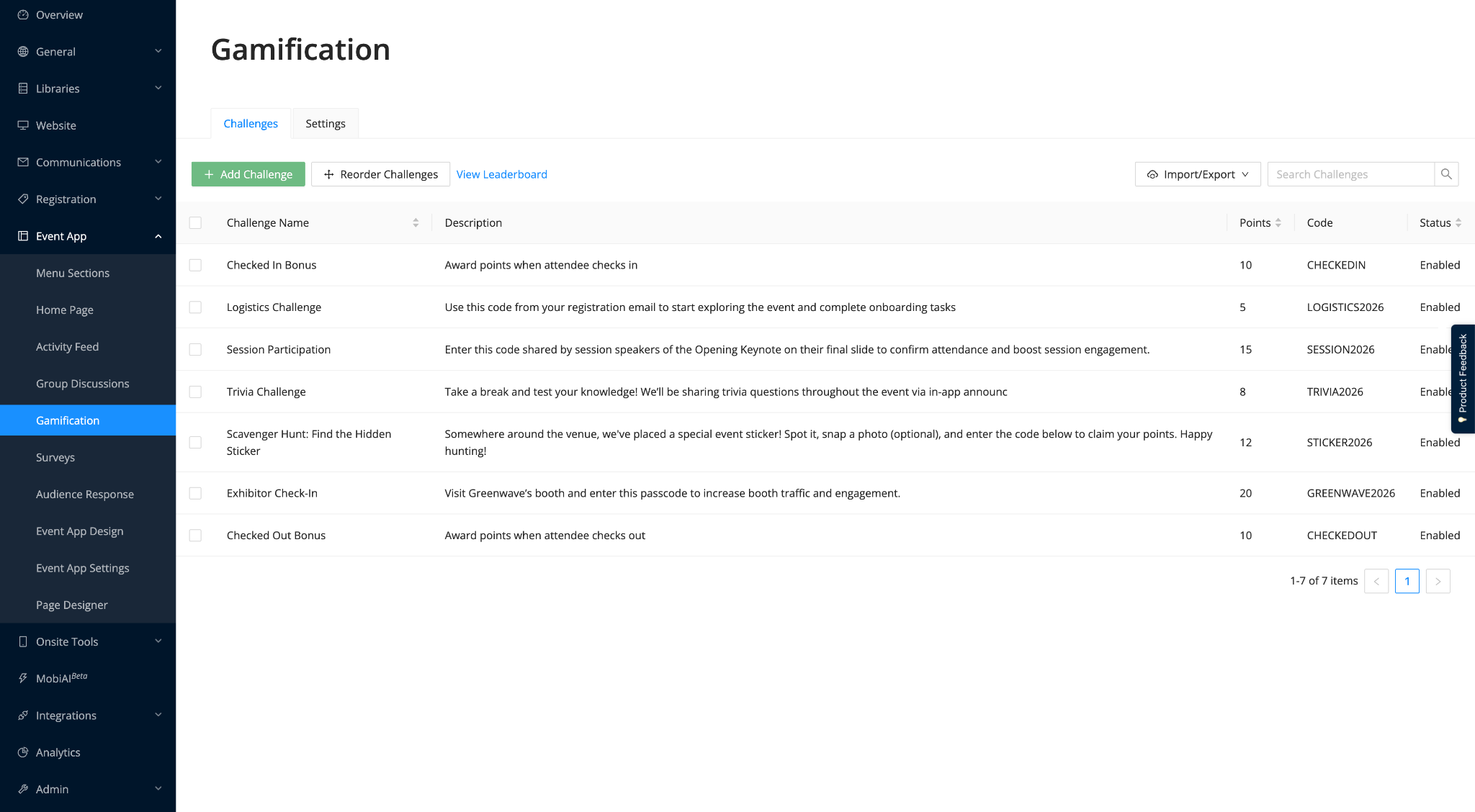
1. Create the Gamification Challenge
Before setting up the automation, create the challenge that attendees should receive points for.
In Experience Manager, go to:
Event App > Gamification > Challenges
Then click Add Challenge.
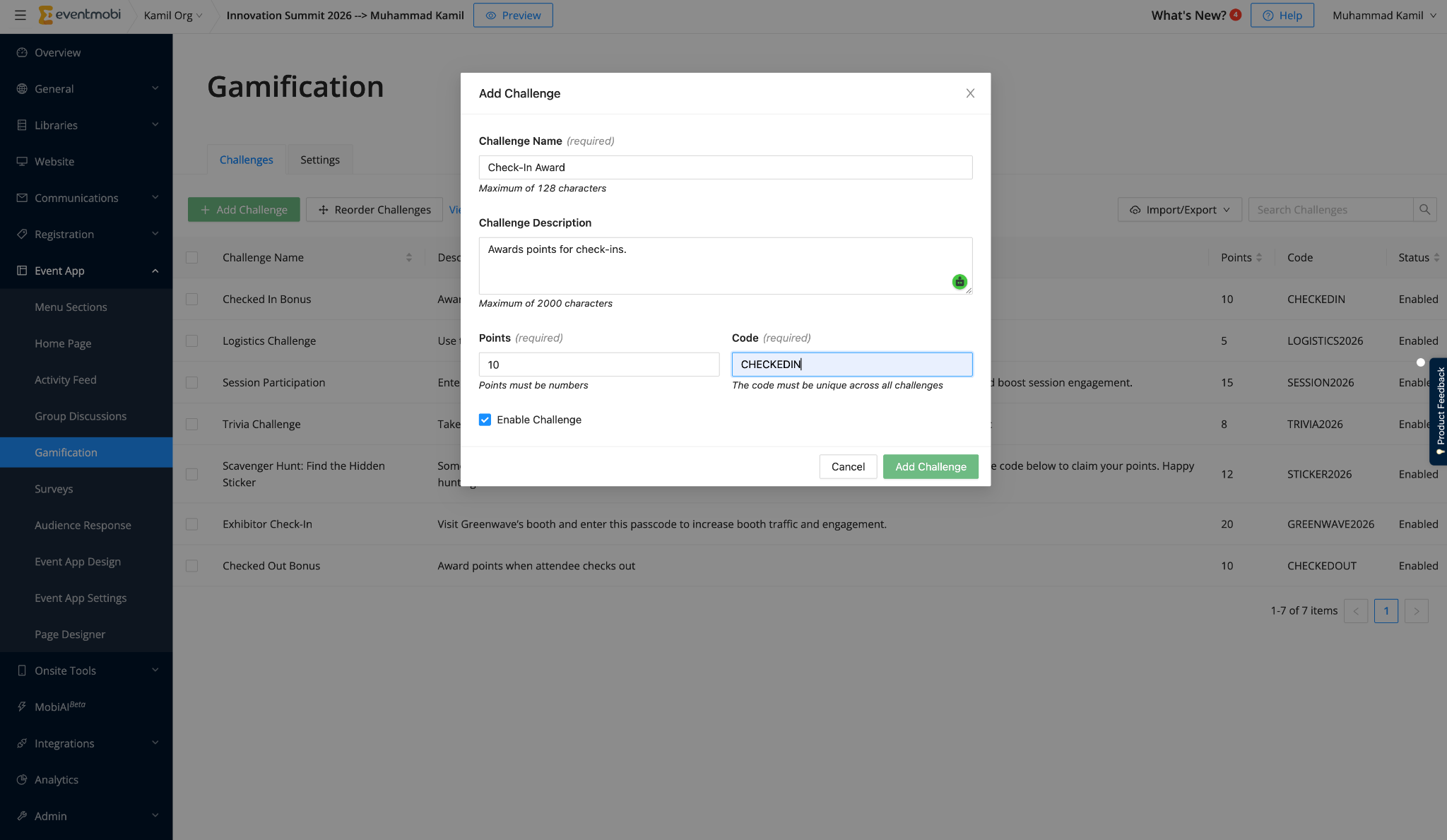
Fill in the challenge details:
- Challenge Name: Enter a clear name, such as Check-in Reward
- Challenge Description: Add a description if needed
- Points: Enter the number of points attendees should receive
- Code: Enter the challenge code/passcode, such as CHECKIN
- Enable Challenge: Choose whether the challenge should be visible to attendees
Click Add Challenge to save.
Should This Challenge Be Visible to Attendees?
If this challenge is only meant to be completed automatically through the integration, you may choose to hide it from attendees.
If the challenge is visible, attendees may also be able to complete it manually by entering the code in the Event App.
Use the setup that best matches your event experience.
2. Install the Solution in Integration Hub
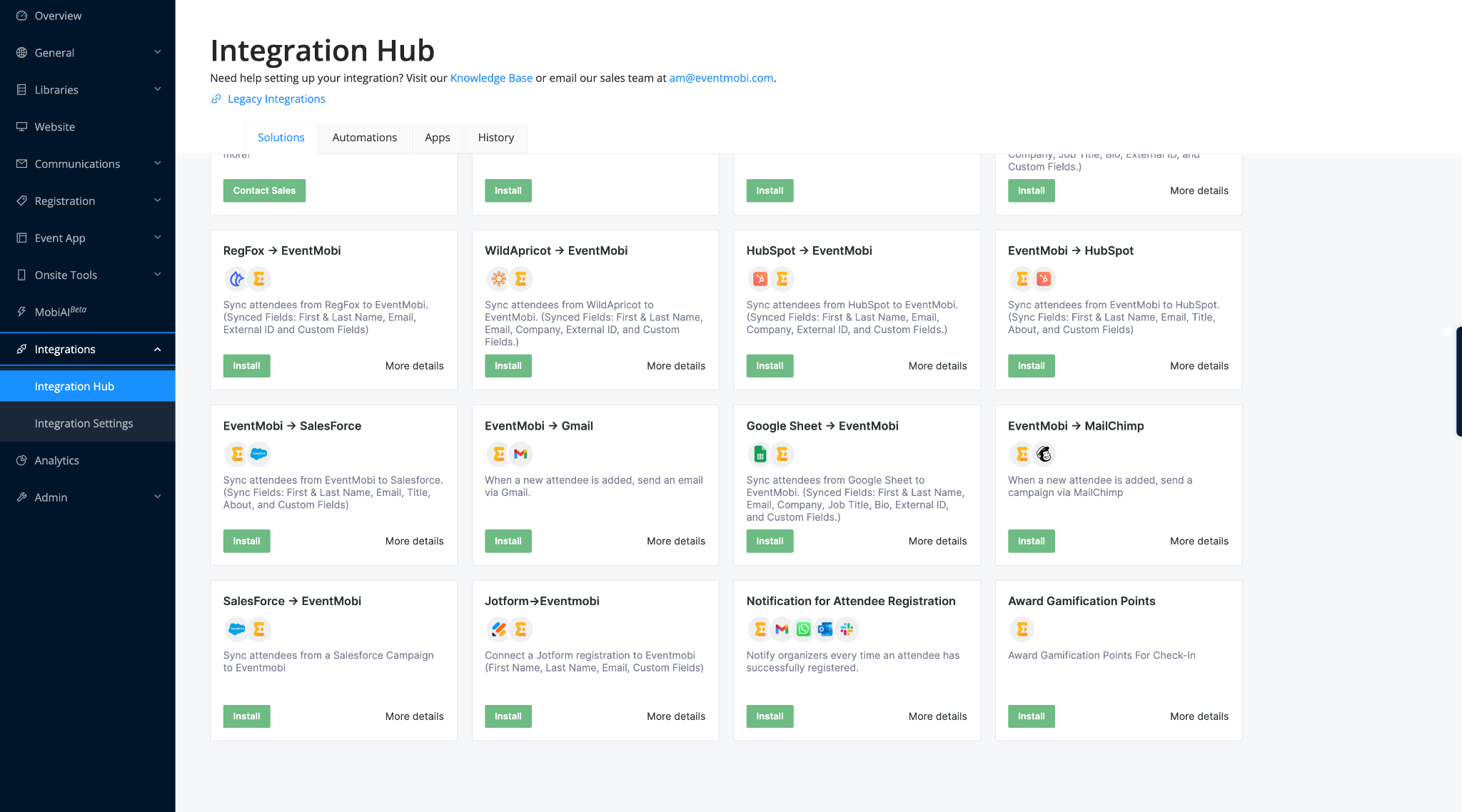
Head to Experience Manager, then open Integration Hub.
Go to the Solutions tab and find the Gamification Rewards solution.
Click on the solution to view the available scenarios.
3. Install the Scenario
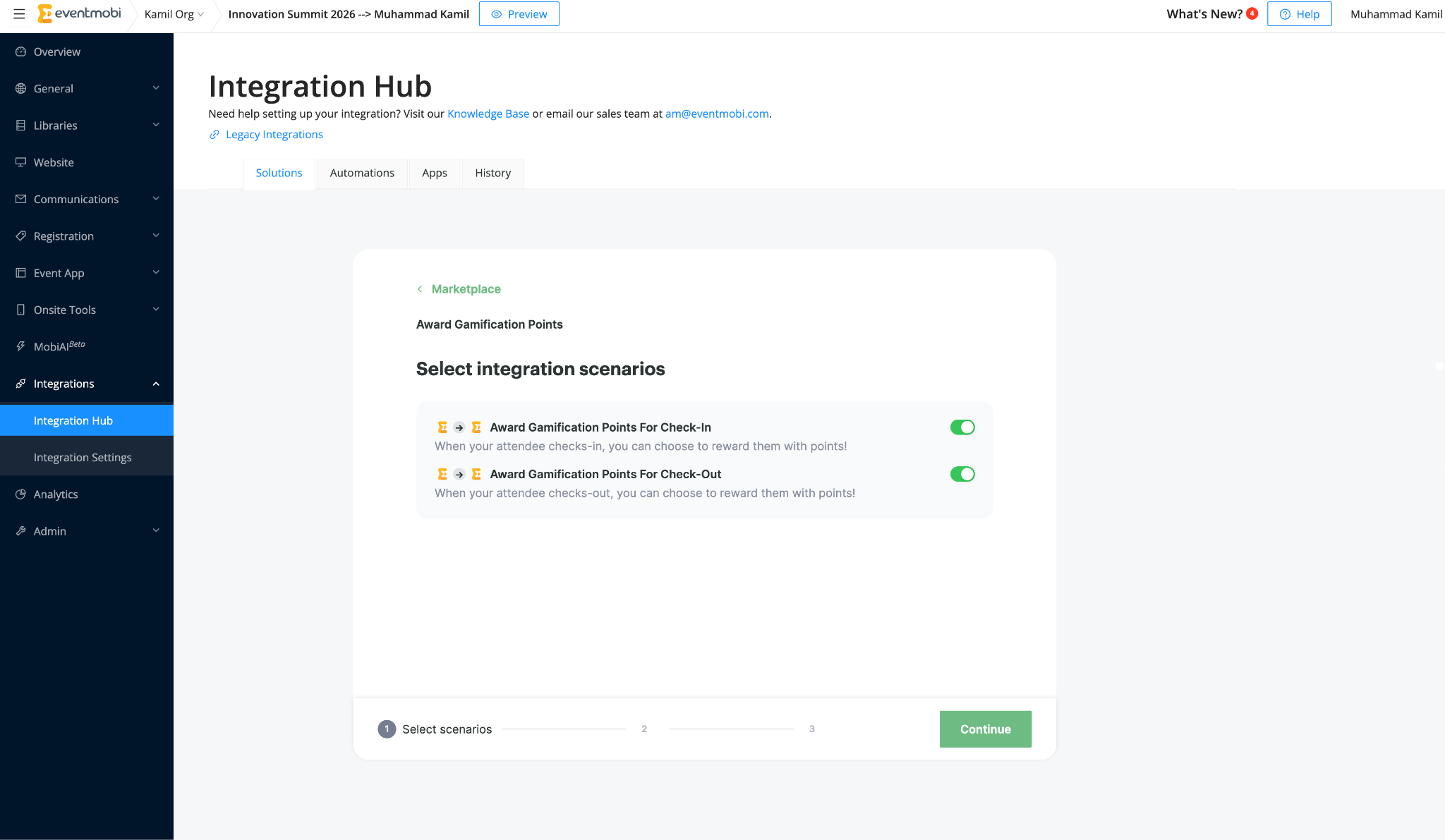
The Gamification Rewards solution may include one or more scenarios, depending on the actions you want to reward.
Common scenarios include:
- Award points when an attendee checks in
- Award points when an attendee checks out
To install a scenario, click Install next to the scenario you want to use.
If you only want to award points when attendees check in, install only the check-in scenario.
If you also want to award points when attendees check out, install the check-out scenario separately.
4. Grant EventMobi Access
Click Continue to connect your EventMobi account.
Because this is an EventMobi to EventMobi solution, you may be asked to authorize EventMobi as the connected app.
Give your connection a name that helps you recognize it later.
For example:
EventMobi Gamification Connection
Then click Continue.
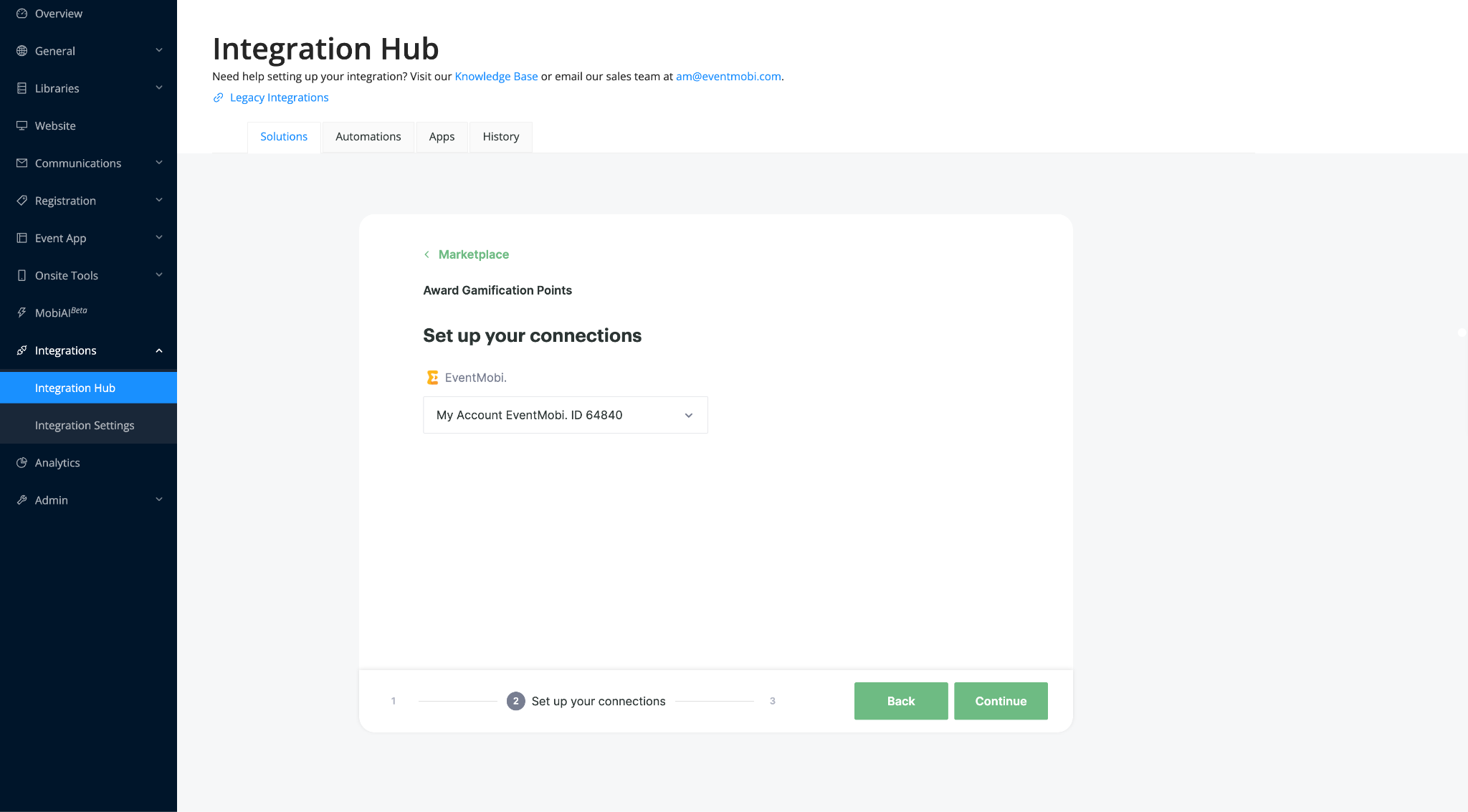
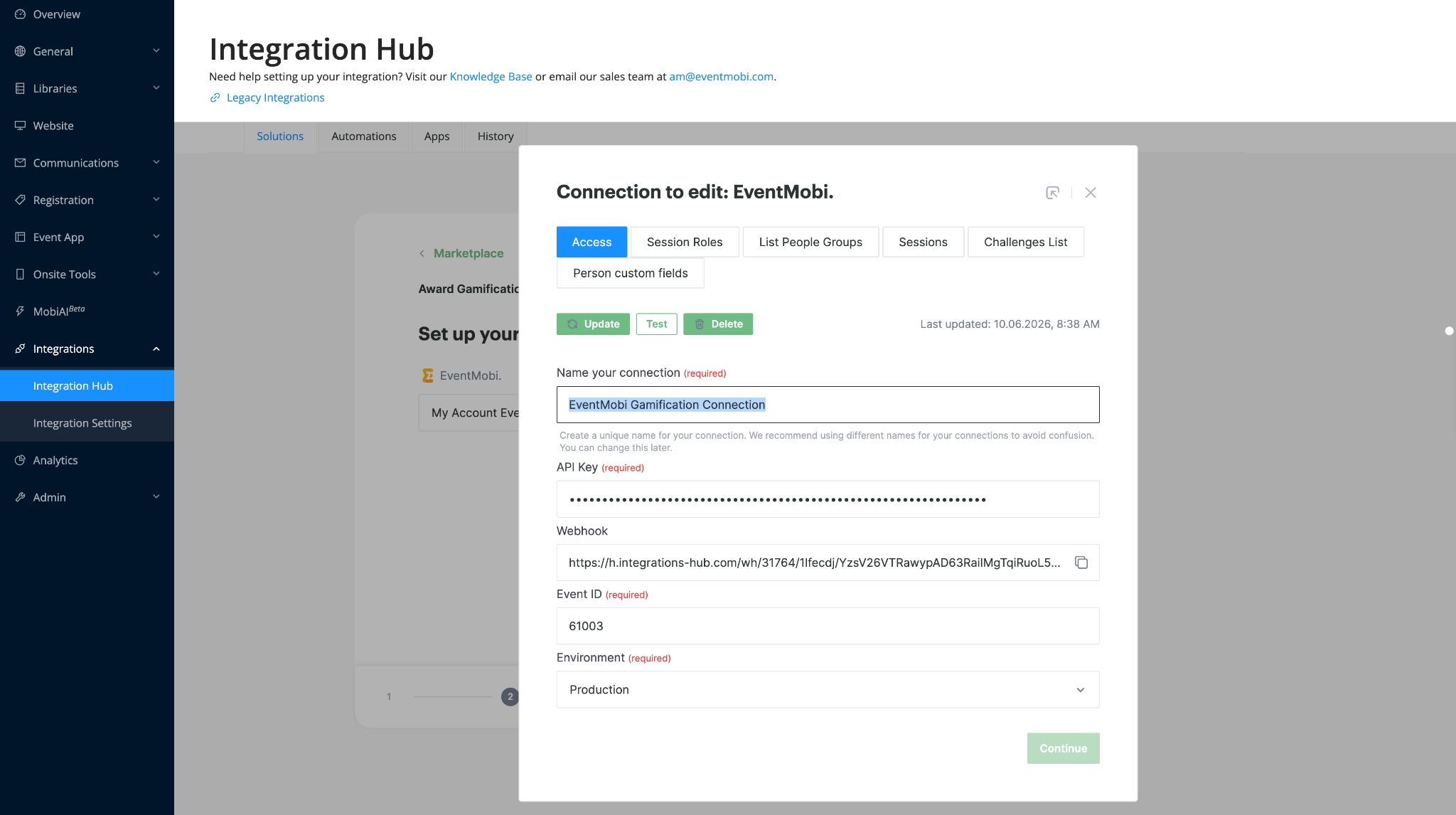
Once access is granted, you can continue configuring the scenario.
5. Select the Gamification Challenge
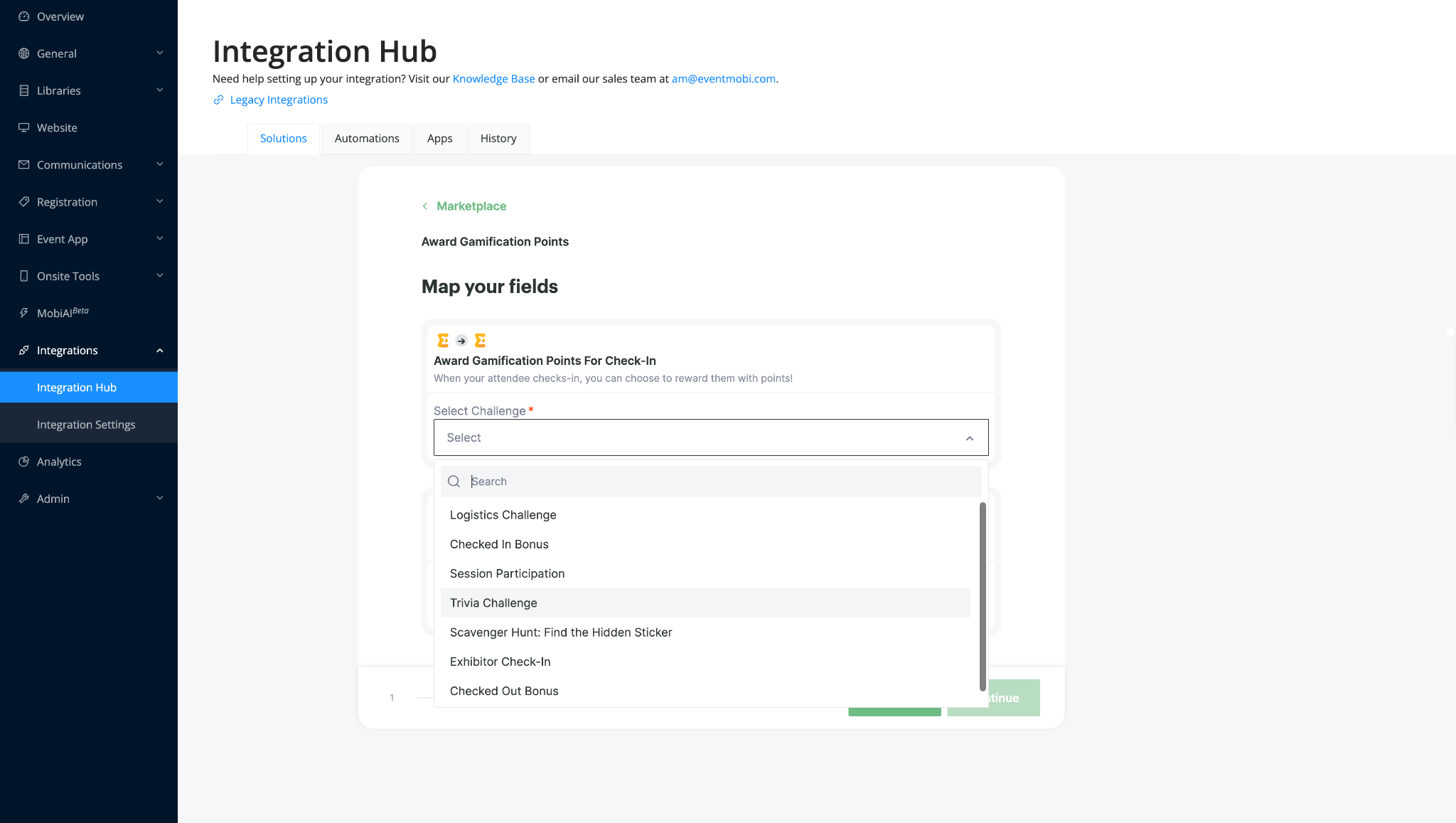
Next, choose the Gamification challenge that should be completed when the attendee action happens.
For example, if you are setting up the check-in scenario, select your check-in challenge:
Check-in Reward
If you are setting up the check-out scenario, select your check-out challenge:
Check-out Reward
8. Review the Default Setup
Most fields needed for this solution are already handled by Integration Hub.
For example, the automation will automatically use the attendee from the check-in or check-out action and apply the selected Gamification challenge to that attendee.
You do not need to manually map attendee profile fields for this solution.
Before starting the scenario, review the setup and confirm that:
- The correct event is selected
- The correct Gamification challenge is selected
- You are installing the correct scenario, such as check-in or check-out
9. Go Live
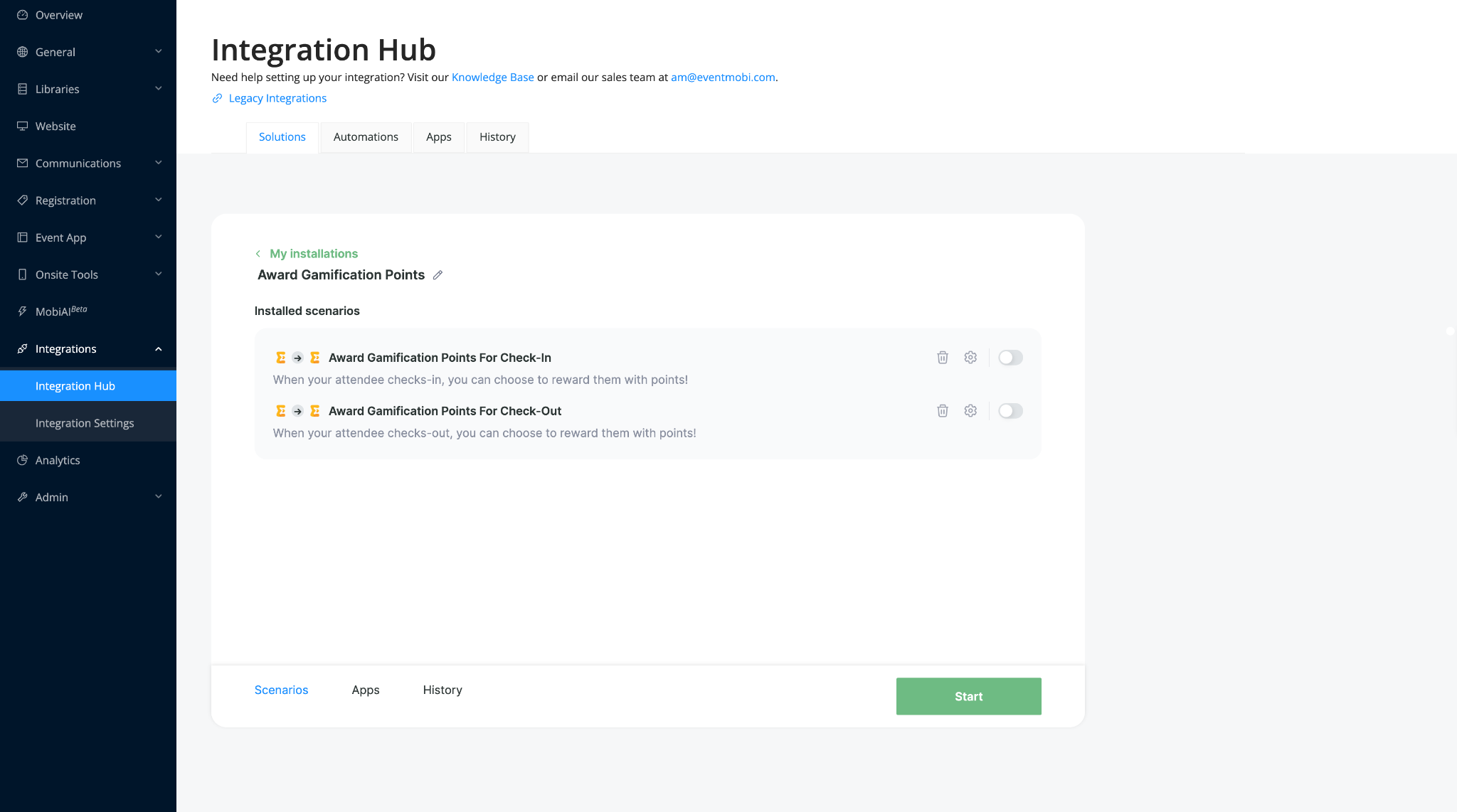
Click Start to activate your scenario.
This will turn on the automation.
Once active, the selected Gamification challenge will be completed automatically when the selected attendee action takes place.
For example:
- If you installed the check-in scenario, attendees will receive points when they check in
- If you installed the check-out scenario, attendees will receive points when they check out
10. Test Your Automation
It is a good idea to run a quick test to make sure everything is working as expected.
Test the Check-in Scenario
- Create or select a test attendee in your event.
- Make sure the attendee has not already completed the selected Gamification challenge.
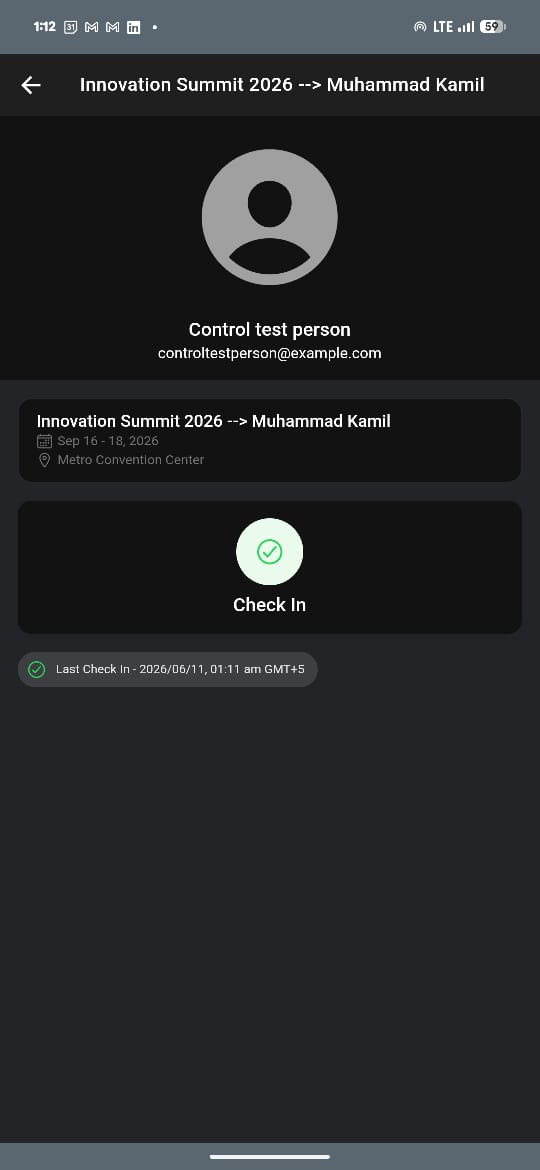
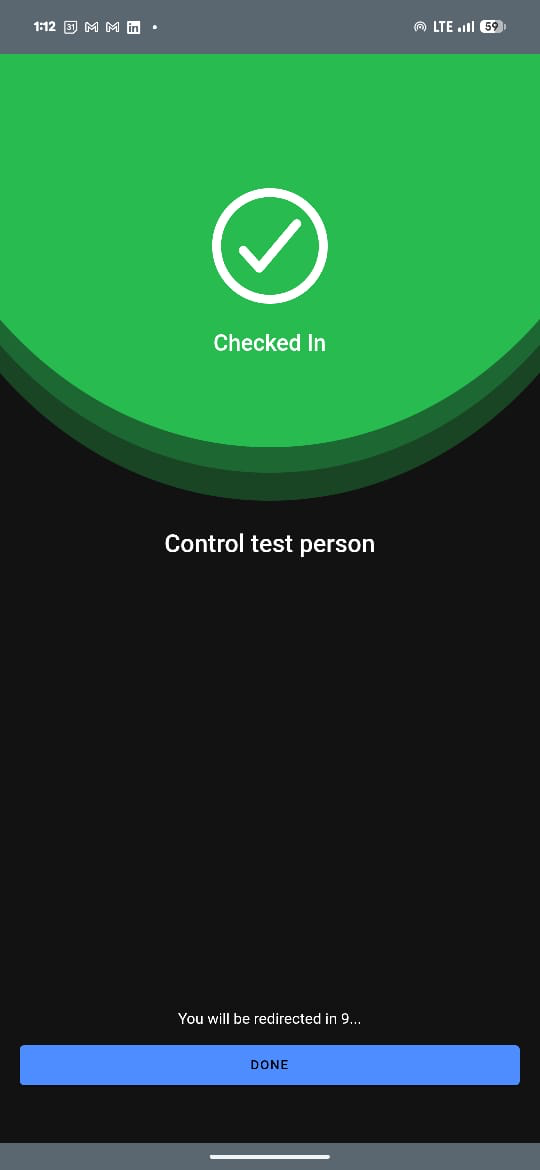
- Open the EventMobi Onsite App.
- Check in the test attendee.
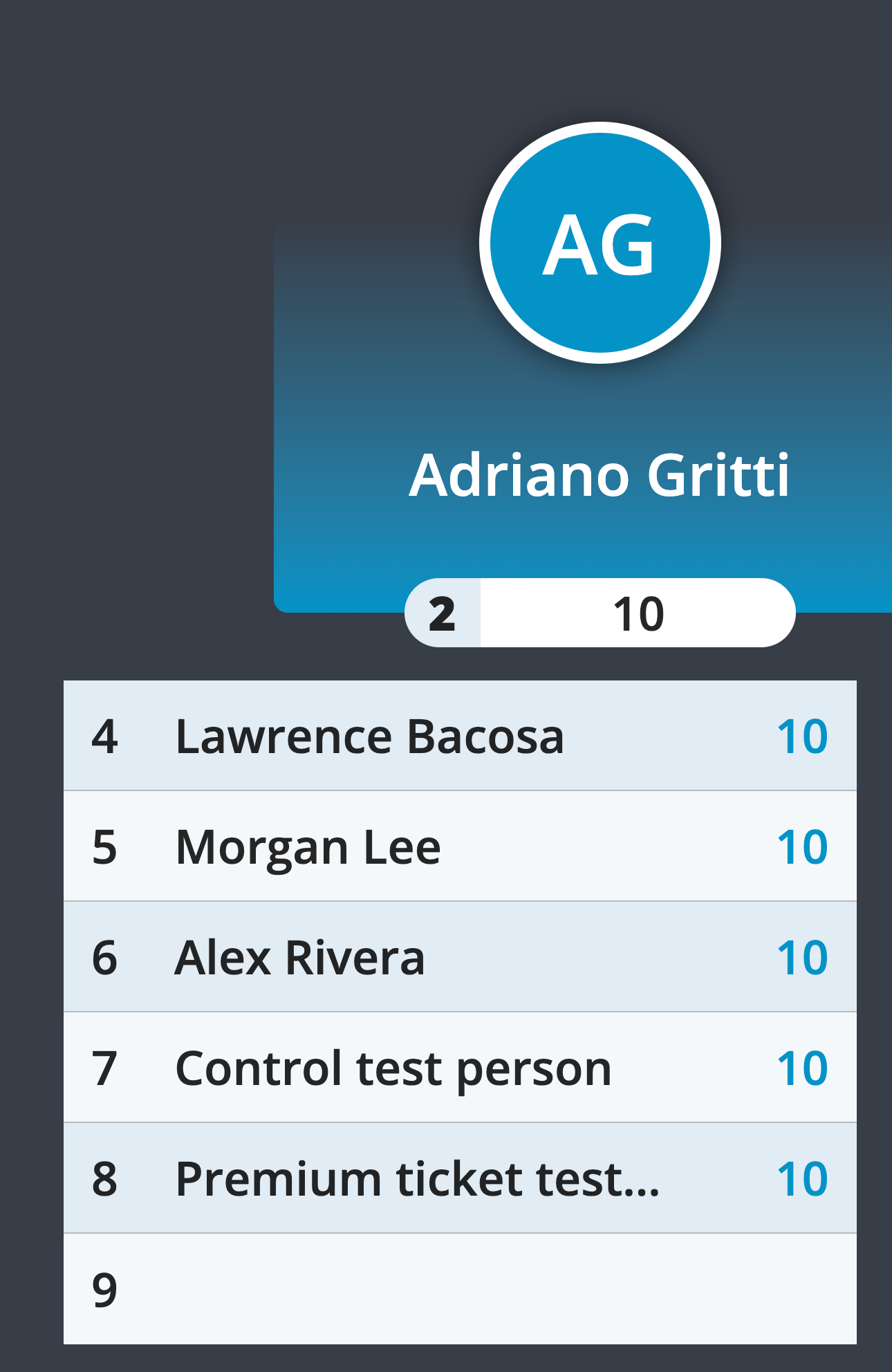
- In Experience Manager, go to Event App > Gamification.Confirm that the attendee received the expected points. You can also check the leaderboard or Gamification reporting to confirm that thechallenge was completed.
Test the Check-out Scenario
If you installed the check-out scenario:
- Use a test attendee who has already been checked in.
- Check out the attendee using the EventMobi Onsite App.
- Go to Event App > Gamification in Experience Manager.
- Confirm that the attendee received the expected points for the check-out challenge.
If you are using both check-in and check-out rewards, make sure each action completes the correct challenge.
For example:
- Check-in should complete Check-in Reward
- Check-out should complete Check-out Reward
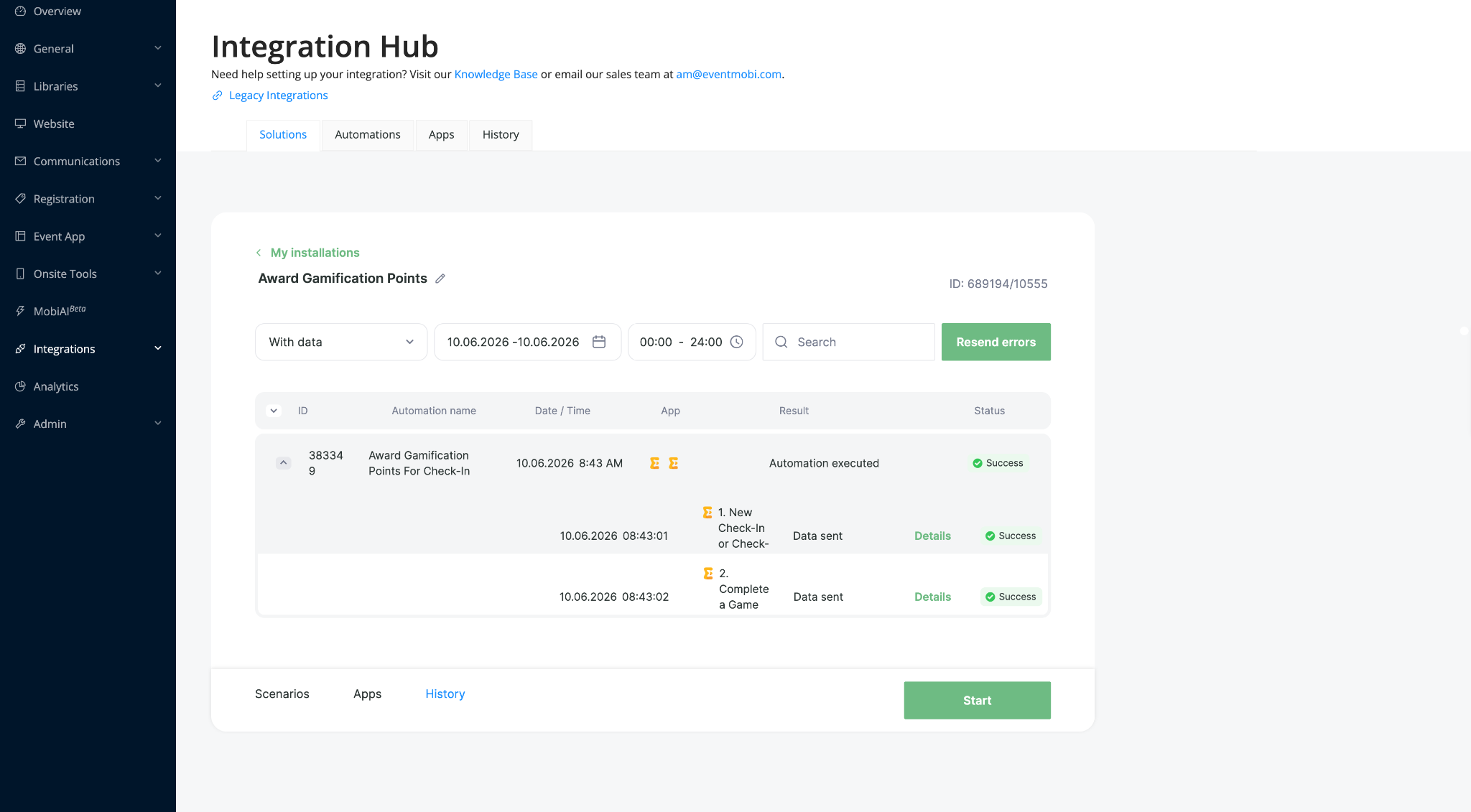
11. Check the Installation Log
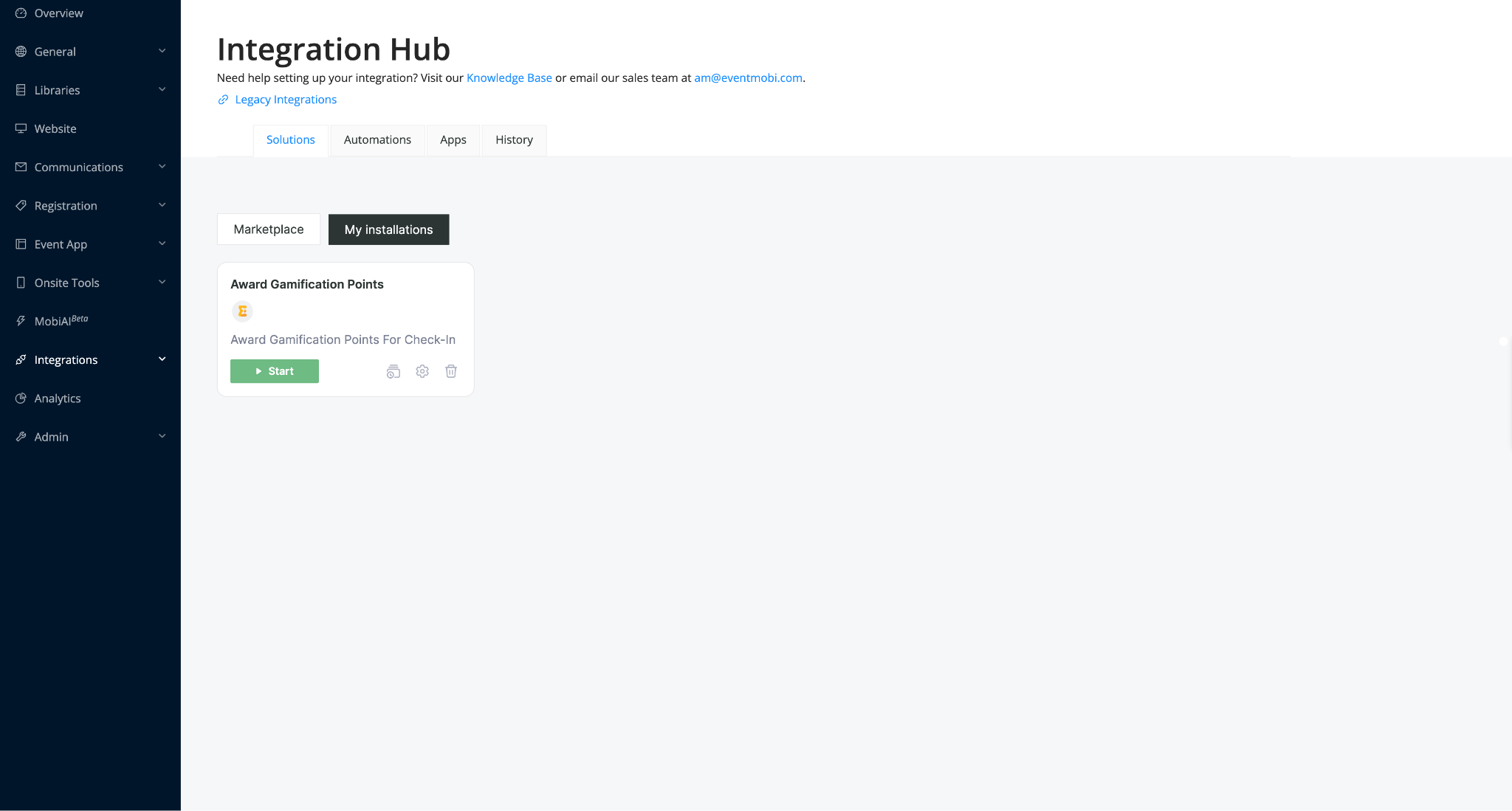
If the attendee does not receive points, check the Installation Log.
In Integration Hub, go to:
Solutions > My Installations
Find the Gamification Rewards solution and open the Installation Log.
You can also go to the History tab to review recent activity.
The log can help you confirm whether the scenario ran successfully or if an error occurred.
Troubleshooting
The attendee did not receive points
Check the following:
- The scenario is started and active
- The correct event was selected during setup
- The correct Gamification challenge was selected
- The challenge code entered in Integration Hub matches the code in the Gamification challenge
- The attendee has not already completed the same challenge
- The attendee was checked in or checked out using the correct EventMobi onsite workflow
The challenge code is not accepted
Double-check the code in your Gamification challenge.
Then return to the Integration Hub scenario setup and confirm that the same code was entered there.
Make sure there are no extra spaces before or after the code.
The wrong challenge was completed
Review the scenario setup and confirm that the correct challenge was selected.
If you are using both check-in and check-out rewards, make sure each scenario is connected to the correct challenge.
For example:
- Check-in scenario should use the check-in challenge
- Check-out scenario should use the check-out challenge
The attendee already completed the challenge
Each attendee can only complete the same Gamification challenge once.
If you are testing the automation multiple times, use a new test attendee or create a new test challenge.
I want to award different points for check-in and check-out
Create two separate Gamification challenges with different point values.
For example:
- Check-in Reward: 10 points
- Check-out Reward: 20 points
Then install and configure each scenario with the correct challenge.
I want attendees to receive points without seeing the challenge in the Event App
When creating the Gamification challenge, choose whether the challenge should be visible to attendees.
If the challenge is only meant to be completed automatically, you may choose to hide it from attendees.
I need to pause or stop the automation
In Integration Hub, go to:
Solutions > My Installations
Find the Gamification Rewards solution, then pause or stop the scenario.
You can start it again when you are ready.
Summary
The Gamification Rewards solution helps you automatically award points when attendees complete onsite actions in EventMobi.
Before starting, create the Gamification challenge in your event and note the challenge code. Then install the relevant scenario in Integration Hub, select your event, choose the challenge, enter the code, and start the automation.
Once active, EventMobi will complete the selected challenge for attendees when the selected action takes place.