---
title: How Can I Control Access and Capacity Settings For Agenda Sessions?
description: This article explains how to use Session Access Control to manage who can view sessions in the Event App, and Session Capacity to limit the number of people who can sign up.
---
[Skip to content](https://help.eventmobi.com/en/knowledge/session-access-and-capacities#main-content)
English
Show submenu for translations
[![1589391206704.png\]](https://help.eventmobi.com/hs-fs/hubfs/1589391206704.png?width=40&height=40&name=1589391206704.png)](https://help.eventmobi.com/?hsLang=en)
- [EventMobi Knowledge Base](https://help.eventmobi.com/)
Open main navigation
Close main navigation
- [EventMobi Knowledge Base](https://help.eventmobi.com/)
- English
Show submenu for translations
- [Product Updates & Feedback](https://updates.eventmobi.com/)
[Product Updates & Feedback](https://updates.eventmobi.com/)
What can we help you with?
- There are no suggestions because the search field is empty.
1. [EventMobi Knowledge Base](https://help.eventmobi.com/en/knowledge?hsLang=en)
2. [Event Organizers](https://help.eventmobi.com/en/knowledge/event-organizers?hsLang=en)
3. [Creating Profiles & Sessions](https://help.eventmobi.com/en/knowledge/event-organizers?hsLang=en#creating-profiles-sessions)
August 12, 2026
# How Can I Control Access and Capacity Settings For Agenda Sessions?
## This article explains how to use Session Access Control to manage who can view sessions in the Event App, and Session Capacity to limit the number of people who can sign up.
Table of Contents:
- [Set Capacity Limits for Sessions](https://help.eventmobi.com/en/knowledge/session-access-and-capacities#session-capacity-limits)
- [Manage Access Control Settings for Sessions](https://help.eventmobi.com/en/knowledge/session-access-and-capacities#session-access-contorl)
- [Enable Session Visibility Settings](https://help.eventmobi.com/en/knowledge/session-access-and-capacities#session-visibility-settings)
- [Bulk Update Visibility Settings for Sessions](https://help.eventmobi.com/en/knowledge/session-access-and-capacities#bulk-visibility-settings)
- [Bulk Update Visibility via Excel Import](https://help.eventmobi.com/en/knowledge/session-access-and-capacities#visibility-excel)
- [Enforcing Access at Check-In (Optional Setting)](https://help.eventmobi.com/en/knowledge/session-access-and-capacities#access-at-check-in)
### Set Capacity Limits for Sessions
You can set a capacity on individual sessions to limit how many attendees can sign up through the Event App.
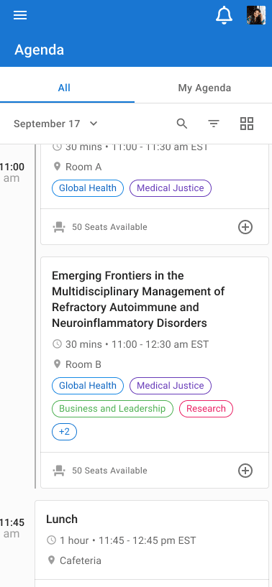
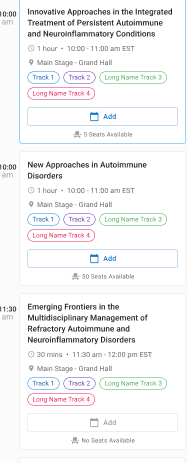
When a session has a capacity, attendees will see how many seats remain and can reserve one if space is available. Once the session is full, it will appear greyed out with a message that no seats are available.
#### Enable Session Capacity Settings
- Open the Sessions Library and click on the session you want to edit.
- Go to the **Settings** tab.
- Under **Session Capacity**, input the limit for session signups in the Event App.
- Click **Save Session** to confirm your changes.
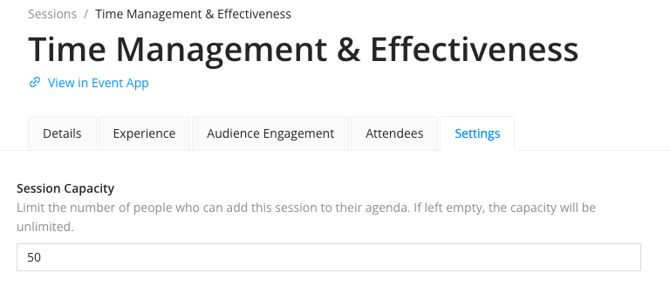
**Note:** When the **Session Capacity** field is left blank, unlimited sign-ups will be permitted for the session.
#### **Signing Up For Sessions with Session Capacities in the Event App**
- Navigate to the session in the Event App Agenda.
- View the number of seats available at the bottom of the session item.
- Select the **+** icon to add a session and reserve a seat.
|  |  |
| --- | --- |
### Manage Access Control Settings for Sessions
Individual sessions can be restricted to specific People groups, ensuring only the intended attendees can view and join them in the Event App.
Session Access Control hides sessions from anyone outside the selected groups. This includes the agenda as well as any linked Speaker profiles.
Attendees in the permitted groups must be logged into the Event App to confirm their access.
### Enable Session Visibility Settings
#### Update Visibility Settings for Individual Sessions
- Open the Sessions Library and click on the session you want to edit.
- Go to the **Settings** tab.
- Under **Session Visibility,** choose **Specific People Groups**.
- From the dropdown menu, select the People Groups that should have access.
- Click **Save Session** to confirm your changes.
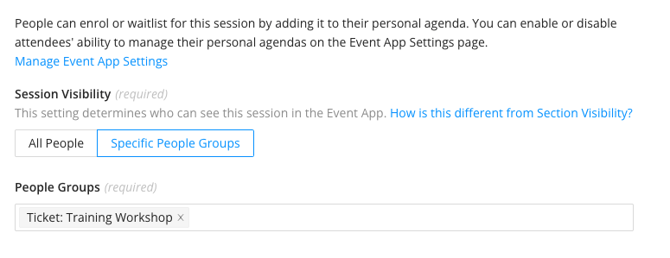
**Bulk Update Visibility Settings for Sessions**
- In the Sessions Library, you can select all sessions by clicking the checkbox at the top of the list. To choose specific sessions instead, use the search and filter options to narrow down the list, then select the checkbox.
- Click on **Manage Settings**.
- Select **Specific People Groups**
- From the dropdown menu, select the People Groups that should have access.
- Click **Save** to confirm your changes.
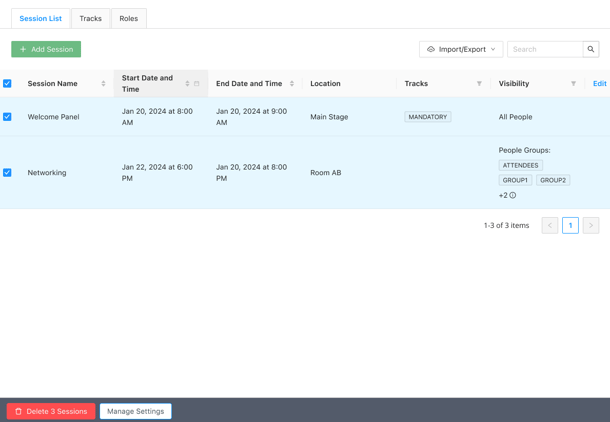
**Note:** Sessions will be visible and accessible to all Event App users when Session Visibility settings are not set to **Specific People Groups**.
#### Bulk Update Visibility via Excel Import
You can also update profile visibility using the **Sessions Excel Template**:
- In the Excel file, locate the column titled Visibility\*
- Enter `All People` to make the session visible to everyone or indicate the group name to make it visible for specific people groups.
- This field is required, so you can't leave it blank.
Once changes are made, upload the updated Excel file via **Sessions \> Import/Export \> Import Sessions.**

### **Enforcing Access at Check-In (Optional Setting)**
If you need to restrict who can attend a session onsite, you can enable **Require Session Sign-Up for Check-In** in the session’s Onsite App settings.
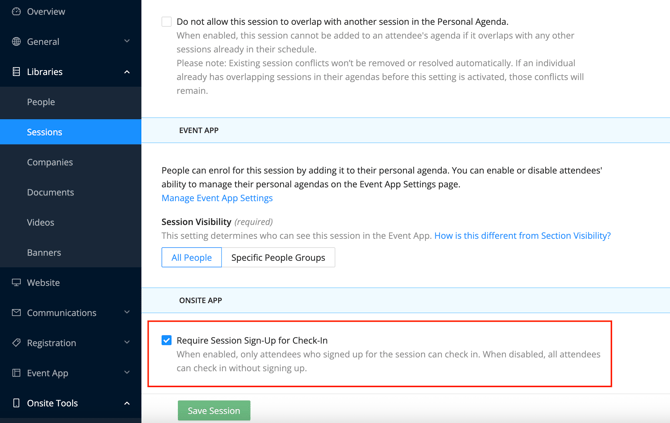
When this setting is enabled:
- Only attendees who **successfully signed up** for the session (based on capacity and access rules) will be allowed to check in.
- Attendees who do *not* meet the eligibility requirements will be prevented from checking in, as indicated by the following display:
.png?width=320&height=711&name=Screenshot%202025-12-15%20at%203.48.57%20PM%20(1).png)
This setting works alongside Session Capacity and Session Access Control to ensure that only the appropriate attendees can join the session onsite.
- [Event Organizers](https://help.eventmobi.com/en/knowledge/event-organizers?hsLang=en#main-content)
- [Experience Manager](https://help.eventmobi.com/en/knowledge/event-organizers?hsLang=en#experience-manager)
- [Attendee Engagement](https://help.eventmobi.com/en/knowledge/event-organizers?hsLang=en#attendee-engagement)
- [Branding & Design](https://help.eventmobi.com/en/knowledge/event-organizers?hsLang=en#branding-design)
- [Creating Profiles & Sessions](https://help.eventmobi.com/en/knowledge/event-organizers?hsLang=en#creating-profiles-sessions)
- [Event Communications](https://help.eventmobi.com/en/knowledge/event-organizers?hsLang=en#event-communications)
- [Onsite Events](https://help.eventmobi.com/en/knowledge/event-organizers?hsLang=en#onsite-events)
- [Virtual Events](https://help.eventmobi.com/en/knowledge/event-organizers?hsLang=en#virtual-events)
- [Core Registration](https://help.eventmobi.com/en/knowledge/event-organizers?hsLang=en#core-registration)
- [Extended Registration](https://help.eventmobi.com/en/knowledge/event-organizers?hsLang=en#extended-registration)
- [Reporting](https://help.eventmobi.com/en/knowledge/event-organizers?hsLang=en#reporting)
- [Sharing Resources](https://help.eventmobi.com/en/knowledge/event-organizers?hsLang=en#sharing-resources)
- [Sponsorship](https://help.eventmobi.com/en/knowledge/event-organizers?hsLang=en#sponsorship)
- [Launch the Event App](https://help.eventmobi.com/en/knowledge/event-organizers?hsLang=en#launch-the-event-app)
- [Event Services](https://help.eventmobi.com/en/knowledge/event-organizers?hsLang=en#event-services)
- [Event Information & Settings](https://help.eventmobi.com/en/knowledge/event-organizers?hsLang=en#event-information-settings)
- [Privacy & Security](https://help.eventmobi.com/en/knowledge/event-organizers?hsLang=en#privacy-security)
- [What's New](https://help.eventmobi.com/en/knowledge/event-organizers?hsLang=en#whats-new)
- [Call For Speakers](https://help.eventmobi.com/en/knowledge/event-organizers?hsLang=en#call-for-speakers)
- [Attendees & Speakers](https://help.eventmobi.com/en/knowledge/attendees-speakers?hsLang=en#main-content)
- [Using the Event App](https://help.eventmobi.com/en/knowledge/attendees-speakers?hsLang=en#using-the-event-app)
- [Access Resources as an Attendee](https://help.eventmobi.com/en/knowledge/attendees-speakers?hsLang=en#access-resources-as-an-attendee)
- [Share Resources as a Speaker](https://help.eventmobi.com/en/knowledge/attendees-speakers?hsLang=en#share-resources-as-a-speaker)
- [Manage Event Communications](https://help.eventmobi.com/en/knowledge/attendees-speakers?hsLang=en#manage-event-communications)
- [Connect With Others at the Event](https://help.eventmobi.com/en/knowledge/attendees-speakers?hsLang=en#connect-with-others-at-the-event)
- [Sponsors & Exhibitors](https://help.eventmobi.com/en/knowledge/sponsors-exhibitors?hsLang=en#main-content)
- [Exhibiting at an Event](https://help.eventmobi.com/en/knowledge/sponsors-exhibitors?hsLang=en#exhibiting-at-an-event)
- [Integration Hub](https://help.eventmobi.com/en/knowledge/integration-hub?hsLang=en#main-content)
- [EventMobi Integration Hub Solution](https://help.eventmobi.com/en/knowledge/integration-hub?hsLang=en#eventmobi-integration-hub-solution)
- [Simplify Your Processes with Automations](https://help.eventmobi.com/en/knowledge/integration-hub?hsLang=en#simplify-your-processes-with-automations)
- [Integrations from EventMobi to your solution](https://help.eventmobi.com/en/knowledge/integration-hub?hsLang=en#integrations-from-eventmobi-to-your-solution)
- [Integrations from your solution to EventMobi](https://help.eventmobi.com/en/knowledge/integration-hub?hsLang=en#integrations-from-your-solution-to-eventmobi)
- [Registration](https://help.eventmobi.com/en/knowledge/registration?hsLang=en#main-content)
- [Content](https://help.eventmobi.com/en/knowledge/registration?hsLang=en#content)
- [Design](https://help.eventmobi.com/en/knowledge/registration?hsLang=en#design)
[.png?width=147&height=34&name=EMI-logo-colour-dark-letters%20(1).png "EMI-logo-colour-dark-letters (1)")](https://www.eventmobi.com/)
© 2025 EventMobi™ A Trademark and Tradename of 5Touch Solutions Inc.
[Change your cookie preferences](https://www.eventmobi.com/cookie-declaration/)