---
title: Setting Up an Integration from HubSpot to Eventmobi
description: Learn how to connect HubSpot with EventMobi to automatically sync contacts from HubSpot lists into your EventMobi event. This guide covers setup, field mapping, and testing to keep your attendee data accurate and up to date.
---
[Skip to content](https://help.eventmobi.com/en/knowledge/integration-with-hubspot#main-content)
English
Show submenu for translations
[![1589391206704.png\]](https://help.eventmobi.com/hs-fs/hubfs/1589391206704.png?width=40&height=40&name=1589391206704.png)](https://help.eventmobi.com/?hsLang=en)
- [EventMobi Knowledge Base](https://help.eventmobi.com/)
Open main navigation
Close main navigation
- [EventMobi Knowledge Base](https://help.eventmobi.com/)
- English
Show submenu for translations
- [Product Updates & Feedback](https://updates.eventmobi.com/)
[Product Updates & Feedback](https://updates.eventmobi.com/)
What can we help you with?
- There are no suggestions because the search field is empty.
1. [EventMobi Knowledge Base](https://help.eventmobi.com/en/knowledge?hsLang=en)
2. [Event Organizers](https://help.eventmobi.com/en/knowledge/event-organizers?hsLang=en)
3. [Experience Manager](https://help.eventmobi.com/en/knowledge/event-organizers?hsLang=en#experience-manager)
April 13, 2026
# Setting Up an Integration from HubSpot to Eventmobi
Connecting your HubSpot event to EventMobi automatically transfers new registrants and registration details into your EventMobi event. This eliminates manual data entry, ensuring your attendee list remains accurate and up to date.
New to Integration Hub? Check our guide, Getting Started with [**EventMobi Integration Hub**](https://help.eventmobi.com/en/knowledge/eventmobi-integration-hub?hsLang=en#set-up-integration), to get the most out of this instruction.
### **What to Know Before You Start**
#### **Data Source**
Our connection supports attendee data coming from a list (Segment). If the data you wish to migrate comes from a campaign or a form, ensure that you create a segment in HubSpot (you can create one segment that encompasses data from different campaigns/forms). Making a Dynamic segment would be preferable, since it will automatically update the list whenever a new person is added to the campaign/new person submits a form
### ⚙️ Setting Up the Integration
#### 1. Install the Solution in Integration Hub
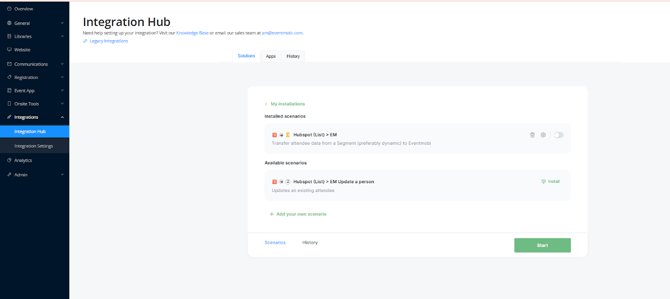
#### Head to Experience Manager, then install the Integration Hub and find the HubSpot → EventMobi solution. 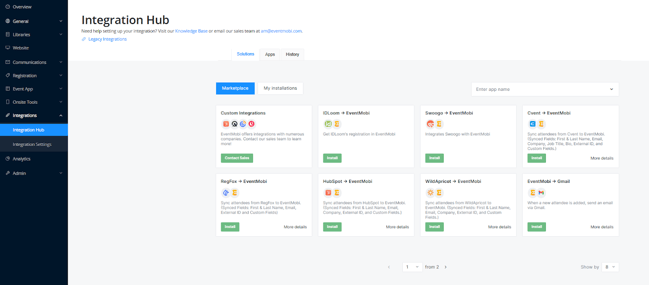 2\. Install the Scenarios
HubSpot has two scenarios:
**- HubSpot (List)\> EM** covers data migration of attendees and real-time updates
**- HubSpot (List) \> EM Update: a person** would cover updates if the list (Segment) you created is **not** a dynamic segment.
#### To install, click **Install** next to the scenario. 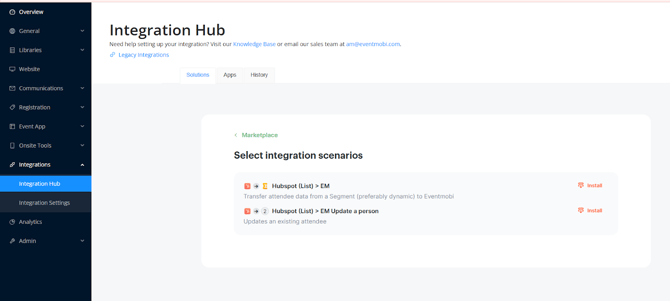 3\. Grant Eventmobi access to Hubspot
Click Grant Access to open the configuration screen
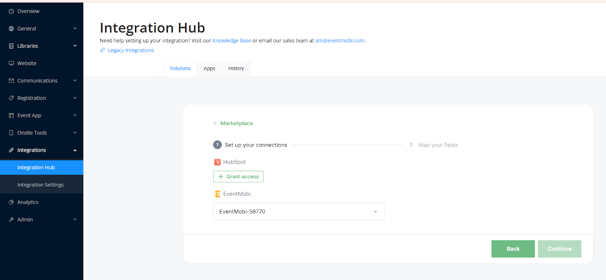
Give your connection a name (anything that helps you recognize the HubSpot account you’re connecting to), then hit Continue
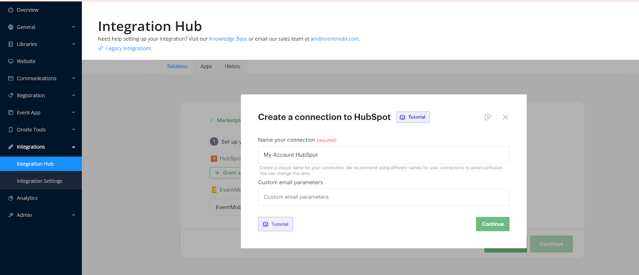
It will open up a page for you to log in to HubSpot. Please note that you need to have enough permission to do this (Super Admin)
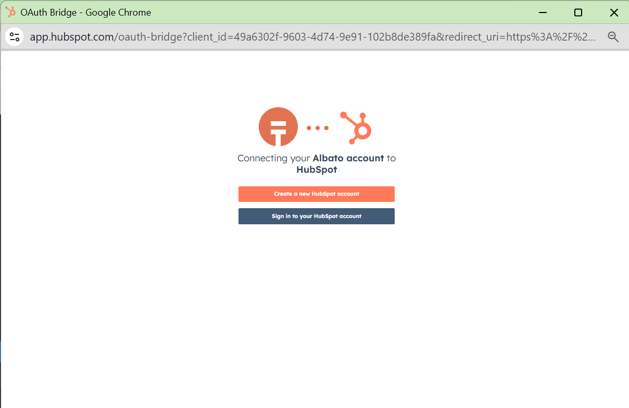
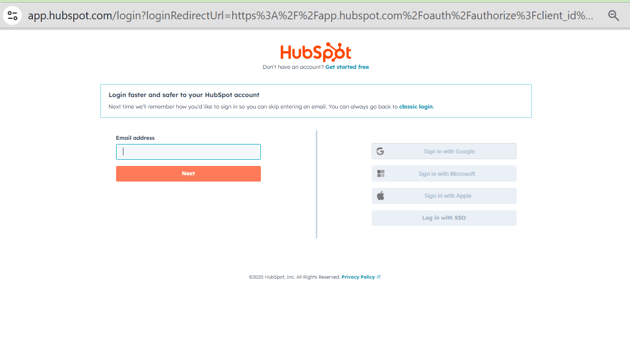
You have now granted EventMobi access to HubSpot.Now you would need to select the List (HubSpot Segment) you wish to connect.
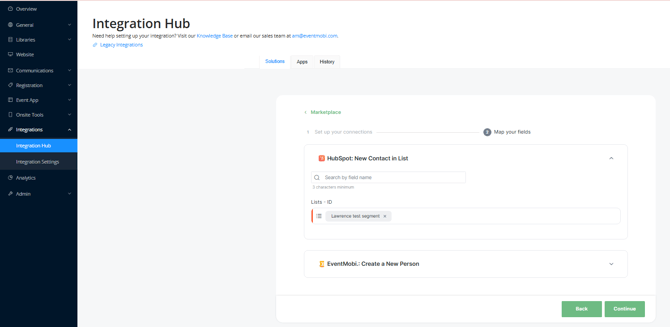
On the next tab, these are the default fields that we will connect.
For other standard and custom fields, you will need to connect the dots manually.
To map a field:
1. Find the EventMobi field in the list
2. Click on it to open the dropdown
1. Select the matching HubsSpot field
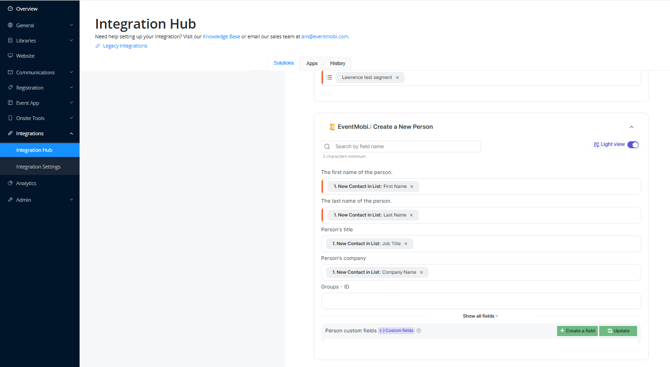
#### 4. Go Live
Click Start to activate your integration.
This will turn on the automation and begin syncing new registrants from HubSpot to your EventMobi event
#### 5. Test Your Integration
It’s a good idea to run a quick test to make sure everything is syncing as expected.
1. In **HubSpot**, go to your **Contacts** and add a new contact using a **unique email address**.
2. Make sure this contact is included in the **HubSpot List** you connected in the integration scenario.
3. Wait for the integration to run (usually about a minute).
4. In **EventMobi**, navigate to **People Library → Attendees**.
5. Search for your test contact to confirm the import.
For additional troubleshooting tips, check our guide, Getting Started with**[EventMobi Integration Hub](https://help.eventmobi.com/en/knowledge/eventmobi-integration-hub?hsLang=en#set-up-integration)**, to get the most out of this instruction.
- [Event Organizers](https://help.eventmobi.com/en/knowledge/event-organizers?hsLang=en#main-content)
- [Experience Manager](https://help.eventmobi.com/en/knowledge/event-organizers?hsLang=en#experience-manager)
- [Attendee Engagement](https://help.eventmobi.com/en/knowledge/event-organizers?hsLang=en#attendee-engagement)
- [Branding & Design](https://help.eventmobi.com/en/knowledge/event-organizers?hsLang=en#branding-design)
- [Creating Profiles & Sessions](https://help.eventmobi.com/en/knowledge/event-organizers?hsLang=en#creating-profiles-sessions)
- [Event Communications](https://help.eventmobi.com/en/knowledge/event-organizers?hsLang=en#event-communications)
- [Onsite Events](https://help.eventmobi.com/en/knowledge/event-organizers?hsLang=en#onsite-events)
- [Virtual Events](https://help.eventmobi.com/en/knowledge/event-organizers?hsLang=en#virtual-events)
- [Core Registration](https://help.eventmobi.com/en/knowledge/event-organizers?hsLang=en#core-registration)
- [Extended Registration](https://help.eventmobi.com/en/knowledge/event-organizers?hsLang=en#extended-registration)
- [Reporting](https://help.eventmobi.com/en/knowledge/event-organizers?hsLang=en#reporting)
- [Sharing Resources](https://help.eventmobi.com/en/knowledge/event-organizers?hsLang=en#sharing-resources)
- [Sponsorship](https://help.eventmobi.com/en/knowledge/event-organizers?hsLang=en#sponsorship)
- [Launch the Event App](https://help.eventmobi.com/en/knowledge/event-organizers?hsLang=en#launch-the-event-app)
- [Event Services](https://help.eventmobi.com/en/knowledge/event-organizers?hsLang=en#event-services)
- [Event Information & Settings](https://help.eventmobi.com/en/knowledge/event-organizers?hsLang=en#event-information-settings)
- [Privacy & Security](https://help.eventmobi.com/en/knowledge/event-organizers?hsLang=en#privacy-security)
- [What's New](https://help.eventmobi.com/en/knowledge/event-organizers?hsLang=en#whats-new)
- [Call For Speakers](https://help.eventmobi.com/en/knowledge/event-organizers?hsLang=en#call-for-speakers)
- [Attendees & Speakers](https://help.eventmobi.com/en/knowledge/attendees-speakers?hsLang=en#main-content)
- [Using the Event App](https://help.eventmobi.com/en/knowledge/attendees-speakers?hsLang=en#using-the-event-app)
- [Access Resources as an Attendee](https://help.eventmobi.com/en/knowledge/attendees-speakers?hsLang=en#access-resources-as-an-attendee)
- [Share Resources as a Speaker](https://help.eventmobi.com/en/knowledge/attendees-speakers?hsLang=en#share-resources-as-a-speaker)
- [Manage Event Communications](https://help.eventmobi.com/en/knowledge/attendees-speakers?hsLang=en#manage-event-communications)
- [Connect With Others at the Event](https://help.eventmobi.com/en/knowledge/attendees-speakers?hsLang=en#connect-with-others-at-the-event)
- [Sponsors & Exhibitors](https://help.eventmobi.com/en/knowledge/sponsors-exhibitors?hsLang=en#main-content)
- [Exhibiting at an Event](https://help.eventmobi.com/en/knowledge/sponsors-exhibitors?hsLang=en#exhibiting-at-an-event)
- [Integration Hub](https://help.eventmobi.com/en/knowledge/integration-hub?hsLang=en#main-content)
- [EventMobi Integration Hub Solution](https://help.eventmobi.com/en/knowledge/integration-hub?hsLang=en#eventmobi-integration-hub-solution)
- [Simplify Your Processes with Automations](https://help.eventmobi.com/en/knowledge/integration-hub?hsLang=en#simplify-your-processes-with-automations)
- [Integrations from EventMobi to your solution](https://help.eventmobi.com/en/knowledge/integration-hub?hsLang=en#integrations-from-eventmobi-to-your-solution)
- [Integrations from your solution to EventMobi](https://help.eventmobi.com/en/knowledge/integration-hub?hsLang=en#integrations-from-your-solution-to-eventmobi)
- [Registration](https://help.eventmobi.com/en/knowledge/registration?hsLang=en#main-content)
- [Content](https://help.eventmobi.com/en/knowledge/registration?hsLang=en#content)
- [Design](https://help.eventmobi.com/en/knowledge/registration?hsLang=en#design)
[.png?width=147&height=34&name=EMI-logo-colour-dark-letters%20(1).png "EMI-logo-colour-dark-letters (1)")](https://www.eventmobi.com/)
© 2025 EventMobi™ A Trademark and Tradename of 5Touch Solutions Inc.
[Change your cookie preferences](https://www.eventmobi.com/cookie-declaration/)