![1589391206704.png]](https://help.eventmobi.com/hs-fs/hubfs/1589391206704.png?width=40&height=40&name=1589391206704.png)
Overview
What Information Does the Concierge Access?
Setting Up Your Registration Concierge
How Attendees Interact with the Concierge
Discount Code Behaviour
Analytics Dashboard
Privacy & Anonymity
Frequently Asked Questions
Overview
The Registration Concierge is available to all core registration users. Once activated, it appears automatically on your event registration site. No additional setup is required to enable it, though customizing it will help it perform better for your specific event.
What Information Does the Concierge Access?
The concierge draws from the following data sources to answer attendee questions:
|
Data Source |
Details |
|---|---|
|
Event website content |
All text and information published on your event website |
|
Uploaded documents |
PDFs, CSVs, or other files you upload in the Registration Concierge settings |
|
Registration form fields |
Field names, descriptions, and required fields |
|
Ticket information |
Ticket names and prices |
|
Session information (optional) |
Session name, description, time, and speakers — enabled via toggle |
🔍 Note
The concierge does not access your full event hub. It is limited to the registration experience only.
Setting Up Your Registration Concierge
Step 1. Access Registration Concierge Settings
-
Log in to Experience Manager
-
Navigate to your event
-
Go to Mobi AI > Registration Concierge
Step 2. Add Suggested Prompts
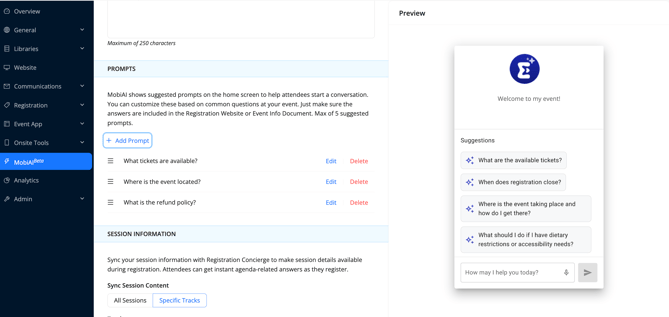
Create pre-set prompts to guide attendees toward common questions. These appear as clickable suggestions in the chat interface. Always ensure the answers for any suggested prompts are either included on the website or uploaded as a document under ‘additional information’.
-
Examples: "What tickets are available?", "Where is the event located?", "What is the refund policy?"
-
Prompt click rates are tracked in the analytics dashboard
Step 3. Upload Supporting Documents
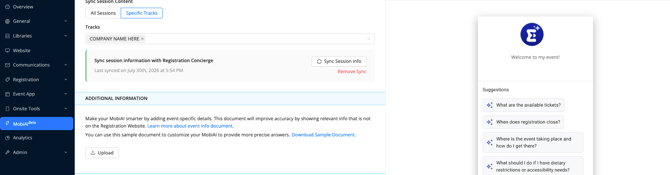
Make your MobiAI smarter by adding event-specific details which will improve accuracy by showing relevant info that is not on the Registration Website.
Additional information you want the concierge to reference could be FAQ documents, accessibility guides, transportation info etc. which can be uploaded under the 'additional information' section. There is a sample document which can be used in order to add the information for upload.
Best practices for uploads:
-
Always include descriptive context in your documents. A raw data export without labels may confuse the AI.
-
Example: Instead of uploading a plain CSV export of your company/sponsor list, add a header or introductory line such as: "The following is a list of sponsors for [Event Name]."
-
Be deliberate about including promo codes in documents — if listed, the concierge will have access to them.
Step 4 — Enable Session Information (Optional)
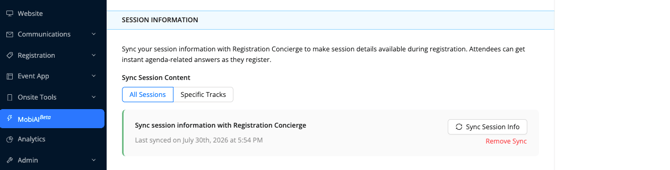
Sync your session information with Registration Concierge to make session details available during registration. Attendees can get instant agenda-related answers as they register.
-
In the Registration Concierge settings, locate the Session Information and choose if you would like to sync ‘All Sessions’ or ‘Specific Tracks’
-
Under the area Sync session information with Registration Concierge select the ‘Sync’ button
-
Each time session content is updated within experience manager it is important to ‘Sync’ the data again.
🔍 Note
The concierge currently surfaces session name, description, time, and speaker information only. Sponsor links within sessions are not included.
How Attendees Interact with the Concierge
The concierge appears as a chat widget on the registration website. Attendees can:
- Type any question in natural language
- Click on organizer-created prompt suggestions
- Rate each response with a thumbs up or thumbs down
All interactions are anonymous — since no login is required on the registration site, individual questioners cannot be identified.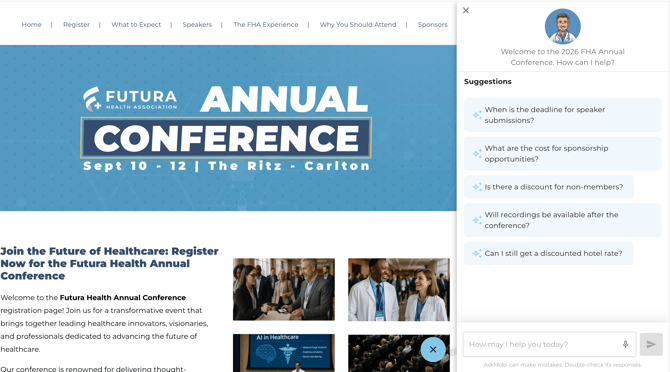
Discount Code Behaviour
- The concierge will not share or suggest discount codes when asked
- It will validate a code if an attendee provides one — but only if that code has a discount code behaviour configured in Experience Manager. Codes with no action applied will appear as invalid
- If discount codes are listed in an uploaded document or on the event website, the concierge will be able to reference them
Analytics Dashboard
Track how your Registration Concierge is performing directly in Experience Manager.
Accessing the Dashboard
- Go to Experience Manager > Analytics
- Select the MobiAI tab
- Use the date range filter to focus on a specific time period, then click Update
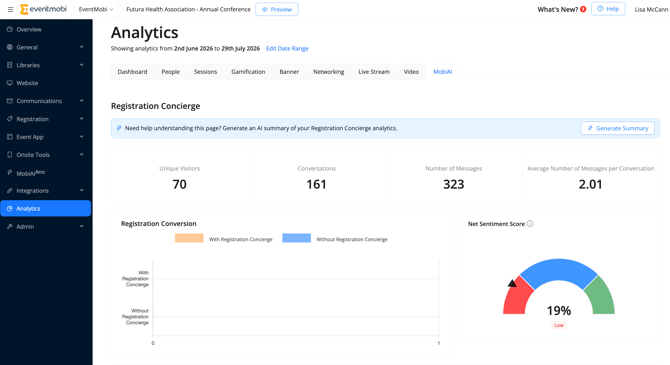
Key Metrics
|
Metric |
What It Tells You |
|---|---|
|
Total Conversations |
Number of unique chat sessions started |
|
Total Messages |
Total number of questions and responses exchanged |
|
Avg. Messages per Conversation |
How engaged attendees are in each session |
|
Sentiment Score |
Calculated from thumbs up/thumbs down feedback — higher = more positive |
|
Registration Conversion Comparison |
Conversion rate of attendees who used the concierge vs. those who did not |
|
Topic Groupings |
AI-generated clusters of similar questions (e.g., parking-related questions grouped together) |
|
Prompt Click Tracking |
How often attendees clicked your organizer-created prompts |
|
Unanswered Questions |
Questions the concierge was unable to answer |
Generate a Summary
Click the Generate Summary button to produce a summary of your dashboard data.
🔍 Note
The summary reflects the full dataset, not necessarily the filtered date range shown in the dashboard.
Exporting Data
Click Export to download a CSV file containing:
-
Exact questions asked
-
AI-generated topic groupings
-
User counts per topic
-
Conversation counts
-
Sentiment scores
-
Average conversations per topic
🔍 Note
All exported data is anonymous — individual attendees cannot be identified.
Privacy & Anonymity
Since the registration site has no login, all attendee interactions are anonymous by default. Organizers cannot identify who asked a specific question.
Frequently Asked Questions
-
Can the concierge answer questions about sponsors? It can, but only if sponsor information is clearly included in your uploaded documents with descriptive context. Uploading sponsor logos as images or raw CSV exports without labels may not produce reliable results.
-
Can attendees get promo codes from the concierge? No. The concierge is designed to refuse requests to share or suggest promo codes. It can only validate a code that the attendee already has.
-
Is the concierge available in multiple languages? Yes, the concierge supports multilingual interactions. Attendees can ask questions in their preferred language if the event website content supports it.
-
Can I see who asked a specific question? No. All registration site visitors are anonymous.
-
Is there a human handover? If the Registration Concierge can't answer a question, people will see a message with these contact details. If the ‘Fallback Contact’ section is left blank in experience manager, a generic message will be shown and no contact information will be shared.