![1589391206704.png]](https://help.eventmobi.com/hs-fs/hubfs/1589391206704.png?width=40&height=40&name=1589391206704.png)
Table of Contents
What Is Group Registration?
Group registration enables one person (the order owner) to purchase multiple tickets and register multiple attendees in a single transaction.
Key Use Cases
- An executive assistant registering multiple team members under one invoice
- A company purchasing a bundle of tickets at a discounted rate
- A single buyer purchasing a mix of ticket types (e.g., 1 VIP + 2 General Admission)
- Exhibitors or Sponsors buying group passes
Setting Up Group Registration
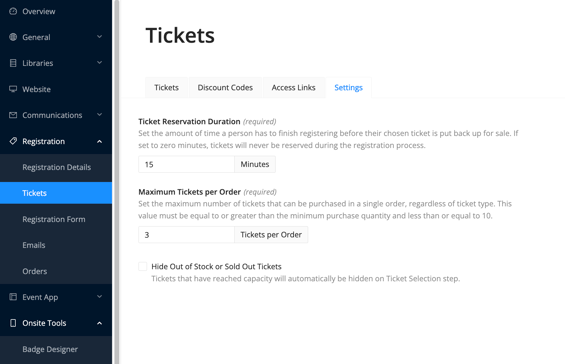
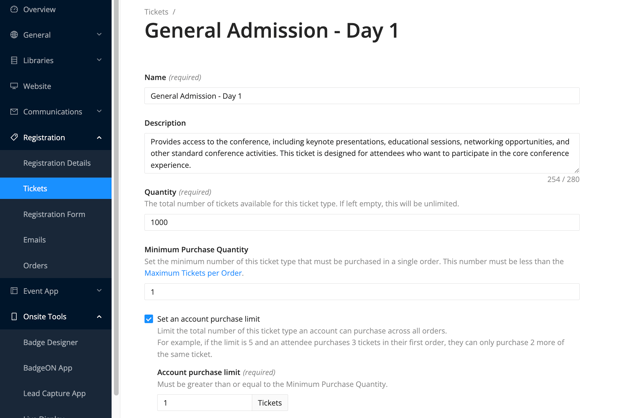
When creating or editing a ticket type, the first step is to configure the ticket quantity controls.
-
Maximum tickets per order — Limits how many of a ticket type a single order can include (e.g., max 5)
-
Account purchase limits — Controls the maximum number of tickets a single account (account = email). This is setting the max number of tickets that can be bought through the same email.
Setting Up Bundle Pricing
Bundle pricing is enabled through minimum ticket quantity settings:
- Set a minimum purchase quantity (e.g., 3 tickets minimum)
- Offer a discounted per-ticket price for bulk purchases (e.g., $10/ticket standard vs. $8/ticket in a bundle)
- The ticket counter automatically starts at the minimum quantity — buyers cannot go below it
Using Discount Codes & Access Links
These are now two separate features that serve different purposes. Once the discount code is set up under the 'discount codes' area, select 'edit'.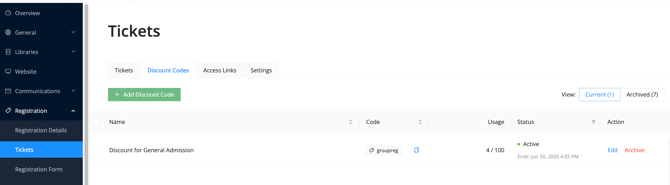
Discount Codes
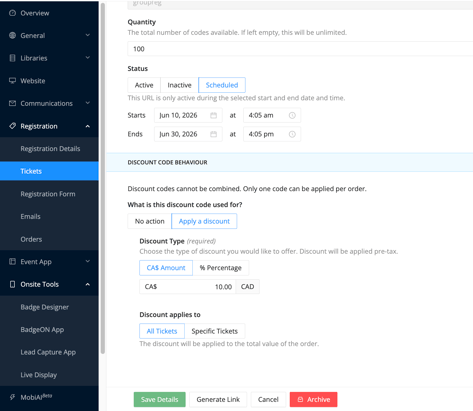
- Apply fixed-dollar or percentage-based discounts.
- Can be scheduled with start and end dates.
- Support usage limits and redemption controls such as which ticket types the discount applies to.
Learn more about discount codes here.
Access Links
Under Tickets < Access Links is where the option to set up a link which can be shared with your registrants which will reveal hidden tickets types to only users with the specific URL.
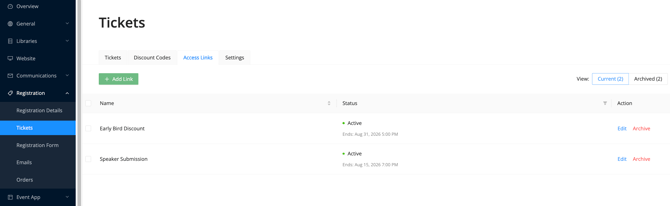
There are several setting that can be configured for the access link such as which tickets should be displayed with the access link along with the status settings. The status settings allow the access code to be active during a distinct period of time, or simply to have it made 'Active' or 'Inactive'. 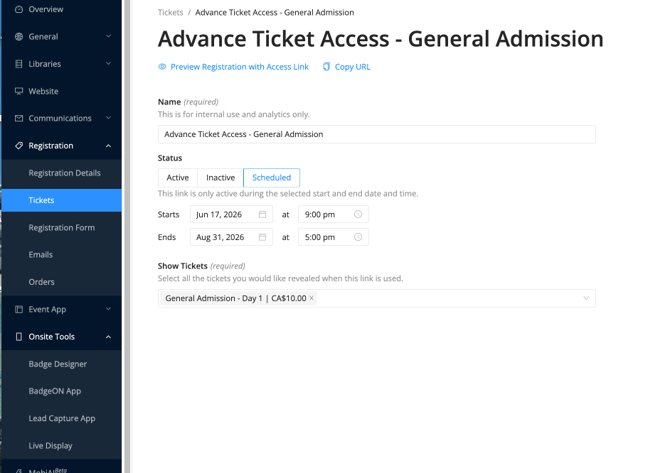
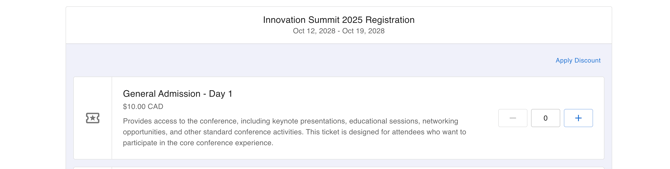
Once the Access Link is shared with the registrant and the URL is clicked opened, the ticket will be displayed for the user to proceed ahead with their registration.
🔍Tip
You can generate a registration link with a discount code pre-applied — great for promotional emails where you want one-click discount claiming.
The Registration Flow - Attendee Experience
The registration experience for the order creators depends on how the event organizer has configured registration; however, the overall process generally follows the sequence outlined below.
-
Email or Tickets first — The order creator enters their email to begin or selects one of the ticket options available. This is dependent on how the registration is configured.
-
Ticket selection — Quantity selectors let buyers mix and match ticket types
-
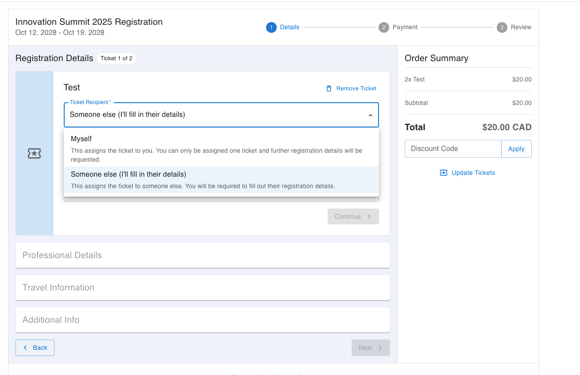
Attendee information — The order owner enters details for each ticket holder sequentially
-
Confirmation emails — Each ticket holder receives their own confirmation; the order creator receives a separate order summary listing all registrants
-
Invoice — For paid events, the order creator receives an invoice with tax breakdowns
🔍 Note
The order creator must enter all attendee information up front. Sending self-completion forms directly to attendees is not currently possible.
Resuming an Incomplete Registration
The registration site preserves incomplete registrations. If an order creator leaves mid-flow, they can return and resume — data is reloaded after email verification via a one-time code.
It is important to be advised that personal details can be edited within the Attendee Portal after registration; however, the email will always remain the same.
How The Event Organizer Can Manage Group Registrations in Experience Manager
Within Experience Manager, after a registration order is completed, there are a few ways for the order to be managed by the event organizers:
- View order details — See all tickets in an order and who each ticket is assigned to
- Attendee self-service — Individual attendees can update their own details via the attendee portal post-registration
It is important to be aware that any refunds for a cancelled order must be issued directly through the payment gateway.