![1589391206704.png]](https://help.eventmobi.com/hs-fs/hubfs/1589391206704.png?width=40&height=40&name=1589391206704.png)
.webp?width=120&height=36&name=EXTENDED_REGISTRATION%20(1).webp)
Table of Contents:
What are tags?
How to set up tags
How to add, rename, and colour tags
How to add tags to an event
How to add tags to attendees
Frequently Asked Questions
What Are Tags?
Tags are labels you can attach to your events and attendees to keep your extended registration profile & attendee list organized, and manage target audiences effectively.
- Event Tags: Classify events across your organization (e.g., "Conference," "Webinar," "Internal Training").
.png?width=670&height=74&name=image%20(4).png)
- Attendee Tags: Classify people registered for an event (e.g., "VIP," "Speaker," "Sponsor," "Exhibitor").
.png?width=670&height=117&name=image%20(5).png)
You create each tag once in Tags & metadata and reuse it across all your events, so every team works with the same vocabulary.
How to Set Up Tags
Tags live in a tag field, for example "Event tags" or "Attendee tags".
Go to Settings → Events settings → Tags & metadata, click + Add metadata and choose Event tag or Attendee tag.
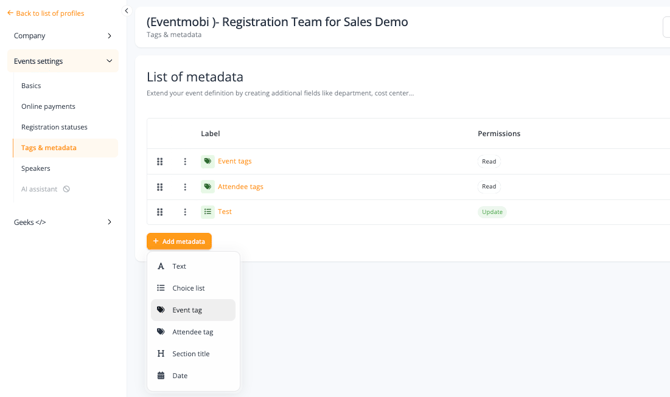
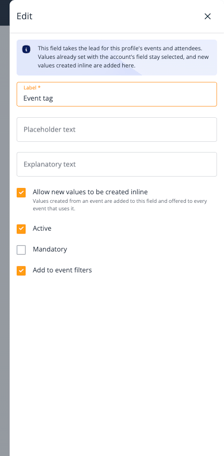
Three options shape how your team uses the field:
- Allow new values to be created inline: lets your team create tags directly from an event or an attendee. Untick it to keep a controlled list.
- Add to event filters: makes the tags available in the events list filters.
The tag field now appears in the List of metadata.
How do you add, rename and colour tags?
Tags are managed in Manage tags, opened from the ⋮ menu of a tag field. Click + Add value, name the tag and give it a colour, from the swatches or any custom hex code.
Renaming a tag updates it everywhere it's used, since all EventMobi customerevents and attendees share the same tags. Deleting a tag removes it from every EventMobi customer event and attendee.
The Source column shows where each tag was created (account, profile, event or attendee), so you can review the tags your team added on the fly.
.png?width=542&height=405&name=image%20(6).png)
⚠️ Important Note on Renaming & Deleting
-
Renaming: Updating a tag's name or colour automatically updates it across all assigned EventMobi customer events and attendees.
-
Deleting: Do not delete any tags. Removing a tag unlinks it from every EventMobi customer assigned event and attendee profile. If the tag is currently in active use, you will be prompted to reassign affected items to another tag first.
How do you add tags to an event?
Event tags can be added from the events list or from inside the event.
- From the events list: click the Tags cell of the event, then select tags in the dropdown, or type in Search or create a tag to create a new one. Click × on a tag to remove it.
- From the event: open the event, go to General → Essentials, and use the event tag field in the Basics section.
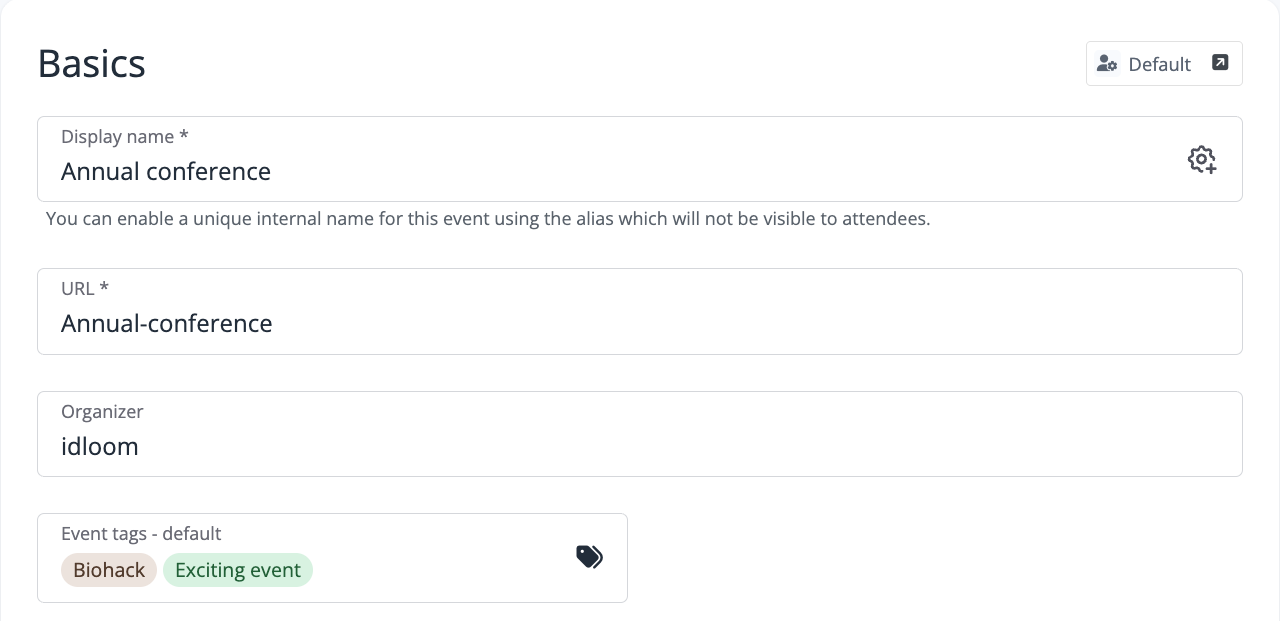
The dropdown groups tags by tag field, for example account tags and profile tags, and only shows the tags you have access to. The Manage tags button at the bottom opens the tag list directly.
How do you add tags attendees?
Adding Individually:
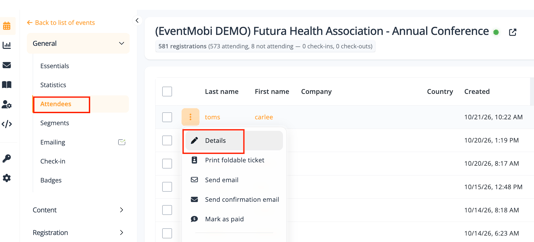
- Open the event and go to General → Attendees.
- Select the attendees you want to tag by selecting the Three Dots →Details
- Select from the drop down Attendee tags.
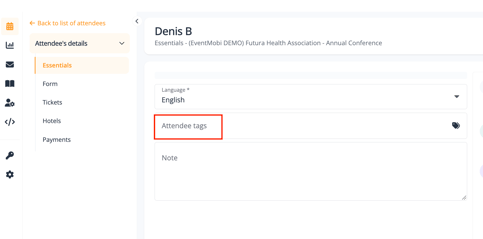
Adding in Bulk:
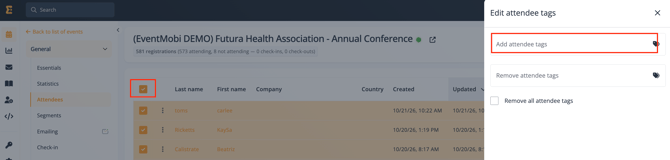
Attendee tags are added in bulk from the attendee list of an event.
- Open the event and go to General → Attendees.
- Tick the attendees you want to tag, or tick the header checkbox to select all of them.
- Click the orange gear button (More actions).
- Select Edit attendee tags.
- Use Add attendee tags to add tags, Remove attendee tags to remove specific tags, or tick Remove all attendee tags to clear every tag from the selected attendees.
- Confirm the changes in the drawer.
How do you filter events by tag?
In the events list, open Filter events and go to Filter by metadata. Select one or more tags in the event tag field. When you select several tags, it shows the events that have any of them. Select No tag to find events that haven't been tagged yet.
Only tag fields with Add to event filters ticked appear in Filter by metadata.
Frequently Asked Questions
When should I use event tags vs attendee tags?
Use event tags to label events, for example Conference or Webinar, and to sort and filter your events list. Use attendee tags to label people, for example VIP or Speaker, and to filter attendees, build segments and target emails. Both are created in Settings → Events settings → Tags & metadata, each in its own tag field.
How do I make a tag available in my event's tag dropdown?
The tag dropdown shows the tags of every tag field available for the event's profile and accessible to you. To add a tag field to the dropdown, make it available for that profile in Settings → Events settings → Tags & metadata, or ask your account administrator for access to the profile.
How do I send an email to attendees with a specific tag?
Create a segment with the trigger Tags, the operator Contains and the tag name, for example VIP. Then select that segment when you send the email