![1589391206704.png]](https://help.eventmobi.com/hs-fs/hubfs/1589391206704.png?width=40&height=40&name=1589391206704.png)
This guide walks you through how to join a breakout room, test your setup, and troubleshoot any issues.
Before You Join
To ensure a smooth experience:
- Use a modern browser such as Google Chrome (latest version recommended).
- Make sure your camera and microphone are enabled and not being used by another application.
- If you’re on a company network, ensure that your IT/firewall allows browser-based video meetings.
Joining the Breakout Room
- Click the link shared by your event organizer, or by opening the session from your personal agenda when it’s time to join.
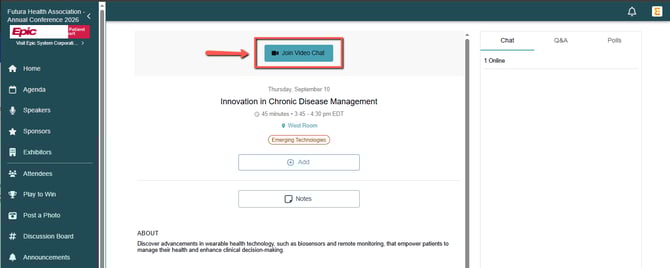
- Click Join Video Chat button.
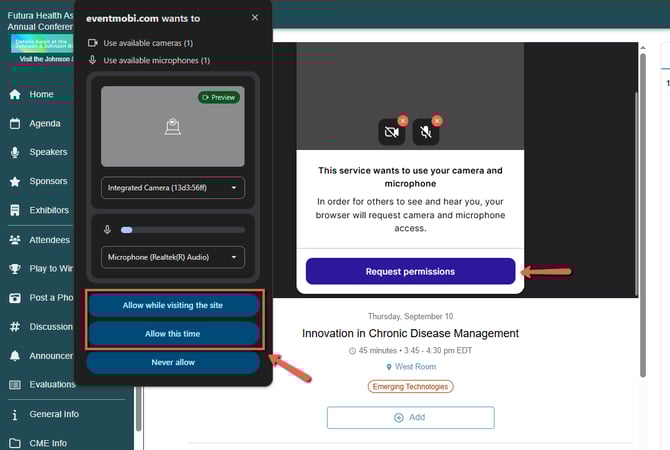
- Your browser will request permission to use your camera and microphone — click Allow.
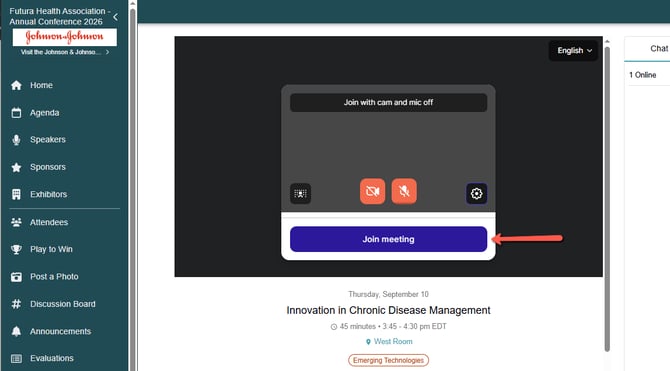
- While in the lobby, you can turn your microphone and camera on or off, adjust your background, and review other settings before joining the session. Once ready, click Join meeting.
- Once in the room, you can:
- See and hear other participants (up to 200 total attendees).
- Speak and be seen on video (up to 24 visible participants at once).
- Participate in chat, polls, and other engagement tools (if enabled).
Tips for the Best Experience
- Join a few minutes early to test your setup.
- Use a headset for clearer audio and to avoid echo.
- Mute your microphone when not speaking.
- Close extra browser tabs or background applications that may use your camera or slow your connection.
If you’re joining from a mobile device, ensure you’re connected to a strong Wi-Fi or mobile data network.
Troubleshooting
Camera or Microphone Not Working?
Try the following:
- Restart your browser and rejoin the session.
- Clear cache and cookies, then refresh the page.
- Check site permissions:
- Windows: Settings → Privacy → Camera/Microphone → Allow browser access.
- MacOS: Apple Menu → System Settings → Privacy & Security → Camera/Microphone → Enable browser.
- Windows: Settings → Privacy → Camera/Microphone → Allow browser access.
- If prompted, click the camera or lock icon in your browser’s address bar and ensure Camera and Microphone are set to Allow.
- Try a different browser (e.g., Chrome instead of Safari).
Unable to Join the Room?
Try the following:
- Confirm you’re using the latest session link from your event organizer.
- Try Private/Incognito mode. You will want to go to the settings of your browser and enable third-party cookies.
- If the room has reached its participant limit, you may still be able to join via chat or Q&A, depending on the organizer’s settings.
Still Having Trouble?
If you continue to experience issues joining or participating, please contact your event’s organizer team for assistance and include:
- The browser and version you’re using
- Your device and operating system (e.g., Windows 11, macOS 14, iPhone 15)
- A short description of what’s happening (e.g., “camera not showing,” “can’t unmute,” “error joining link”)