![1589391206704.png]](https://help.eventmobi.com/hs-fs/hubfs/1589391206704.png?width=40&height=40&name=1589391206704.png)
EventMobi's Lead Capture allows companies, such as your Sponsors and Exhibitors, to collect the information from leads that they are interacting with at the event using our Lead Capture App. As the Event Organizer, you will have the option to determine which Sponsors and Exhibitors have access to this feature at your event.
- Enable Lead Capture for a Company
- Add Lead Capture Staff from the Company Profile
- Add Lead Capture Staff using the Companies Excel Template
- Customizing the Lead Capture Export Report
- How Lead Capture Staff Will Access the Lead Capture App
- Download our Exhibitor's Guide as a PDF (EN)
- Download our Exhibitor's Guide as a PDF (DE)
Enable Lead Capture for a Company
The Lead Capture feature will be available only to the companies that you specify within the Experience platform, helping you to offer additional value to those sponsors and exhibitors that have opted for a larger sponsorship tier. etc.
Note: The number of companies that you can enable Lead Capture for will depend on the number of licences that you have purchased for your event.
To enable Lead Capture for a company, follow these steps:
- Visit the Companies library and click into the profile of the company that you would like to enable Lead Capture for
- Scroll down the Details page of the profile to enable the Lead Capture toggle option. Make sure to click Save.
Add Lead Capture Staff from the Company Profile
- Make sure that the Lead Capture Staff that you will be adding already has a People profile that includes an email address.
- Visit the Company Representatives tab within the company profile and select Add Representative.
- Type in the name of the company representative and select it from the dropdown list. Repeat this step for any additional Lead Capture Staff that you would like to add to the company.
- Select the Lead Capture Staff checkbox followed by the Add Representative button.
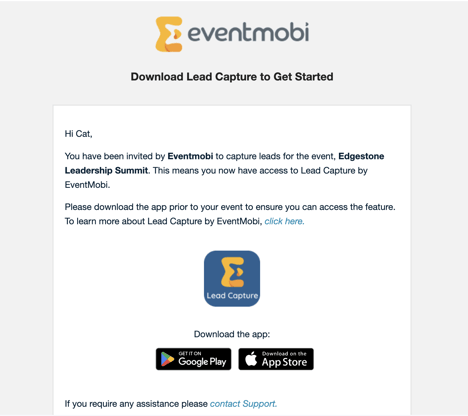
- Once added, the staff will receive an invitation email automatically.
Note: Only Company Representative profiles that include an email address will be available to select as Lead Capture Staff.
Add Lead Capture Staff using the Companies Excel Template
If you have to assign multiple people as Lead Capture Staff, we recommend using the Companies Excel template to help in saving you time and effort.
- Make sure the Lead Capture Staff that you will be adding already have a People profile that includes an email address.
- Select the Import/Export button available:
- If you haven't started adding profiles yet, choose the Import option and select the download link on the pop-up page.
- If you are looking to edit existing profiles that have been added, select the Export option to download the template.
- In the LC Staff (Email IDs) column, input the email addresses of anyone that you would like to assign as Lead Capture Staff for the company. To assign multiple people, separate each email address using commas.
- Select the Import option to upload your template once it is complete.
Once the template has been imported, an email invitation will be sent to each email address assigned as Lead Capture Staff.
Customizing The Lead Capture Export Report
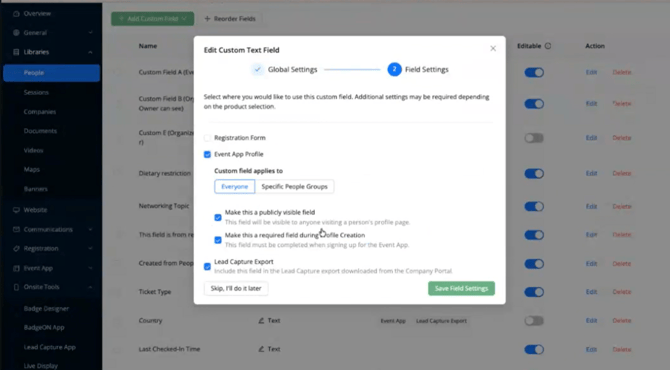
The Lead Capture Export feature allows event organizers to include selected custom attendee fields in the Lead Capture export generated from the Company Portal.
This enhancement enables exhibitors to receive additional attendee information—such as country, job title, or other custom registration fields—in their exported lead reports, while keeping the Lead Capture app and Company Portal interface uncluttered.
🔍 Note
Selected custom fields are only included in the exported CSV file. They are not displayed in the Company Portal or the Lead Capture mobile app.
How It Works:
When creating or editing a custom field, organizers can enable the Lead Capture Export option.
Once enabled:
- The selected custom field is included in the Lead Capture CSV export via the company portal
- Exhibitors can access the additional attendee information after exporting their captured leads.
- The field remains hidden from the Lead Capture app and Company Portal interface.
How to Enable Lead Capture Export
- Navigate to People.
- Open Custom Fields.
- Create a new custom field or edit an existing one.
- Locate the Lead Capture Export option.
- Enable the checkbox or toggle.
- Save your changes.
The selected custom field will now be included whenever exhibitors export their captured leads.
How Lead Capture Staff Will Access the Lead Capture App
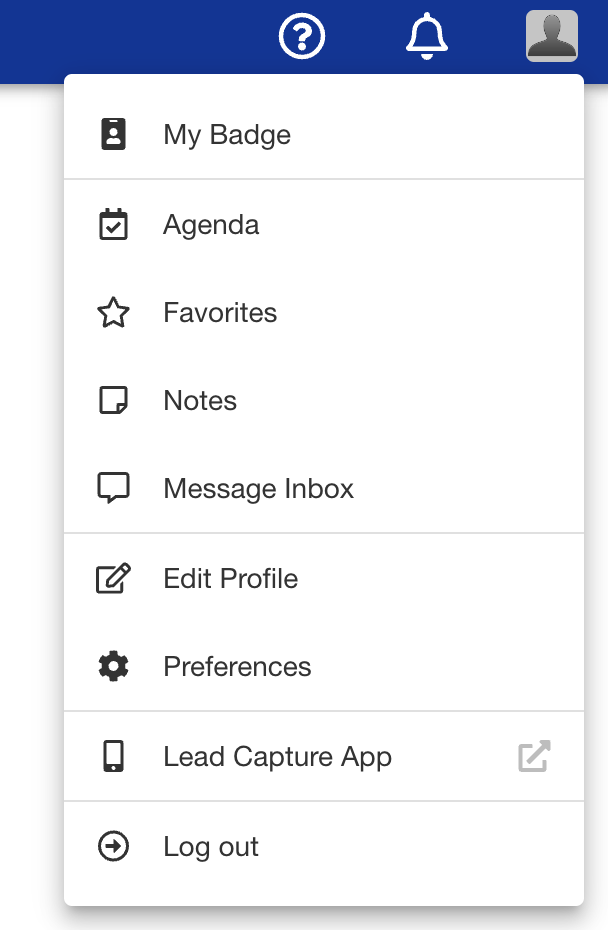
To use the Lead Capture feature onsite, Company Representatives will need to download and access the Lead Capture App - this can be done by:
- Downloading from the Apple App Store or Google Play.
- Selecting the Lead Capture App link available in the right hand menu of the Event App.
 |
 |