![1589391206704.png]](https://help.eventmobi.com/hs-fs/hubfs/1589391206704.png?width=40&height=40&name=1589391206704.png)

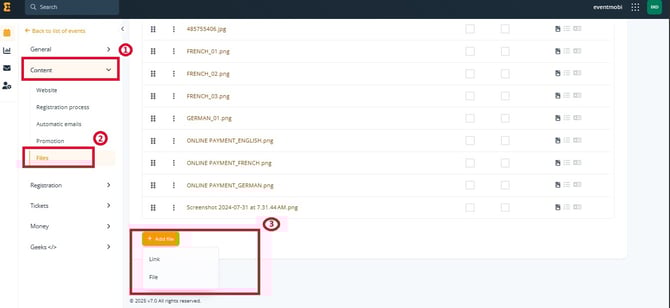
What You Can Do in the Files Section:
- Upload Files or Link External URLs:
- Upload files directly to EventMobi Extended Registration for secure storage and easy use.
- Link to files hosted externally via a URL to ensure real-time updates and avoid storage limits.
- Set File Properties:
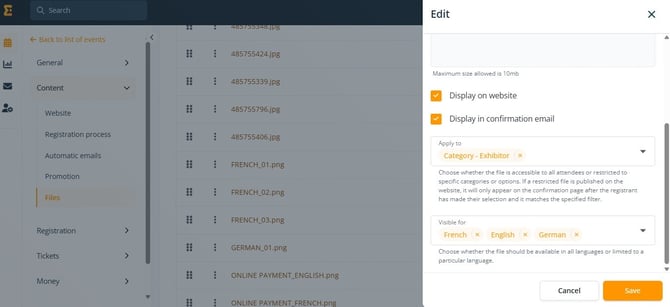
- Display Locations: Choose where the file will appear—on your event website, in automatic attendee emails.
- Accessibility Settings:
- Decide if the file should be public and accessible to all registrants.
- Restrict access to specific categories or options. Restricted files published on the website, will only appear on the confirmation page once a registrant has made a corresponding selection.
With these tools, you can tailor file availability to enhance communication and deliver a personalized experience for your event attendees.
Managing Display Settings in the List
You can quickly adjust where the file is displayed directly in the file list by checking or unchecking the options for Website, or Email. This allows for streamlined updates without navigating into individual file settings.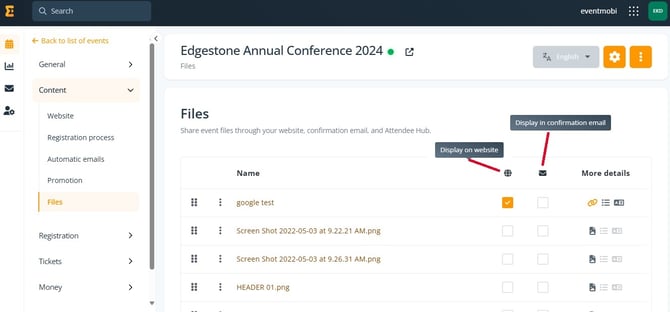
Publishing Options
On the Website
When enabled, files will appear in the Related Files section on the event homepage, making them easily accessible for attendees to download.
For multilingual websites, you can assign specific files to particular languages. For example, please display English files on the English version of your website and Spanish files on the Spanish version, ensuring language-specific relevance.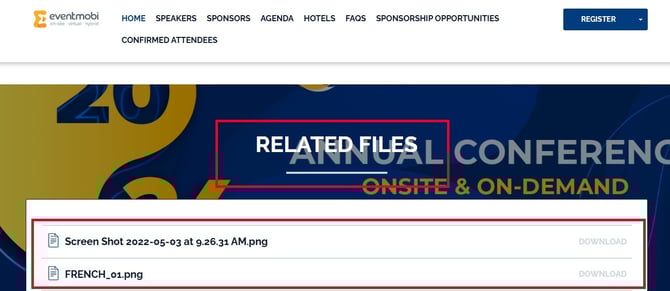
In Automatic Emails
Files are included in a dedicated Files section at the end of automatic emails, provided as links rather than attachments. This approach keeps emails lightweight, minimizes the risk of being flagged as spam, ensures recipients can easily access the most up-to-date version, and avoids compatibility or size issues.
Targeted Accessibility
Files can be configured to reach specific audiences, ensuring the most relevant information is delivered to the right attendees. Use categories and options selected during registration to control access to files and enhance personalization.
For example:
- Share member-only schedules, VIP-exclusive content, or speaker materials with specific groups.
- Provide customized documentation, such as morning or afternoon session guides, based on the registrant’s selected event sessions.
Depending on your publishing settings, restricted files will appear:
- On the confirmation page after registration, if the attendee’s choices match the filter.
- If the Automatic emails are sent to relevant recipients.
This flexible system ensures attendees receive precisely what they need, improving communication, increasing engagement, and maintaining a secure and efficient flow of content.
Working with Files
Once you’ve uploaded your files to idloom, you can seamlessly use them across any pages or emails via the WYSIWYG editor.
Inserting Files in Your Content
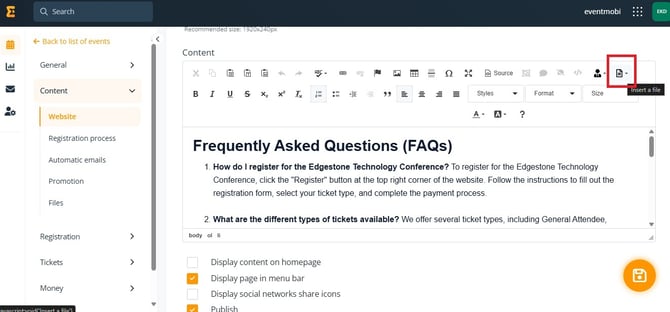
- Place your cursor in the desired location within the editor.
- Click the “Insert a Document” button.
- Select the document you want to insert. The document’s display name will be added to your content as a clickable link, directing attendees to the file.
Copying File URLs
- Navigate to the File List in the Files section.
- Locate the More Details column and copy the file URL.
- You can use this URL anywhere, such as on external platforms or additional custom content.
Important Notes
- Unrestricted File Usage: Files inserted via the editor or shared using their URL do not enforce audience restrictions. Be mindful of where and how restricted files are used.
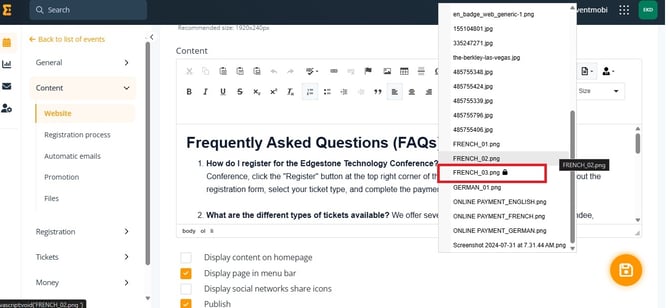
- Restriction Indicator: To help you identify restricted files, a small lock icon appears next to their name in the Insert a Document menu. This serves as a reminder that access limitations have been set for the file, even though the editor itself does not enforce these restrictions.
With these tools, you can flexibly integrate your files into your event communications while maintaining awareness of their access settings.
Adding and Managing Files
To add a new file and configure its properties:
- Choose File Type:
Select whether you want to upload a locally hosted file or link to an external file via URL. - Enter File Details:
- Display Name: Provide a name for the file as it will appear to attendees.
- File or URL:
- For locally hosted files: Select the file to upload.
- For external files: Enter the full URL to the file.
- Set Display Locations:
Choose where the file will appear automatically:- On the registration website.
- In confirmation emails.
- Within the Attendee Hub.
- Define Accessibility:
- Language Filter: Select specific languages for which the file will be visible, if applicable.
- Audience Restriction: Decide if the file is public (available to all registrants) or restricted to specific categories or options selected during registration. For restricted files, they will only appear on the confirmation page once the registrant’s choices match the defined filters.
- Save the File:
Once all settings are configured, click Save to add the file