---
title: "Troubleshooting: Attendee Can't Log In to the Event App"
description: From time to time, an attendee may have trouble logging into your event app. Most access issues are caused by one of six common scenarios. Work through the steps below in order to resolve the issue.
---
[Skip to content](https://help.eventmobi.com/en/knowledge/event-app-l#main-content)
English
Show submenu for translations
[![1589391206704.png\]](https://help.eventmobi.com/hs-fs/hubfs/1589391206704.png?width=40&height=40&name=1589391206704.png)](https://help.eventmobi.com/?hsLang=en)
- [EventMobi Knowledge Base](https://help.eventmobi.com/)
Open main navigation
Close main navigation
- [EventMobi Knowledge Base](https://help.eventmobi.com/)
- English
Show submenu for translations
- [Product Updates & Feedback](https://updates.eventmobi.com/)
[Product Updates & Feedback](https://updates.eventmobi.com/)
What can we help you with?
- There are no suggestions because the search field is empty.
1. [EventMobi Knowledge Base](https://help.eventmobi.com/en/knowledge?hsLang=en)
2. [Event Organizers](https://help.eventmobi.com/en/knowledge/event-organizers?hsLang=en)
3. [Launch the Event App](https://help.eventmobi.com/en/knowledge/event-organizers?hsLang=en#launch-the-event-app)
August 11, 2026
# Troubleshooting: Attendee Can't Log In to the Event App
## From time to time, an attendee report they are experiencing an error logging into your event app. Most access issues are caused by one of six common scenarios. Work through the steps below in order to resolve the issue.
🔍 **TIP**
**Quick Troubleshooting Checklist**
Before escalating, perform this quick 30-second check:
- Confirm the attendee is using the **right app**.
- Confirm they are entering the **correct event code**.
- Ensure their email address **matches exact character-by-character** with your People Library.
If all three are true and they still cannot log in, proceed through the full troubleshooting steps below.
### Step-by-Step Troubleshooting Guide
#### 1. Confirm the Correct App and Event Code
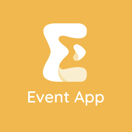
- Verify that the attendee downloaded the correct event app and is entering the correct event code. They should be using the EventMobi Universal App with the icon below from Apple or the Google Play store. QR codes for downloading can be found [here](https://help.eventmobi.com/en/knowledge/is-the-eventmobi-app-available-in-all-app-stores?hsLang=en).
- **Branded Apps:** If your event uses a custom-branded app, ensure the attendee opens that specific app rather than the standard EventMobi app.
#### 2. Verify the Attendee is in Your People Library
- Attendees cannot log in if they are not listed in the event's People Library.
- Ask which email address they are using to log in. Attendees often register with a personal or alternate email and attempt to log in with a work email. The login email must match the registration email.
#### 3. Double-Check the Email Address for Errors
- Locate the attendee in the People Library and verify their email address character by character.
- A single typo (such as a missing letter or `.co` instead of `.com`) will block access.
#### 4. Reinstall the App
- If steps 1–3 are verified, or if the attendee reports that the app is spinning or frozen, ask them to **delete the app and reinstall it** from their device's app store.
- Reinstalling ensures the app pulls the latest version, which resolves issues caused by older cached data.
#### 5. Check for Operating System & App Updates
- Ask the attendee to check their phone settings to ensure both their device's operating system (iOS/Android) and the app are updated to the latest available versions. Outdated software can prevent proper functionality.
#### 6. Check Device Compatibility (Web Version Alternative)
- Mobile devices that are more than a few years old may not support the current app version or OS.
- **Workaround:** Direct these attendees to access the event via their mobile web browser:
- **URL:** `[www.eventmobi.com/](https://www.eventmobi.com/)[your event code]`
- **Recommended Browser:** Google Chrome
More information on device compatibility [here.](https://help.eventmobi.com/en/knowledge/will-the-event-app-work-on-my-phone-what-devices-are-compatible?hsLang=en)
- [Event Organizers](https://help.eventmobi.com/en/knowledge/event-organizers?hsLang=en#main-content)
- [Experience Manager](https://help.eventmobi.com/en/knowledge/event-organizers?hsLang=en#experience-manager)
- [Attendee Engagement](https://help.eventmobi.com/en/knowledge/event-organizers?hsLang=en#attendee-engagement)
- [Branding & Design](https://help.eventmobi.com/en/knowledge/event-organizers?hsLang=en#branding-design)
- [Creating Profiles & Sessions](https://help.eventmobi.com/en/knowledge/event-organizers?hsLang=en#creating-profiles-sessions)
- [Event Communications](https://help.eventmobi.com/en/knowledge/event-organizers?hsLang=en#event-communications)
- [Onsite Events](https://help.eventmobi.com/en/knowledge/event-organizers?hsLang=en#onsite-events)
- [Virtual Events](https://help.eventmobi.com/en/knowledge/event-organizers?hsLang=en#virtual-events)
- [Core Registration](https://help.eventmobi.com/en/knowledge/event-organizers?hsLang=en#core-registration)
- [Extended Registration](https://help.eventmobi.com/en/knowledge/event-organizers?hsLang=en#extended-registration)
- [Reporting](https://help.eventmobi.com/en/knowledge/event-organizers?hsLang=en#reporting)
- [Sharing Resources](https://help.eventmobi.com/en/knowledge/event-organizers?hsLang=en#sharing-resources)
- [Sponsorship](https://help.eventmobi.com/en/knowledge/event-organizers?hsLang=en#sponsorship)
- [Launch the Event App](https://help.eventmobi.com/en/knowledge/event-organizers?hsLang=en#launch-the-event-app)
- [Event Services](https://help.eventmobi.com/en/knowledge/event-organizers?hsLang=en#event-services)
- [Event Information & Settings](https://help.eventmobi.com/en/knowledge/event-organizers?hsLang=en#event-information-settings)
- [Privacy & Security](https://help.eventmobi.com/en/knowledge/event-organizers?hsLang=en#privacy-security)
- [What's New](https://help.eventmobi.com/en/knowledge/event-organizers?hsLang=en#whats-new)
- [Call For Speakers](https://help.eventmobi.com/en/knowledge/event-organizers?hsLang=en#call-for-speakers)
- [Attendees & Speakers](https://help.eventmobi.com/en/knowledge/attendees-speakers?hsLang=en#main-content)
- [Using the Event App](https://help.eventmobi.com/en/knowledge/attendees-speakers?hsLang=en#using-the-event-app)
- [Access Resources as an Attendee](https://help.eventmobi.com/en/knowledge/attendees-speakers?hsLang=en#access-resources-as-an-attendee)
- [Share Resources as a Speaker](https://help.eventmobi.com/en/knowledge/attendees-speakers?hsLang=en#share-resources-as-a-speaker)
- [Manage Event Communications](https://help.eventmobi.com/en/knowledge/attendees-speakers?hsLang=en#manage-event-communications)
- [Connect With Others at the Event](https://help.eventmobi.com/en/knowledge/attendees-speakers?hsLang=en#connect-with-others-at-the-event)
- [Sponsors & Exhibitors](https://help.eventmobi.com/en/knowledge/sponsors-exhibitors?hsLang=en#main-content)
- [Exhibiting at an Event](https://help.eventmobi.com/en/knowledge/sponsors-exhibitors?hsLang=en#exhibiting-at-an-event)
- [Integration Hub](https://help.eventmobi.com/en/knowledge/integration-hub?hsLang=en#main-content)
- [EventMobi Integration Hub Solution](https://help.eventmobi.com/en/knowledge/integration-hub?hsLang=en#eventmobi-integration-hub-solution)
- [Simplify Your Processes with Automations](https://help.eventmobi.com/en/knowledge/integration-hub?hsLang=en#simplify-your-processes-with-automations)
- [Integrations from EventMobi to your solution](https://help.eventmobi.com/en/knowledge/integration-hub?hsLang=en#integrations-from-eventmobi-to-your-solution)
- [Integrations from your solution to EventMobi](https://help.eventmobi.com/en/knowledge/integration-hub?hsLang=en#integrations-from-your-solution-to-eventmobi)
- [Registration](https://help.eventmobi.com/en/knowledge/registration?hsLang=en#main-content)
- [Content](https://help.eventmobi.com/en/knowledge/registration?hsLang=en#content)
- [Design](https://help.eventmobi.com/en/knowledge/registration?hsLang=en#design)
[.png?width=147&height=34&name=EMI-logo-colour-dark-letters%20(1).png "EMI-logo-colour-dark-letters (1)")](https://www.eventmobi.com/)
© 2025 EventMobi™ A Trademark and Tradename of 5Touch Solutions Inc.
[Change your cookie preferences](https://www.eventmobi.com/cookie-declaration/)