![1589391206704.png]](https://help.eventmobi.com/hs-fs/hubfs/1589391206704.png?width=40&height=40&name=1589391206704.png)
Table of Contents
-
Where to Find & Embedded Widgets Overview Page
-
Create a People Widget
-
Create a Session Widget
-
Create a Companies Widget
-
How 'View More' Works
-
Event Website & Adding Your Widget
-
FAQs
Where to Find & Embedded Widgets Overview Page
In Experience Manager navigate to Website > Embedded Widgets.
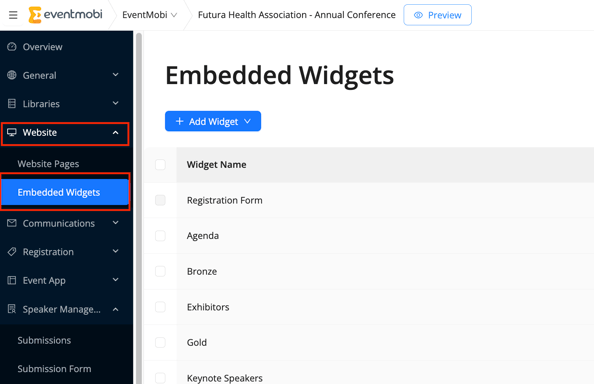
Widgets show content that already exists in your libraries. Before you build a widget, make sure your sessions, people and companies are set up, along with any groups, tracks or roles you want to filter by.
Learn more: Uploading sessions, Uploading People, Uploading Companies
🔍 Note
The People Widget is not part of the Embedded Widgets module. It is not possible to embed in external websites or content management systems.
The Embedded Widgets screen lists every widget in your event, with its Widget Name, Widget Type and Actions.
- Search: type in the Search Widgets box to find a widget by name.
- Filter: narrow the list by Widget Type: People, Sessions, Companies or Registration.
- Sort: click the Widget Name column header to sort alphabetically.
- Add a widget: click Add Widget and choose People, Sessions or Companies.
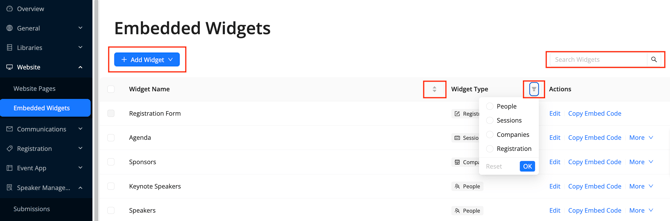
Each widget row has these actions:
|
Action |
What it does |
|---|---|
|
Details |
Opens the widget's settings so you can edit it. |
|
Copy Embed Code |
Opens the embed code so you can paste the widget into an external website. |
|
Duplicate |
Creates a copy of the widget. Handy for making a variation without starting over. |
|
Rename |
Provides the ability to edit the name. |
|
Delete |
Removes the widget after you confirm. |

Deleting widgets: a deleted widget stops showing everywhere it is embedded, including external websites and Website Builder pages. To delete several at once, tick their checkboxes and click Delete X Widgets in the bar at the bottom of the screen.
The Registration Form widget always appears on the first page of the list. It is created for you and can't be duplicated or deleted.
Create a People Widget
The People widget can be a great way to display speakers, VIP guests, or a team directory.
- On the Embedded Widgets screen, click Add Widget and choose People.
- Enter a Widget Name and click Save & Continue. The name is for your own reference and is required.
- Under People Display, choose who to show:
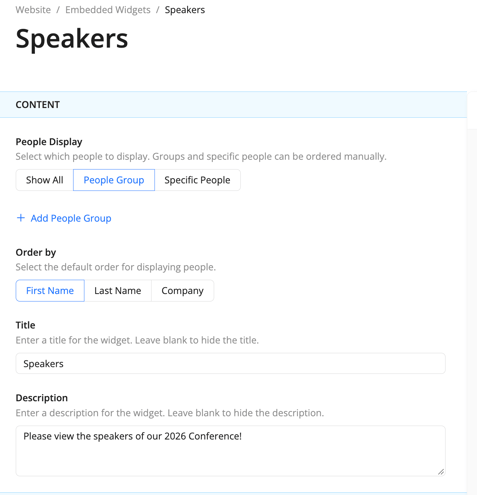
- People Group: everyone in one or more groups you select (for example, Speakers). Select at least one group. You can drag groups into order — the order of the groups sets a priority sort, so members of the top group will always appear first, regardless of alphabetical sort within each group. This is useful for putting keynote speakers above regular speakers.
- Specific People: only the people you pick. Select at least one, then drag them into the order you want. (example below)
- Show All: everyone in your People library.
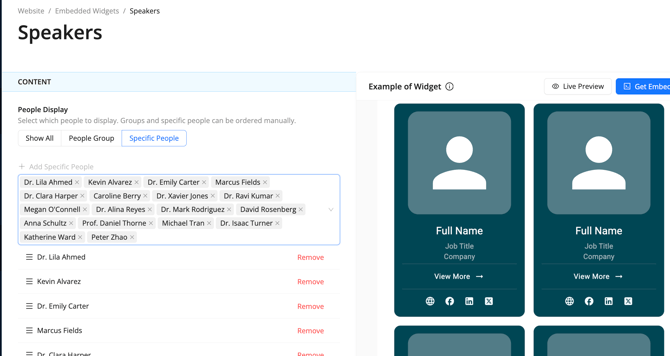
- For People Group and Show All, choose Order by: First Name, Last Name or Company. Specific People uses the order you dragged them into.
- Optionally add a Title and Description to show above the widget. Leave them blank to hide them.
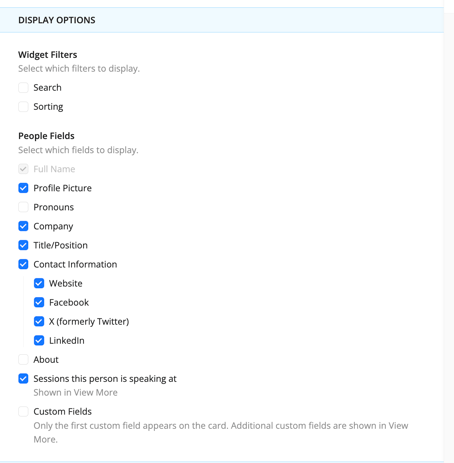
- Turn the visitor filters on or off: Search lets visitors search by name, and Alphabetical Sorting lets them jump by letter.
- Under People Fields, tick what to show on each card: Profile Picture, Pronouns, Company, Title/Position, About, Website, X, LinkedIn, Facebook, and Sessions this person is speaking at. To show custom fields, tick Custom Fields and select at least one.
Under Layout & Design, set the look:
Layout: List, Grid or Carousel, plus the Font.
🔍 Note
The in-page preview on the right does not currently render List or Carousel layouts accurately. Click Live Preview after saving to see the correct output for those layouts.
- Font: Choose from over 1,600 options powered by the Bunny Fonts library (a mirror of Google Fonts). If a customer's brand font (e.g. Helvetica) doesn't appear by name, an equivalent is available in the library.
- Profile Picture: size from 0 to 300px and corner radius from 0 to 100% (100% makes a circle).
- Colours: Widget Background, People Card Background, Text Color and Accent Colour.
Click Save Details. You'll see a "Widget saved." message.
The preview on the right updates as you change settings, so you can try options before you save.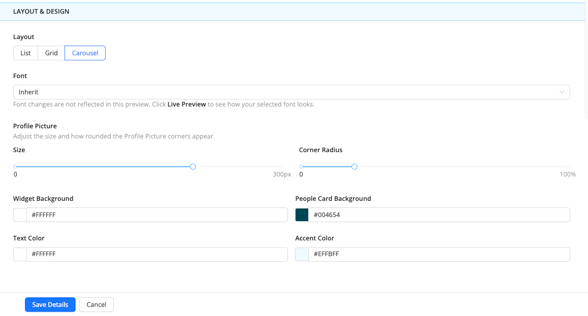
🔍 Tip
Using multiple widgets of the same type: You can add more than one People widget to a single page. For example, a Speaker page could use one widget to showcase keynote speakers and a second for an advisory committee, with different layouts or display settings for each.
Create a Sessions Widget
Use a Sessions widget to publish your full agenda, one day's schedule or a single track.
- On the Embedded Widgets screen, click Add Widget and choose Sessions.
- Enter a Widget Name and click Save & Continue.
- Under Sessions Display, choose what to show:
- Show All: every session.
- By Track: sessions in the tracks you select.
- By Day: sessions on the days you select.
- Specific Sessions: only the sessions you pick.
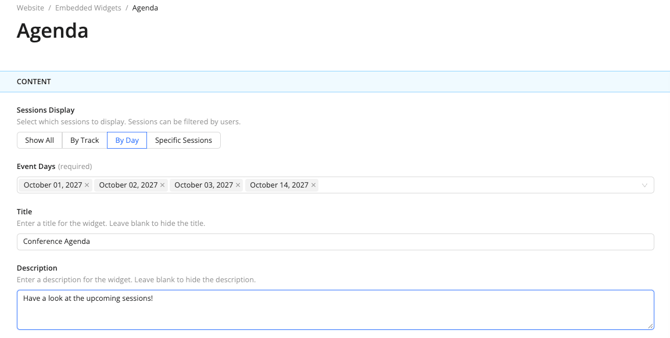
- Optionally add a Title and Description. Leave them blank to hide them.
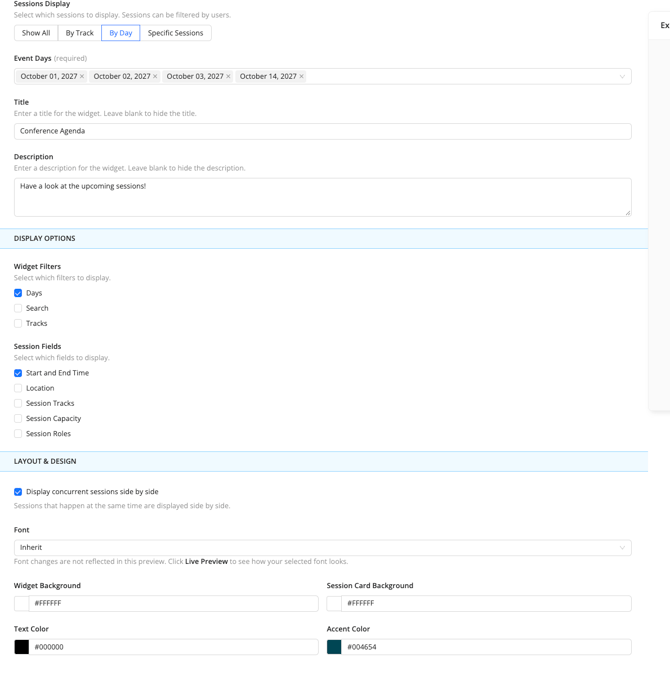
- Turn the visitor filters on or off: Days, Search and Tracks.
- Under Session Fields, tick what to show: Start and End Time, Location and Session Tracks.
- Tick Session Capacity to choose between showing Total Capacity and Reserved Seats. (Capacity detail is shown in the session's View More, not on the card itself.)
- Tick Session Roles to show people linked to each session, such as speakers or moderators. Select at least one role, then choose whether to Display First and Last Name and Display Profile Picture. (Role detail is shown in the session's View More, not on the card itself.)
- Turn on Display concurrent sessions side by side if you want sessions that run at the same time to appear next to each other.
- Under Layout & Design, choose the Font and set the colours: Widget Background, Session Card Background, Text Colour and Accent Colour. Sessions always display as a list, so there is no layout choice.
- Click Save Details.
By Track, By Day and Specific Sessions each need at least one selection before you can save.
Create a Companies Widget
Use a Companies widget to showcase sponsors, exhibitors or partners.
- On the Embedded Widgets screen, click Add Widget and choose Companies.
- Enter a Widget Name and click Save & Continue.
- Under Company Display, choose what to show:
- Company Group: companies in the groups you select (for example, Gold Sponsors). You can drag groups into order to control which tier appears first — useful for stacking Gold > Silver > General sponsors.
- Specific Companies: only the companies you pick.
- Show All: every company, in alphabetical order.
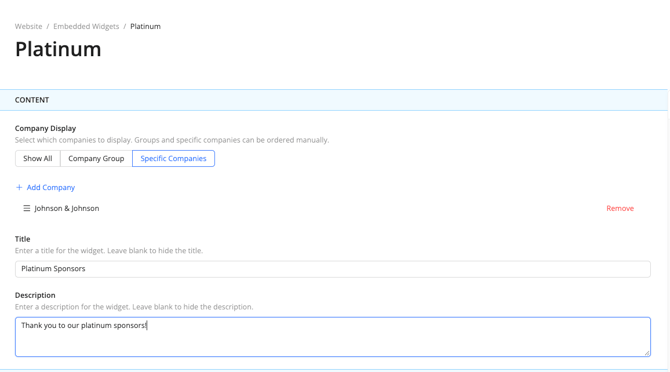
4. Optionally add a Title and Description. Leave them blank to hide them.
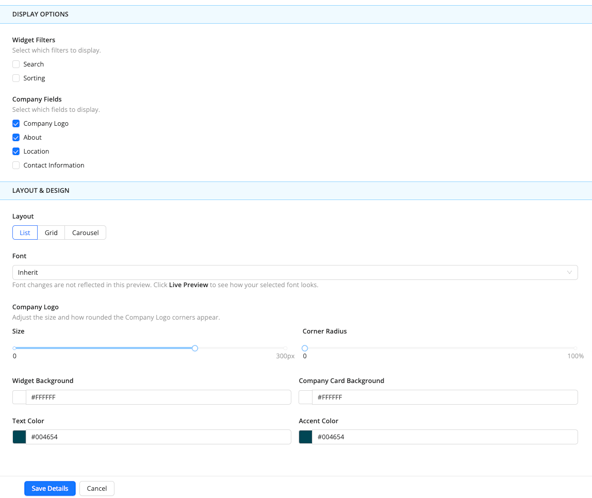
5. Turn the visitor filters on or off: Search and Alphabetical Sorting.
6. Under Company Fields, tick what to show: Company Logo, About and Location.
7. Under Contact Information, tick the details to show: Phone Number, Website, Facebook, X and LinkedIn. Tick Contact Information itself to select all of them at once.
8. Under Layout & Design, set the look, Layout: List, Grid or Carousel, Widget Background, Card Background, Text Colour, Corner Radius and Accent Colour.
9. Click Save Details.
🔍 Note
The in-page preview of 'example of widget' on the right does not currently render List or Carousel layouts accurately. Click Live Preview after saving to see the correct output for those layouts.
🔎 Tip
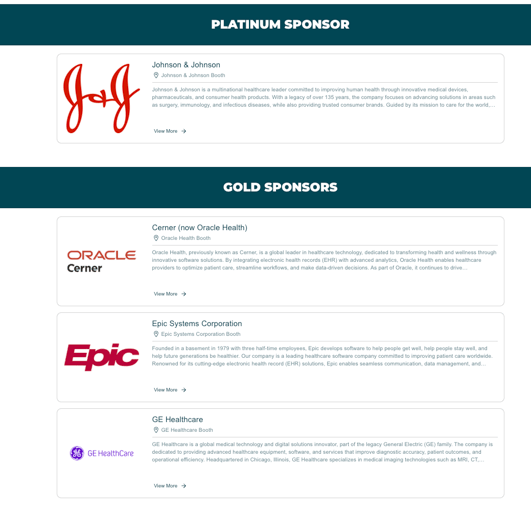
Sponsor tiers: Use multiple Company widgets on the same page to differentiate sponsor levels. For example, show Gold Sponsors with a large logo and full contact info at the top, then Silver and General sponsors below with a more compact layout. (Example below).
How 'View More' Works With Widgets
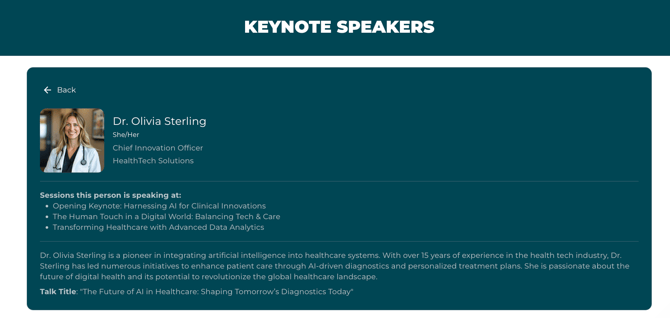
- About is truncated to 3 lines on the card. Visitors click View More to open the full detail page and read the rest.
- Sessions this person is speaking at also appear in View More, not on the card itself.
- Custom Fields: only the first custom field you select appears on the card. Any additional custom fields you select are shown in View More.

Event Website & Adding Your Widgets
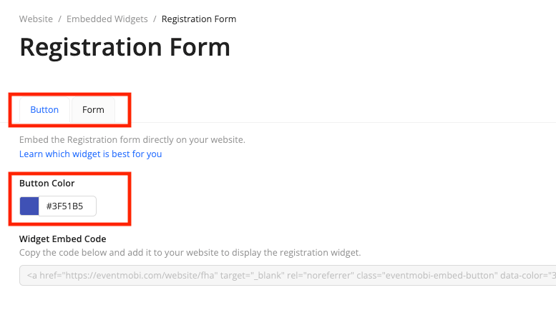
The Registration Form widget is created for you. Open it from the Embedded Widgets list by clicking Edit. It has two tabs:
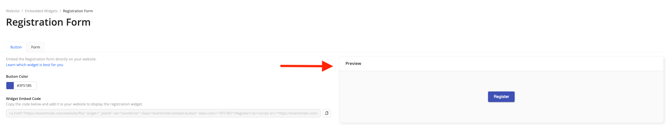
- Button: a button that opens your registration form. Enter a Button Color as a hex code (for example, #1A73E8) and click Save Details. The preview and embed code update to match.
- Form: the full registration form. This tab shows the embed code and a preview; there are no settings to save.
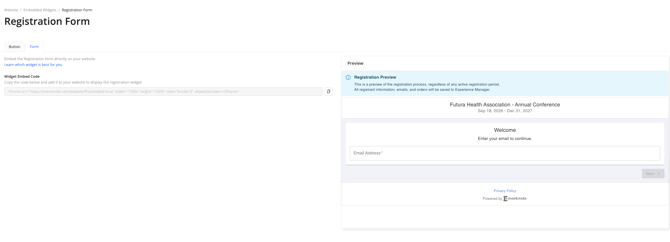
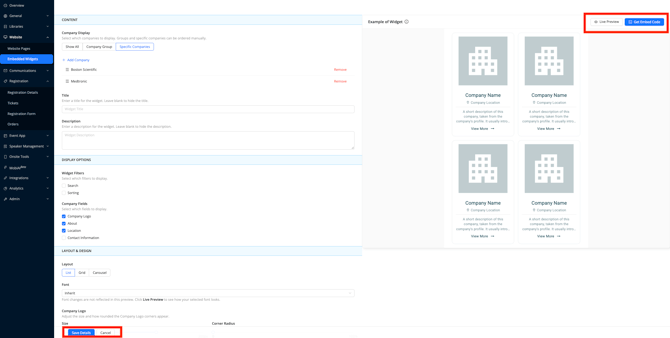
Preview, save and embed on an external website by selecting the 'copy' icon.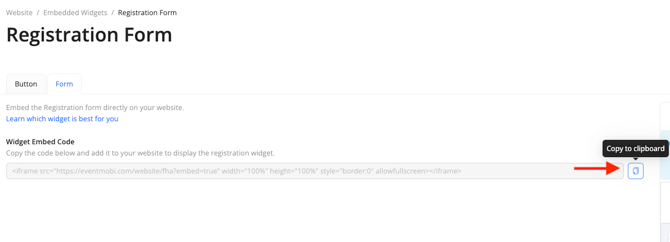
Every widget details screen has the same controls at the top:
- Save Details saves your changes.
- Cancel returns you to the Embedded Widgets list without saving.
- Live Preview opens the latest saved version in a new tab. Save first if you want to see recent changes.
- Get Embed Code opens the embed code (the same as Copy Embed Code on the list).
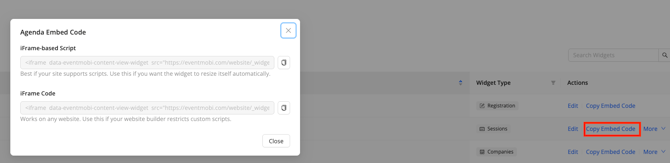
For People, Sessions, and Companies widgets, the embed code window offers two versions. Click Copy next to the one you want and paste it into your website's HTML.
|
Code |
Best for |
|---|---|
|
iFrame-based Script (recommended) |
Most websites. The widget resizes itself to fit its content, so there are no scroll bars or empty space. |
|
iFrame Code |
Websites that don't allow scripts. Works anywhere, but you may need to set the height yourself. |
🔎 Note
The Registration Form widget has only one type of embed code.
It is recommend to use the iFrame-based Script first. If your content management system doesn't support scripts (e.g. it's older or puts scripts behind a paywall), then revert to using the iFrame Code.
You only need to embed a widget once. Later changes to its settings, or to the sessions, people and companies it shows, appear automatically after you save.
Add widgets to your Website Builder pages
If your event website is built in Experience Manager, add widgets directly in the page editor.
- Go to Website > Pages and open a page in the editor.
- In the content panel, find People Widget, Sessions Widget or Companies Widget.
- Drag it onto the page. The Set up window opens.
- Select one of your existing widgets of that type and click Save.
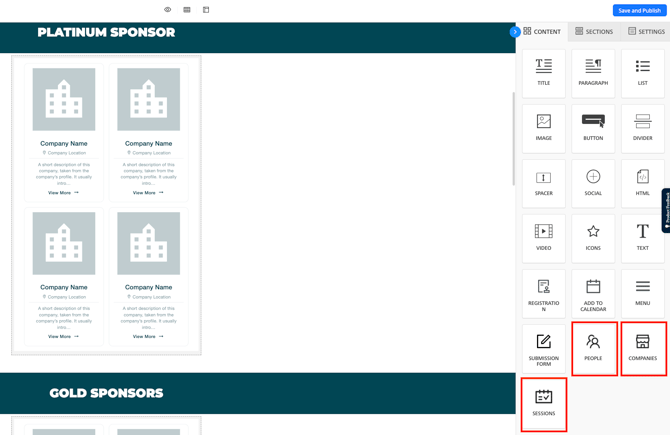
The block shows a preview of the selected widget. If you haven't created a widget of that type yet, the Set up window tells you so; click Go to Embedded Widgets to create one.
You can add the same widget type more than once on a single page — for example, two People widgets to showcase different speaker groups separately.
Keeping pages in sync: when you edit and save a widget, the page editor shows the updated preview the next time you open the page. When you delete a widget, its block is removed from the page, along with its row if the block was the only thing in it.
FAQs
Why is Save & Continue greyed out? Enter a Widget Name first. It's required.
Why can't I save my widget? Check for a required selection you've left empty: a group, person, track, day, session, role or custom field. Each display option that narrows the list needs at least one item selected.
Why is my title or description not showing? Blank Title and Description fields are hidden on purpose. Add text to show them.
Live Preview doesn't show my latest change. Live Preview shows the last saved version. Click Save Details, then open Live Preview again.
The List or Carousel layout looks wrong in the editor preview. The in-page preview doesn't currently render List and Carousel layouts accurately. Save the widget and click Live Preview to see the correct output.
The widget on my website has scroll bars or extra space. Use the iFrame-based Script embed code, which resizes the widget to fit its content.
Do I need to re-embed after making changes? No. Saved changes, and updates to your sessions, people and companies, appear automatically wherever the widget is embedded.
What happens if I delete a widget? It stops showing on every website where it's embedded, and its block is removed from your Website Builder pages. This can't be undone, so consider duplicating it first if you might need it again.
Can I delete the Registration Form widget? No. It's a permanent widget, and you can't duplicate it either.
The font I want to use isn't available - what do I do? The font library (Bunny Fonts) mirrors Google Fonts. If a specific font name (e.g. Helvetica) doesn't appear, search for the closest equivalent — it will be there under a similar name.
Can embedded widgets deep-link into the event app? Not at this time. Embedded widgets live outside the event app, and deep linking (clicking a widget to open the app directly) is not yet supported.