![1589391206704.png]](https://help.eventmobi.com/hs-fs/hubfs/1589391206704.png?width=40&height=40&name=1589391206704.png)
Table of Contents:
1. When The Verification Code Triggers
2. Why Is It Useful?
3. How To Use - Step by Step
When the Verification Code Triggers
The verification prompt triggers only when all three conditions are met simultaneously:
-
Existing Event Profile: The profile already exists in the specific event's experience manager people library.
-
Extended Data On File: The profile contains custom data beyond basic details (First Name, Last Name, and Email).
-
Non-Registered Status: The profile status is set to invited, not started, expired, or pending.
🔍 Tip
To avoid triggering the code for simpler registration flows, only include the basic fields (First Name, Last Name, Email) when pre-creating profiles.
Why Is This Useful?
- Pre-Fill Organizer-Uploaded Data: Automatically populates saved profile details (such as imported contact list data) into the form once the attendee enters their verification code.
- Resume Abandoned Registrations: Allows registrants who stopped mid-process to pick up right where they left off by restoring their section-by-section progress upon verification
🔍 Tip
When the code is entered, the system identifies existing profile data and populates it directly into the relevant registration fields.
How to Use: Step-by-Step
This section outlines how to set up pre-loaded profiles, re-engage incomplete registrations, and manage form field permissions in Experience Manager.
Pre-Loading Attendee Data
Pre-loading Attendee Data is creating attendee profiles in an event before registration opens, allowing the system to auto-populate the registration form when that attendee signs up.
- Navigate to People Library in Experience Manager.
- Import or manually create profile records.
- Ensure custom fields beyond the basic three are filled.
- Send a registration link via the Communication Hub.
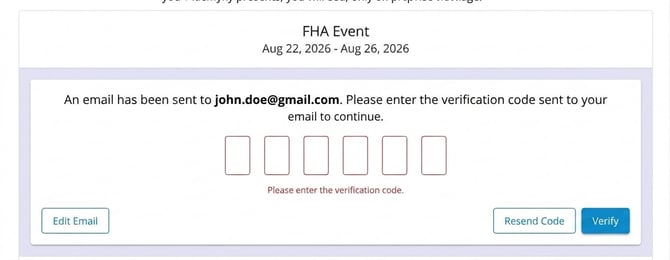
- Attendees enter their email, receive a 6-digit code, and submit it to pre-fill their form with editable data.
Re-Engaging Abandoned Registrations
Re-engaging Abandoned Registrations is the process of identifying attendees who started but never completed their registration form, and prompting them to return and finish.
- In the People Library, filter profiles by the "Pending" status.
- Create a targeted email campaign in the Communication Hub for this cohort.
- Add a link to the registration form prompting them to complete registration.
- Returning attendees enter their email and the 6-digit code to restore their saved progress.
Locking Pre-Loaded Fields
Locking Pre-loaded Fields is a setting in Experience Manager that prevents attendees from editing specific custom field values that were pre-populated by the organizer during contact import.
When an organizer uploads attendee data (e.g., company name, job title, membership tier etc), they may want that data to remain intact — not overwritten by the attendee during registration.
- Navigate to Registration > Custom Fields in Experience Manager.
- Select the target field and uncheck Editable.
- Save changes. The data will display on the form as read-only.