---
title: "BadgeON: How to Check In Attendees"
description: The BadgeON App handles QR code scanning, kiosk self-check-in, session capacity enforcement, and real-time analytics — all from your iOS device.
---
[Skip to content](https://help.eventmobi.com/en/knowledge/badgeon-how-to-check-in-attendees#main-content)
English
Show submenu for translations
[![1589391206704.png\]](https://help.eventmobi.com/hs-fs/hubfs/1589391206704.png?width=40&height=40&name=1589391206704.png)](https://help.eventmobi.com/?hsLang=en)
- [EventMobi Knowledge Base](https://help.eventmobi.com/)
Open main navigation
Close main navigation
- [EventMobi Knowledge Base](https://help.eventmobi.com/)
- English
Show submenu for translations
- [Product Updates & Feedback](https://updates.eventmobi.com/)
[Product Updates & Feedback](https://updates.eventmobi.com/)
What can we help you with?
- There are no suggestions because the search field is empty.
1. [EventMobi Knowledge Base](https://help.eventmobi.com/en/knowledge?hsLang=en)
2. [Event Organizers](https://help.eventmobi.com/en/knowledge/event-organizers?hsLang=en)
3. [Onsite Events](https://help.eventmobi.com/en/knowledge/event-organizers?hsLang=en#onsite-events)
July 27, 2026
# BadgeON: How to Check In Attendees
## EventMobi's check-in feature lets organizers manage attendee check-ins and check-outs via the BadgeON App, with both organizer-led and attendee-led check-in options and real-time attendance analytics.
#### **Table of Contents**
[**1.** Introduction to the Check-In Feature](https://help.eventmobi.com/en/knowledge/badgeon-how-to-check-in-attendees#intro)
[**2.** Download the BadgeON App](https://help.eventmobi.com/en/knowledge/badgeon-how-to-check-in-attendees#download)
[**3.** Manage Access for Check-In](https://help.eventmobi.com/en/knowledge/badgeon-how-to-check-in-attendees#manage)
[**4.** Kiosk Mode](https://help.eventmobi.com/en/knowledge/badgeon-how-to-check-in-attendees#kiosk)
[**5.** Check-In Settings](https://help.eventmobi.com/en/knowledge/badgeon-how-to-check-in-attendees#checkin)
[6. Preventing Duplicate Check-Ins](https://help.eventmobi.com/en/knowledge/badgeon-how-to-check-in-attendees#preventing-duplicates)
[**7.** Using the BadgeON App for Check-In and Badge Printing](https://help.eventmobi.com/en/knowledge/badgeon-how-to-check-in-attendees#printing)
[**8.** Session Check-In with the BadgeON App](https://help.eventmobi.com/en/knowledge/badgeon-how-to-check-in-attendees#session)
[**9.** Analytics & Check-In Report](https://help.eventmobi.com/en/knowledge/badgeon-how-to-check-in-attendees#analytics)
### **1. Introduction to the Check-In Feature**
The BadgeON App is EventMobi's onsite check-in and badge printing tool. It gives your staff everything they need to manage event and session check-ins — from QR code scanning to self-service kiosk mode — with real-time attendance data visible as the event unfolds.
Key capabilities include:
- QR code scanning and name/email search for fast check-in
- Self-service Kiosk Mode for attendee-led check-in
- Session check-in with automated eligibility and capacity control
- Real-time metrics: total event check-ins, daily check-ins, and per-session capacity
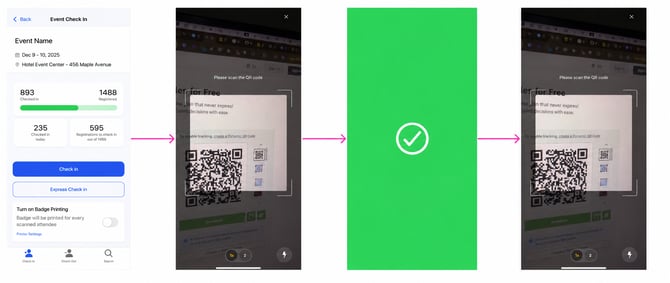
- Express Check-In Mode: camera auto-reactivates after each successful scan
- Multilingual support and integration with attendee profiles
The BadgeON App works alongside [Experience Manager](https://experience.eventmobi.com/login) to provide a complete onsite management solution.
### **2. Download the BadgeON App**
Download the BadgeON App directly from the App Store or Google Play.
|  |  |
| --- | --- |
| **[Apple App Store](https://apps.apple.com/us/app/onsite-by-eventmobi/id1617146323)** | **[Google Play Store](https://play.google.com/store/apps/details?id=com.eventmobi.onsite)** |
*📌 Note: An Apple device is required to use check-in and badge printing. Android support is available for check-in only.*
### **3. Manage Access for Check-In**
There are two ways to log into the BadgeON App:
1. **Organizer Login:** If you're listed as an organizer in your Experience Manager organization, you automatically have access. Use the same email and password as Experience Manager.
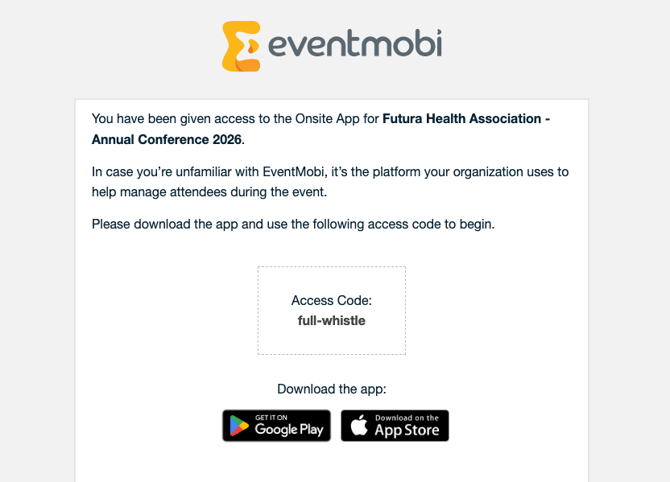
2. **Access Code:** Send an invitation from Onsite Tools in Experience Manager. The recipient receives an email with a unique Access Code tied to a specific event.
*📌 Note: Invitations must be sent on a per-event basis. Each Access Code is event-specific.*
**Did you know?**
Once an individual successfully logs onto the BadgeON App, they can enable facial recognition for easy sign on going forward! Simply follow the instructions on the device to activate!
****
#### **Sending Invites**
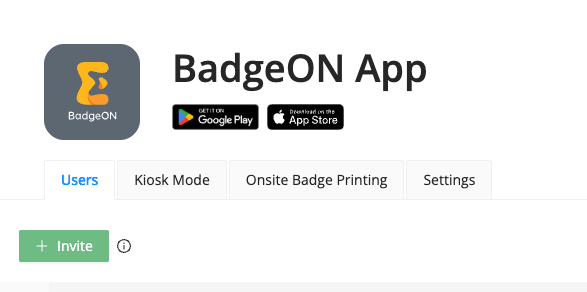
1. Open **Onsite Tools** in Experience Manager and select the **BadgeON App** menu
2. Go to the **Users** tab and select **Invite**
3. Enter the recipient's **email address** and select the invitation **language**
The recipient will receive an email containing their Access Code.
#### **View, Resend, and Remove Access Codes**
- **View Access Codes:** Select the Eye icon next to any user to reveal their code
- **Resend (individual):** Click Send Email on the right side of the user row
- **Resend (bulk):** Check multiple users, then click Send Email at the bottom of the page
- **Remove (individual):** Click Delete on the right side of the user row
- **Remove (bulk):** Select multiple users and choose Delete (X) Users
### **4. Kiosk Mode**
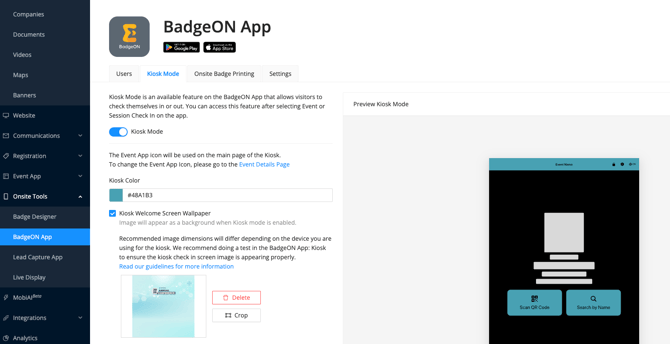
Kiosk Mode turns a BadgeON App device into a self-service check-in station. Attendees scan their QR code (from a printed badge or from My Badge in the Event App) or search by name/email to check in independently.
Configure Kiosk settings from the Kiosk tab in Onsite Tools within Experience Manager.
#### **Enable Kiosk Mode**
Toggle Kiosk Mode on in the Kiosk settings tab. Attendees will not be able to exit Kiosk Mode — an invited staff member must tap the Lock Icon (top left) and enter their credentials to return to the app.
#### **Kiosk Color**
Choose a display color for the Kiosk screen by entering a HEX code or using the color picker.
#### **Kiosk Welcome Screen Wallpaper**
Upload a background image for the Kiosk idle screen. Supported formats: JPEG, JPG, PNG, BMP, WEBP (max 24 MB). Test the image in the app to confirm correct display — recommended dimensions vary by device.
#### **Kiosk Badge-Printing Screen Image**
If badge printing is enabled, this image displays while the badge prints. Supported formats: JPEG, JPG, PNG, BMP, WEBP (max 24 MB). Test in the app before your event.
*📌 Note: To make the Kiosk Icon visible on-device, disable the 'Enable Search by Name or Email' setting in Check-In Settings.*
### **5. Check-In Settings**
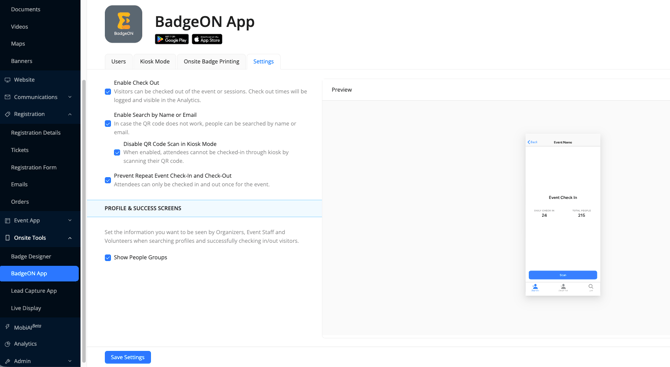
Customize check-in behavior from the Settings tab in the Check-In area of Experience Manager.
**Before using check-in, you'll need a People list.** Add attendee profiles to your **People Library** using one of these methods:
- **Manually:** Use the Add Person button
- **Import:** Upload our Excel Template
- **Sync:** Connect your registration platform or integration
*Learn more about adding people to the People Library in our Knowledge Base Article: [Learn how to Create Profiles in the People Library](https://help.eventmobi.com/en/knowledge/learn-how-to-create-profiles-in-the-people-library?hsLang=en)*
#### **Enable Check-Out**
Turn on Check-Out to track how long attendees spent at the event or in individual sessions, not just whether they attended.
#### **Enable Search by Name or Email**
Activates a secondary check-in method — staff or attendees can type a name or email instead of scanning a QR code. The QR code option remains available when search is enabled.
---
### 5. Preventing Duplicate Check-Ins
The **Prevent Duplicate Check-in** feature helps organizers prevent attendees from checking into the same event or session multiple times. This improves event security, reduces unauthorized access, and helps prevent ticket sharing or duplicate entry into paid or exclusive sessions.
When a duplicate check-in attempt occurs, Badge On displays an error message along with the attendee's **last successful check-in time**, allowing on-site staff to quickly verify the attendee's activity.
**How to Enable**
1. Open the **Badge On** app.
2. Navigate to **Settings**.
3. Enable the **Prevent Repeat Event Check-in and Check-out** toggle.
4. Save your changes.

**What Happens**
Once enabled:
- An attendee can successfully check in to the event once.
- Any additional check-in attempts will be blocked.
- Badge On displays:
- **"Attendee has already checked in."**
- The attendee's **last check-in timestamp**.
This allows event staff to verify whether the attendee has already entered the event before taking further action.
### **6. Using the BadgeON App for Check-In and Badge Printing**
*📌 Note: An Apple device is required for check-in and badge printing.*
#### **Logging In**
1. Open the BadgeON App and choose a login method:
- - **Login with Password:** Use your Experience Manager credentials
- **Login with Access Code:** Use your email and the Access Code from your invitation email
- **Facial Recognition:** Available after an initial successful login; tap the hamburger menu, upper left corner, and toggle on Face ID
2. Select the event you want to manage
3\. Choose your mode:
- - Event Check-In and Check-Out (and badge printing)
- Session Check-In and Check-Out
- Print Badges Only
- Set Up Kiosk (for attendee self-service)
#### **App Settings**
Tap the **hamburger menu (≡)** at the top left to:
- Change the language displayed in the app
- Switch events: select **Event — Select Event** to return to the event list
#### **Event Check-In and Check-Out**
Scan the attendee's badge QR code to check them in. If badges haven't been pre-printed, scan the digital badge from My Badge in the Event App.
If search is enabled, staff can also type the attendee's name or email to find and check them in.
%20(4).png?width=260&height=443&name=Onsite%20Session%20Access%20Control%20(Session%20Reg)%20(4).png)%20(2).png?width=257&height=431&name=Onsite%20Session%20Access%20Control%20(Session%20Reg)%20(2).png)
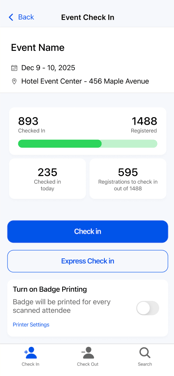
To enable badge printing at check-in, toggle **Turn on Badge Printing** on the check-in screen. See our [Badge Label Printing guide](https://help.eventmobi.com/en/knowledge/learn-about-onsite-badge-printing?hsLang=en) for setup instructions.
To check an attendee **out**, select **Check Out** from the bottom menu and scan their badge or search by name/email.
After each check-in or check-out, the app displays a confirmation screen showing the attendee's name, email address, and People Groups (up to 3 shown by default — tap + to see all).
*📌 Note: The system allows multiple scans of the same QR code without issuing duplicate alerts, ensuring a smooth process.*
#### **Real-Time Check-In Metrics**
The BadgeON App displays live stats on the event check-in screen for your staff:
- Total number of registered attendees
- Number of check-ins today
- Number of attendees still to check in
#### **Express Check-In Mode**
Express Check-In Mode keeps the camera active after each successful scan — no manual reset between attendees. Enable this mode to significantly speed up high-volume check-in lines.
#### 
### **7. Session Check-In with the BadgeON App**
Sessions in EventMobi are configured as either **Open Sessions** or **Private Sessions**. The check-in behavior in the BadgeON App is automatically determined by session type — no manual configuration required.
#### **Session Types**
- **Open Session:** Available to all registered attendees. When scanned, the app checks whether the session is full. If space is available, the attendee is checked in automatically and added to the session attendee list as a walk-in.
%20(6).png?width=185&height=285&name=Onsite%20Session%20Access%20Control%20(Session%20Reg)%20(6).png)
- **Private Session:** Restricted to a specific People Group. When scanned, the app checks capacity, then confirms whether the attendee is in the eligible group. If both conditions are met, the attendee is checked in. Reserved attendees skip the group eligibility check — reservation status takes precedence.
%20(8).png?width=215&height=332&name=Onsite%20Session%20Access%20Control%20(Session%20Reg)%20(8).png)
#### **Real-Time Session Metrics**
The session check-in screen shows your staff:
- Total session capacity
- Number of reserved seats (excludes walk-ins)
- Number of available seats remaining
- Number of attendees checked in
- Number of attendees checked out
%20(1).png?width=192&height=327&name=Onsite%20Session%20Access%20Control%20(Session%20Reg)%20(1).png)
#### **Override and Denial Controls**
- **Check-In Anyway:** Override capacity limits for exceptions (e.g., standing room). Use with caution.
- **Deny Check-In:** Manually block an ineligible attendee from checking in.
%20(2).png?width=257&height=431&name=Onsite%20Session%20Access%20Control%20(Session%20Reg)%20(2).png)%20(3).png?width=252&height=430&name=Onsite%20Session%20Access%20Control%20(Session%20Reg)%20(3).png)
*📌 Note: Attendees not on the session attendee list cannot be checked out.*
#### **Session Attendee List and Reservation Types**
Each session now displays a Reservation Type column in the attendee list, showing how each person was added:
- **Added by organizer**
- **Self-added from event app**
- **Walk-in attendee** (no prior reservation, scanned at door)
A Check-In Status column is also visible — values are Checked In, Checked Out, or No Show. This is particularly useful for CEU events where attendance verification matters.
**Export:** Use the Export button to download the session attendee list directly to Excel.

*📌 Note: Session Check-In from the BadgeON App (adding walk-in attendees directly to a session at scan time) is available from May 11, 2026.*
#### **Setting Up Session Check-In in Experience Manager**
Session check-in settings are configured per session in Experience Manager. Navigate to **Sessions** in your event, open a session, and configure the following:
- **Open or Private:** Sets session type and check-in eligibility rules
- **Allow attendees to add a session to their schedule:** Enables self-registration. When enabled, Session Conflict Management options appear. This is off by default for new sessions.
- **Session Capacity:** Set maximum attendance. Required for capacity-based check-in logic.
- **People Group (Private Sessions only):** Select the group eligible to attend
- **Accept Walk-Ins (Private Sessions only):** Off by default. Enable to allow attendees outside the eligible group to be checked in as walk-ins.
To update settings across multiple sessions at once, use **Manage Settings** in the session list.
%20(5).png?width=509&height=409&name=Onsite%20Session%20Access%20Control%20(Session%20Reg)%20(5).png)
### **8. Analytics & Check-In Report**
#### **Event Attendance Analytics**
Find event attendance data in **Analytics \> People** in Experience Manager. Select **Onsite** at the top left to see:
- Total number of People added to the event
- Total number of unique check-ins
- Check-ins and check-outs over time
- Per-attendee check-in and check-out breakdown with date and timestamps
#### **Session Attendance Analytics**
Find session attendance data in **Analytics \> Sessions** in Experience Manager. Includes:
- Total sessions
- Total check-ins
- Total check-outs
- Per-session breakdown with timestamps
Use the dropdown at the top left to filter by a specific session. You can also export session attendee data directly from the session attendee list using the **Export** button.
*📌 Note: All reports display time in UTC, not your event's local time zone. See our Converting Time Zones in Excel guide for help converting to your event time zone.*
**Related Articles**
- [Learn About Onsite Badge Printing](https://help.eventmobi.com/en/knowledge/learn-about-onsite-badge-printing?hsLang=en)
- [Session Conflict Management](https://help.eventmobi.com/en/knowledge/session-conflict-management?hsLang=en)
- [Session Access and Capacities](https://help.eventmobi.com/en/knowledge/session-access-and-capacities?hsLang=en)
- [Converting Time Zones in Excel](https://help.eventmobi.com/en/knowledge/converting-time-zones-in-excel?hsLang=en)
- [Event Organizers](https://help.eventmobi.com/en/knowledge/event-organizers?hsLang=en#main-content)
- [Experience Manager](https://help.eventmobi.com/en/knowledge/event-organizers?hsLang=en#experience-manager)
- [Attendee Engagement](https://help.eventmobi.com/en/knowledge/event-organizers?hsLang=en#attendee-engagement)
- [Branding & Design](https://help.eventmobi.com/en/knowledge/event-organizers?hsLang=en#branding-design)
- [Creating Profiles & Sessions](https://help.eventmobi.com/en/knowledge/event-organizers?hsLang=en#creating-profiles-sessions)
- [Event Communications](https://help.eventmobi.com/en/knowledge/event-organizers?hsLang=en#event-communications)
- [Onsite Events](https://help.eventmobi.com/en/knowledge/event-organizers?hsLang=en#onsite-events)
- [Virtual Events](https://help.eventmobi.com/en/knowledge/event-organizers?hsLang=en#virtual-events)
- [Core Registration](https://help.eventmobi.com/en/knowledge/event-organizers?hsLang=en#core-registration)
- [Extended Registration](https://help.eventmobi.com/en/knowledge/event-organizers?hsLang=en#extended-registration)
- [Reporting](https://help.eventmobi.com/en/knowledge/event-organizers?hsLang=en#reporting)
- [Sharing Resources](https://help.eventmobi.com/en/knowledge/event-organizers?hsLang=en#sharing-resources)
- [Sponsorship](https://help.eventmobi.com/en/knowledge/event-organizers?hsLang=en#sponsorship)
- [Launch the Event App](https://help.eventmobi.com/en/knowledge/event-organizers?hsLang=en#launch-the-event-app)
- [Event Services](https://help.eventmobi.com/en/knowledge/event-organizers?hsLang=en#event-services)
- [Event Information & Settings](https://help.eventmobi.com/en/knowledge/event-organizers?hsLang=en#event-information-settings)
- [Privacy & Security](https://help.eventmobi.com/en/knowledge/event-organizers?hsLang=en#privacy-security)
- [What's New](https://help.eventmobi.com/en/knowledge/event-organizers?hsLang=en#whats-new)
- [Call For Speakers](https://help.eventmobi.com/en/knowledge/event-organizers?hsLang=en#call-for-speakers)
- [Attendees & Speakers](https://help.eventmobi.com/en/knowledge/attendees-speakers?hsLang=en#main-content)
- [Using the Event App](https://help.eventmobi.com/en/knowledge/attendees-speakers?hsLang=en#using-the-event-app)
- [Access Resources as an Attendee](https://help.eventmobi.com/en/knowledge/attendees-speakers?hsLang=en#access-resources-as-an-attendee)
- [Share Resources as a Speaker](https://help.eventmobi.com/en/knowledge/attendees-speakers?hsLang=en#share-resources-as-a-speaker)
- [Manage Event Communications](https://help.eventmobi.com/en/knowledge/attendees-speakers?hsLang=en#manage-event-communications)
- [Connect With Others at the Event](https://help.eventmobi.com/en/knowledge/attendees-speakers?hsLang=en#connect-with-others-at-the-event)
- [Sponsors & Exhibitors](https://help.eventmobi.com/en/knowledge/sponsors-exhibitors?hsLang=en#main-content)
- [Exhibiting at an Event](https://help.eventmobi.com/en/knowledge/sponsors-exhibitors?hsLang=en#exhibiting-at-an-event)
- [Integration Hub](https://help.eventmobi.com/en/knowledge/integration-hub?hsLang=en#main-content)
- [EventMobi Integration Hub Solution](https://help.eventmobi.com/en/knowledge/integration-hub?hsLang=en#eventmobi-integration-hub-solution)
- [Simplify Your Processes with Automations](https://help.eventmobi.com/en/knowledge/integration-hub?hsLang=en#simplify-your-processes-with-automations)
- [Integrations from EventMobi to your solution](https://help.eventmobi.com/en/knowledge/integration-hub?hsLang=en#integrations-from-eventmobi-to-your-solution)
- [Integrations from your solution to EventMobi](https://help.eventmobi.com/en/knowledge/integration-hub?hsLang=en#integrations-from-your-solution-to-eventmobi)
- [Registration](https://help.eventmobi.com/en/knowledge/registration?hsLang=en#main-content)
- [Content](https://help.eventmobi.com/en/knowledge/registration?hsLang=en#content)
- [Design](https://help.eventmobi.com/en/knowledge/registration?hsLang=en#design)
[.png?width=147&height=34&name=EMI-logo-colour-dark-letters%20(1).png "EMI-logo-colour-dark-letters (1)")](https://www.eventmobi.com/)
© 2025 EventMobi™ A Trademark and Tradename of 5Touch Solutions Inc.
[Change your cookie preferences](https://www.eventmobi.com/cookie-declaration/)