![1589391206704.png]](https://help.eventmobi.com/hs-fs/hubfs/1589391206704.png?width=40&height=40&name=1589391206704.png)
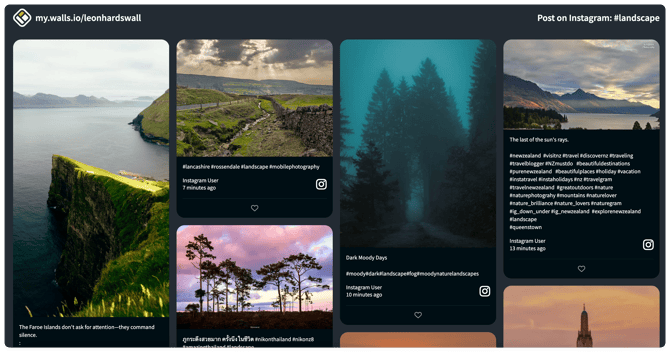
For example, the social wall below is using the default Fluid layout:
How to change the layout in a wall URL
To change the Walls.io social wall layout without creating a second wall simply add a ?layout= parameter to your wall URL or embed code. From there you can show the same content in different layouts for websites, event screens, or other displays. This is especially useful when you want one wall to appear differently across devices.
Carousel Layout Example:

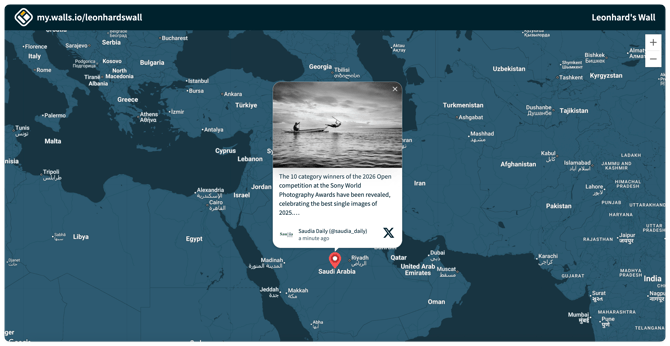
Map Layout Example:
⚠️ Caution
When making layout changes during live events, make sure to refresh any active displays to instantly apply the new layout.
How to use layout modifiers in embed code
You can use the same ?layout= parameter in your embed code, so the embedded wall uses a different layout without changing the original wall content.
Here's the full list of the supported layout URL modifiers:
?layout=carousel?layout=grid-
?layout=kiosk -
?layout=billboard -
?layout=map -
?layout=fluid ?layout=bricks